overview
In demand monitoring, it is necessary to reset the demand cycle (demand time limit). The demand time limit is usually reset every 30 minutes, and needs to be reset twice an hour, at 0 minutes past the hour and 30 minutes past the hour.
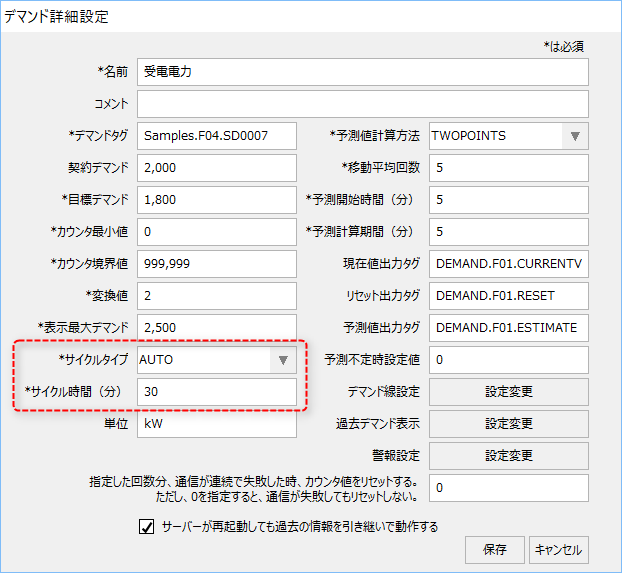
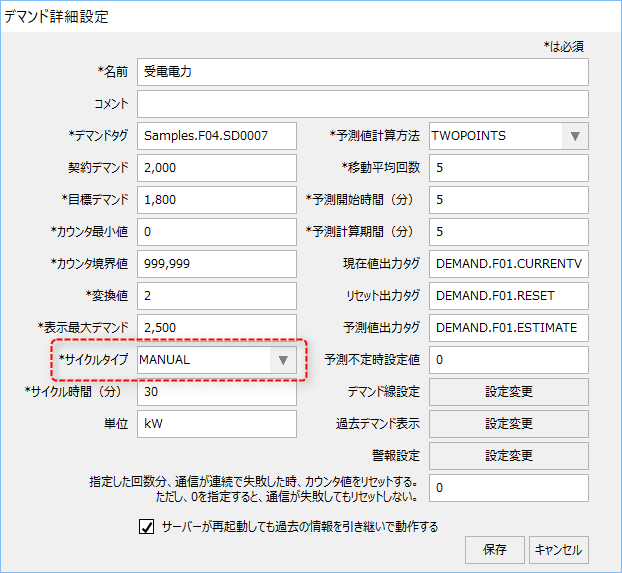
The reset process for demand monitoring of Panel Server is selected from the "Cycle Type" on the Demand Advanced Settings screen.
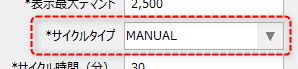
This parameter can be selected from the following:
type |
Operational Specifications |
AUTO |
In AUTO mode, regardless of the hour or half hour on the PC clock, the cycle is automatically reset each time the time (minutes) set in the cycle time has elapsed, starting from the point when Panel Server is executed online and demand action processing is started, or when the cycle is manually reset from the demand monitoring screen.
Please note that this reset occurs regardless of the time on your PC. If you want to reset your PC's clock at 0 minutes past the hour and 30 minutes past the hour, you cannot use this mode.
|
MANUAL |
In MANUAL mode, the demand action does not monitor the cycle time itself, and does not reset itself automatically. Use this mode when you want to reset the demand based on the PC time (0 minutes, 30 minutes, etc. of every hour) or when you want to receive the reset timing from PLC, etc.
Demand actions can be reset from events such as Scheduled event by passing the parameter "RESET" to the demand action and calling it. Using this function, you can reset at a fixed time based on the PC clock or trigger a reset using a PLC tag.
|
Considering the above, we will introduce an implementation example of the demand cycle reset process below. Please choose the appropriate method from the following three methods according to the specifications of the monitoring system you want to build.
How to implement a reset |
Process Overview |
||
Reset the demand cycle based on the PC clock time
•Cycle type: MANUAL •RESET called by Scheduled event
|
This will reset the clock based on the time on the PC where Panel Server is running. Create Scheduled event at 0 minutes past the hour and 30 minutes past the hour, and specify "RESET" as the execution action parameter to call the demand action.
|
||
Receive a demand cycle reset trigger from outside
•Cycle type: MANUAL •RESET call by Tag event
|
Build a trigger to reset the demand cycle via a tag to receive from PLC or similar, and create a Tag event for the trigger tag. Specify "RESET" as the parameter for the execution action of Tag event to call the demand action. |
||
Perform the initial reset manually from the screen
•Cycle type: AUTO •No reset event is defined
|
The first reset is performed via the screen, and thereafter it is reset automatically every 30 minutes. With this method, the demand action will automatically reset itself every 30 minutes after the reset, regardless of the time on the PC.
|

Reset the demand cycle based on the PC clock time
If you want to reset the demand time based on the time on the clock of the PC running Panel Server itself (at 0 minutes and 30 minutes past the hour), set it as follows.
1.Register two Scheduled events to Panel Server as demand reset events.
Registered event name (example) |
Setting contents |
RESET00 |
Set it to occur at 0 minutes past every hour in Scheduled event.
|
RESET30 |
Set it to occur at 30 minutes past every hour in Scheduled event.
|
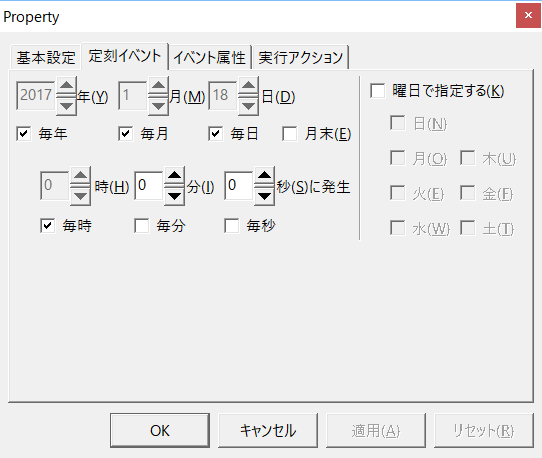
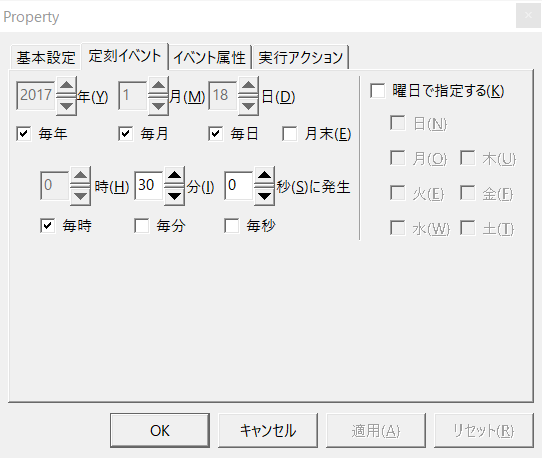
2.In the execution action for each Scheduled event in "1", specify "RESET" as the demand action parameter.
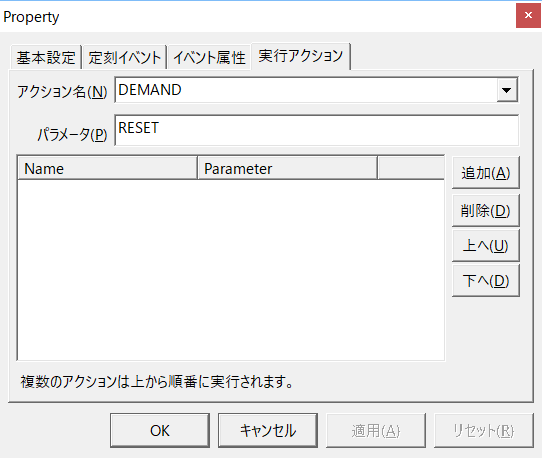
3.Open the detailed settings screen on the demand monitoring screen,Make sure to set the cycle type to "MANUAL".
|
Please note that if the cycle type is left as "AUTO" even though RESET is set by Scheduled event, demand reset may occur twice at the same time (the operation of the RESET parameter by Scheduled event and the automatic reset due to the detection of the cycle time of the demand action itself will occur at the same time). In such a case, it will affect the settings to display the previous demand and the demand before last (for example, only the demand before last will be displayed on the demand graph). |
Receive a demand cycle reset trigger from outside (e.g. via PLC)
It is possible to receive a demand reset trigger from an external system and reset the demand cycle based on the received trigger.
In this case, you can receive the reset trigger via a tag, such as via PLC, and set it up so that the RESET parameter is passed from Tag event.
1.Register one Tag event to Panel Server as an event for demand reset.
Registered event name (example) |
Setting contents |
RESET_TRIGGER |
Set the trigger conditions in Tag event.
The following is an example of a trigger that occurs when the U01.F01.T01 tag becomes TRUE.
|
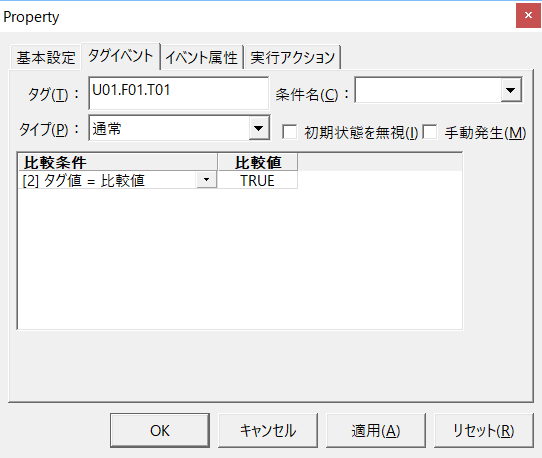
2.In the execution action of Tag event in "1", specify "RESET" as the demand action parameter.
3.Open the detailed settings screen on the demand monitoring screen,Make sure to set the cycle type to "MANUAL".
First reset is done manually from the screen (cycle type: AUTO)
If you set the "Cycle Type" in the detailed settings screen on the demand monitoring screen to AUTO, the demand action will measure the cycle time itself and reset it automatically.
The cycle time can be set in minutes in the "Cycle Time" field on the same settings screen.
If you use this mode, you do not need to define the RESET event.
In AUTO mode, regardless of the hour or half hour of the PC clock, the cycle time is automatically reset every time the time (minutes) set in the cycle time elapses, starting from the time when Panel Server goes online and demand action processing starts. Also, if you manually reset the cycle from the demand monitoring screen, the cycle time is automatically reset every time the cycle time elapses, starting from the time of the last reset.
This cycle type is used when you want to manually specify the measurement start timing of demand monitoring from the screen every time the system is started (every time demand monitoring starts). For example, you may have a demand meter (master clock) on the monitoring equipment that should be used as a reference, separate from the time on your PC's clock, and you want to manually adjust the measurement start timing while visually checking the time on the master clock.