Creating a new standard project
Below we will explain how to use the wizard function of the standard framework to create a new project that includes operation monitoring functionality.
For detailed instructions on creating a standard project using the wizard, please refer to "Creating a Standard Project".
|
The standard project comes with samples, which you can open in Panel Editor. For more information on how to open the samples, see "Frame Library Help/About the Samples". |

■ Work procedure
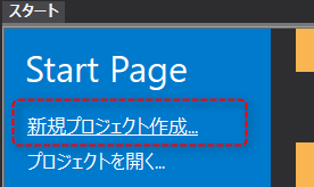
1.From the start page, select "Create a new project"
From the Panel Editor start page, click "Create New Project."
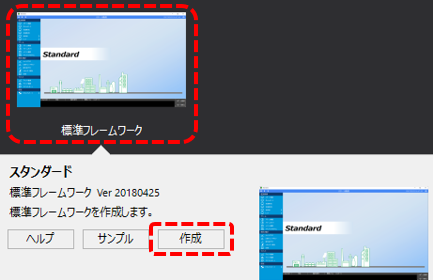
2.Select the standard framework and open "Create"
Click "Standard Framework" from the list displayed on the start page, and then click the "Create" button displayed at the bottom of the screen.
3.Setting the display style of the project's basic information and display frame
Follow the on-screen instructions to set basic project information (project name, project folder, etc.).
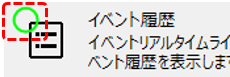
4.In the Select standard features to include in your project section, select the features you want.
You can select the features you want to include in your project from the selection screen below.
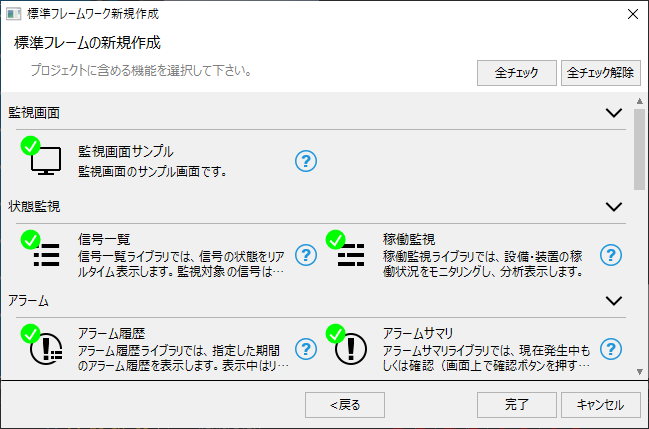
You can include features in your project by checking the features you want to include in your project.
(enabled state)
|
(Disabled state)
|
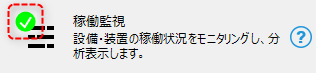
In this example, check "Operation monitoring" and click the Finish button.
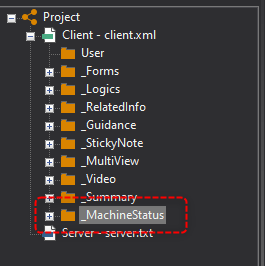
If you view the automatically generated project in the Panel Editor workspace tree, you can see that it contains the following folders:
|
_MachineStatus... Operation monitoring
|
Tags for the operation monitoring sample
The standard project contains tags for the sample operation monitoring function. You can leave these tags as they are, but if you do not need them, please delete them manually.
■Tags for operation monitoring samples
Unit: Samples
Folder: F05
Target tags: All tags under the F05 folder
To delete the above, simply delete the F05 folder. If there are no tags in the Samples folder other than the F05 folder, you can simply delete the Samples unit itself.