About custom permission settings for permissions
In the "Custom" tab of group registration in user management, you can register your own permission information.
(Custom permission settings for group registration)
|
The custom permission information registered here can be obtained from scripts and used for processing decisions, etc.
For example, in the case of complex security requirements that cannot be judged simply at the user level, such as in a graphic screen that the user has added, you can build your own logic to obtain custom permissions from a script and make judgments.
|
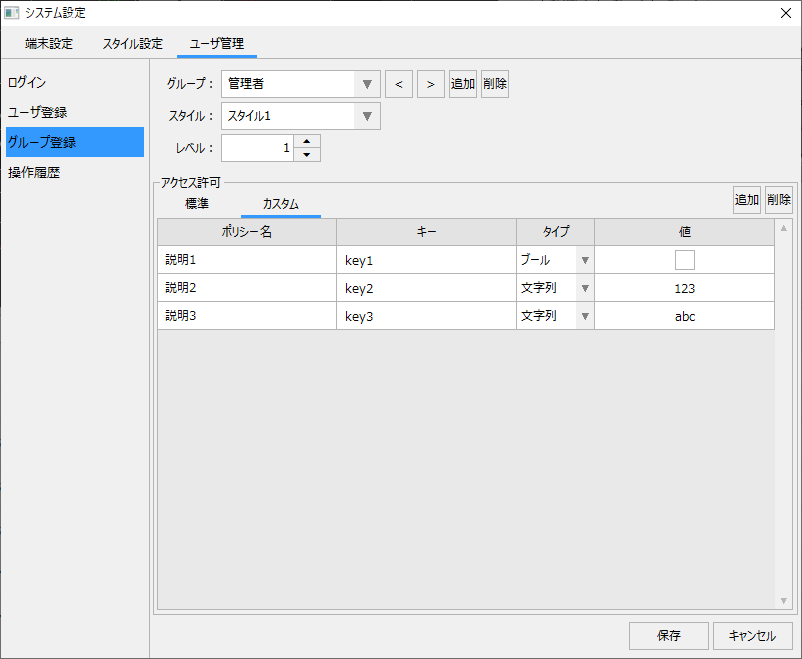
Registering Custom Permissions
Custom permissions can be registered from the Custom tab of Permissions.
|
To add a custom permission, you can add a new row by clicking the "Add" button in the top right corner of the grid.
You can also delete custom permissions by selecting the row in the grid and clicking the Delete button in the top right.
Custom permissions can be freely edited by double-clicking on the grid cell.
|


The specifications for custom permissions are as follows:
item |
Contents |
supplement |
Policy Name
|
Specify an easy-to-understand name for the policy name. |
This name is not used anywhere else. |
key
|
Specify the key name to be referenced from the script. |
The key name specified here will be used as the key when retrieving custom permission information from the script. |
type
|
You can specify the data type as either Boolean or String. |
If you specify a Boolean, the value field will be checked; a check mark means True, and a check mark means False. You can also specify the type as a string and the value as "True" or "False". |
value
|
Specify a value. |
You can specify any value, whether it is a number or a letter. |
Getting custom permissions from a script
Custom permissions can be retrieved from a script using the GetAuth route method.
Below is a simple example. Note that this example assumes that the following custom permissions have been registered.
(Example of custom permission settings)
Group Name |
Key Name |
value |
Administrator |
key1 |
True |
key2 |
123 |
|
key3 |
abc |
|
Advanced Operator |
key1 |
True |
key2 |
456 |
|
key3 |
def |
|
General Operator |
key1 |
False |
key2 |
789 |
|
key3 |
ghi |
|
Viewing User |
key1 |
False |
key2 |
No setting (blank) |
|
key3 |
No setting (blank) |
■ Script implementation example
1.Place a button on the form.
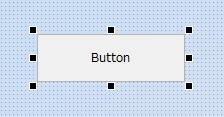
2.Open the button's script page and add a OnMouseUp event.
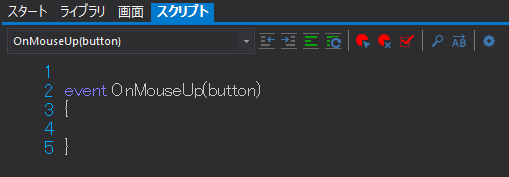
3.Write the script.
As an example, we will get the value of key2 and display it on the screen.
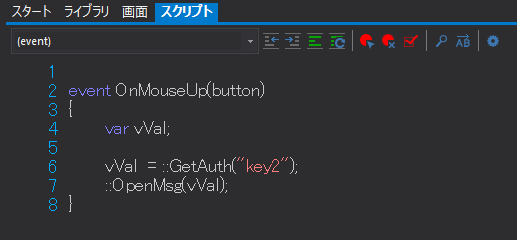
(Description)
event OnMouseUp(button) { var vVal;
vVal = ::GetAuth("key2"); ::OpenMsg(vVal); } |
4.Operation check
Run the project and first log in as an administrator to display the screen with the above buttons.
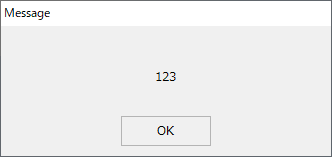
When you click the button, the value "123" set for key2 of the administrator group is displayed.
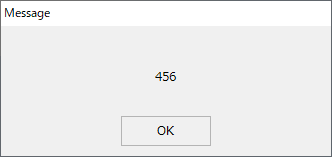
Next, if you log in as an advanced operator and click the button in the same way, the number "456" set for key 2 in the advanced operator group will be displayed.
In this way, permission information registered as custom permissions can be easily obtained from a script.
By calling this method when you want to determine whether a permission meets a condition, you can implement processing that depends on the permission value.