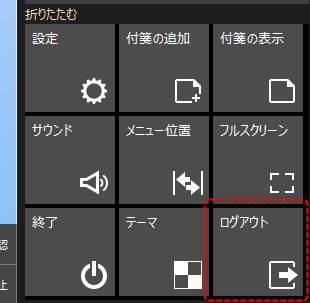
Show/hide user information in the information bar
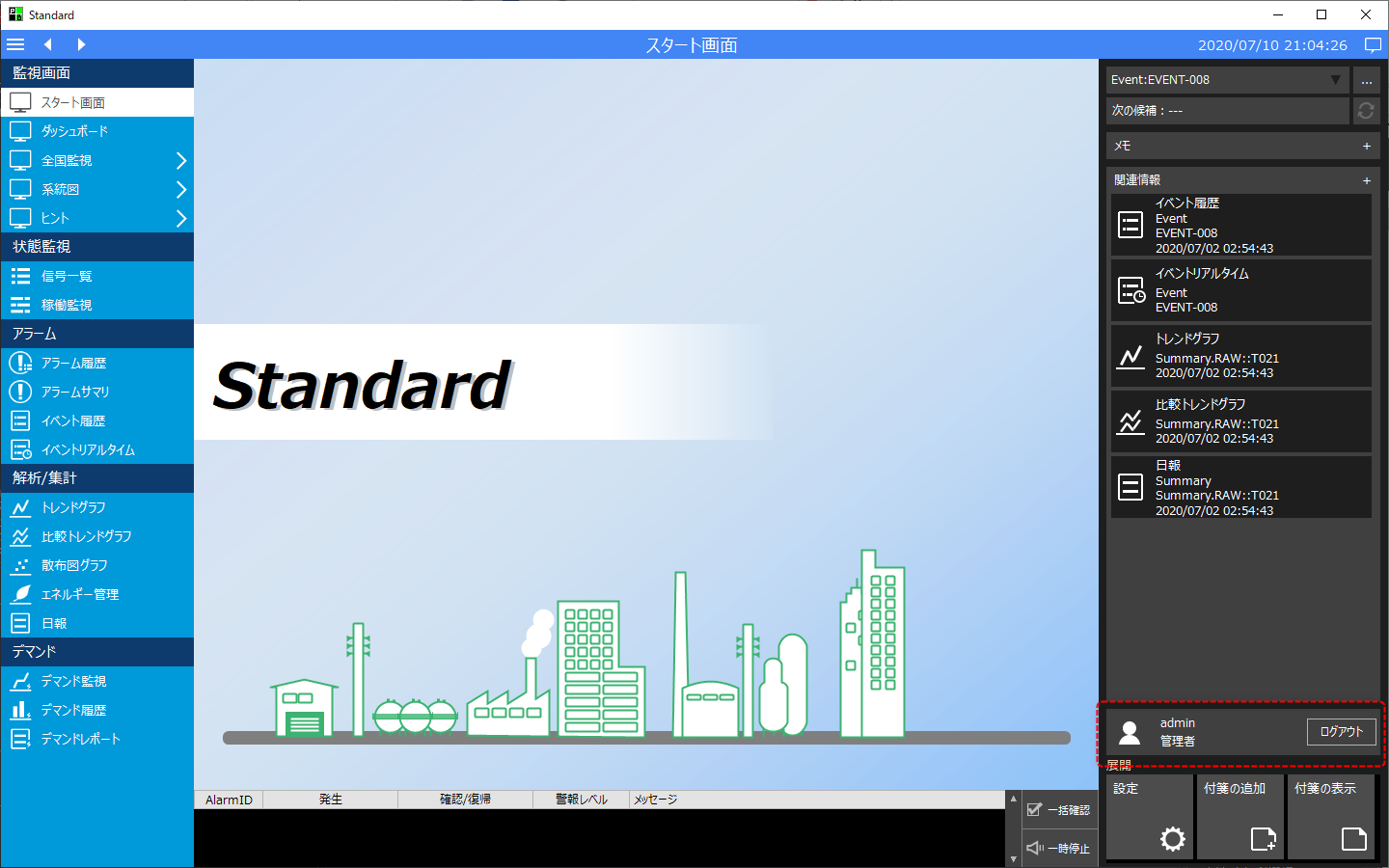
The default setting for a standard project is to display the login button and user information in the information bar.
(Example of login display on the information bar)
|
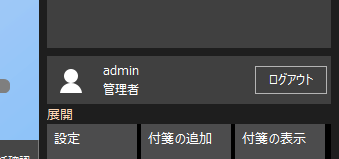
(Enlarged image)
|
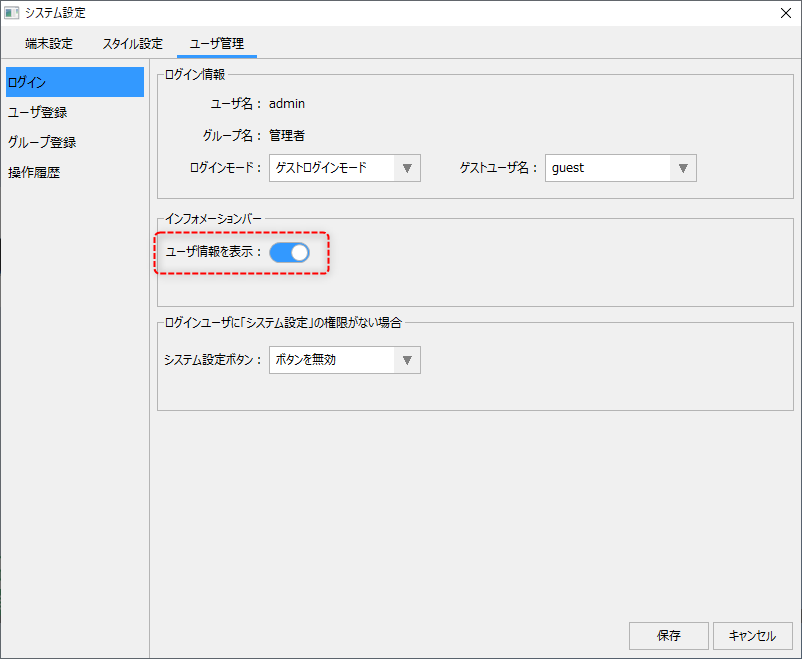
If you turn off the following settings in the User Management tab on the System Settings screen, the user information display in the information bar will be turned off.
Display user information in headers, footers, etc.
User information such as login buttons and user names can be selected as special function items for menu items in the Menu Editing in System Settings.
Selecting these items allows you to display user information in the header and/or footer.
(System Settings/Menu Editing)
|
The following items related to user information are available:
|
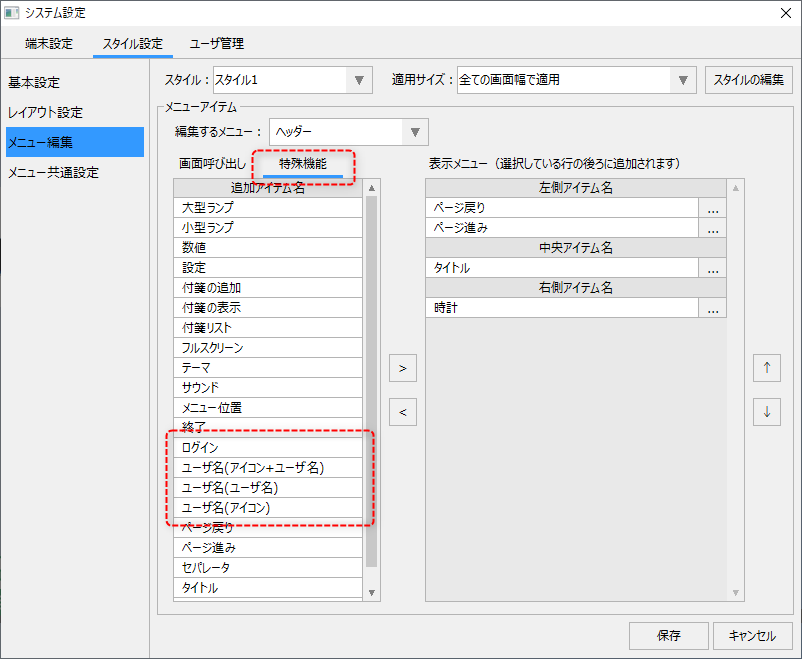
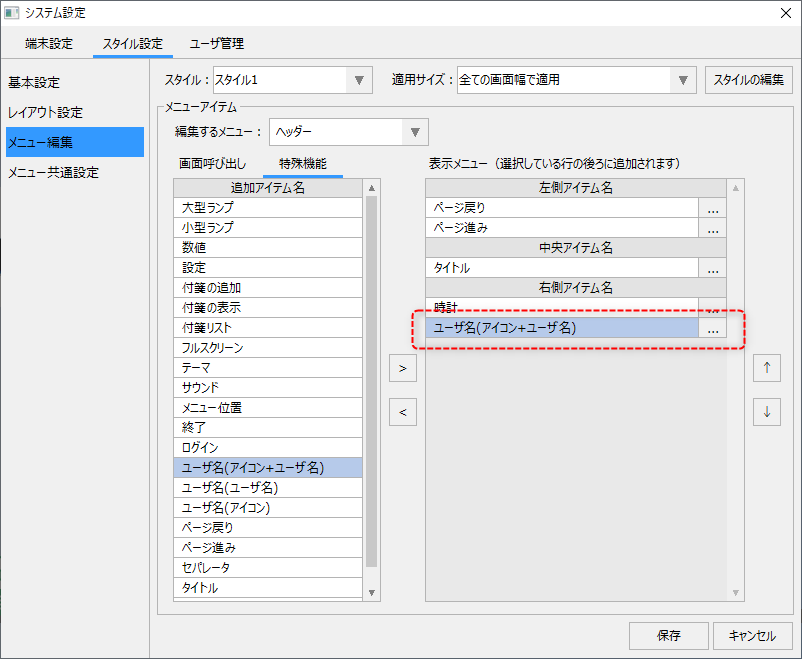
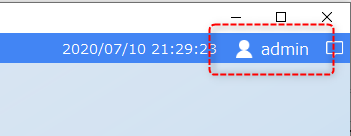
For example, if you add "User name (icon + user name)" to the right side of the header as shown below, it will be displayed in the header of a standard project as shown below.
|
Clicking on the above part will display the "My Page" dialog below.
|
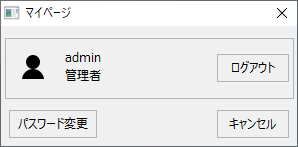
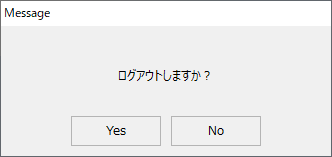
When you click the "Logout" button in the My Page dialog, the following confirmation screen will be displayed, and clicking the Yes button will log you out.
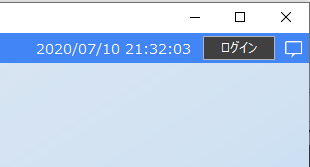
Once you log out, the icon will change to a login button as shown below.
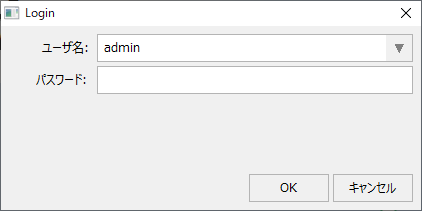
Clicking the Login button will display the following login screen, where you can log in.
You can also place the login icon on the information bar icon as shown below.