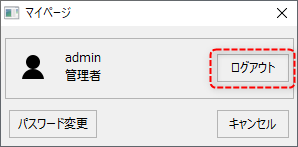
Display My Page Dialog
The standard project provides a "My Page Dialog" that displays the logged-in user's information.
My Page displays the user information of the currently logged in user.
(My Page Dialog)
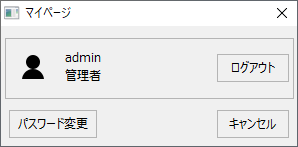
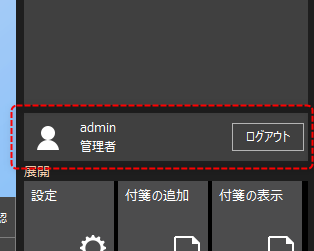
To display your My Page, click on the user information display area in the information bar.
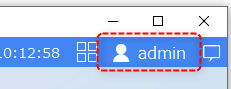
Alternatively, if user information is displayed in the title bar or elsewhere, it can also be displayed by clicking on the following area.
My Page Dialog Operation (Password Change)
On the My Page, the "Change Password" button will only be displayed for users who have the "Allow password changes" option checked in their user information settings.
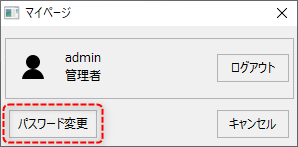
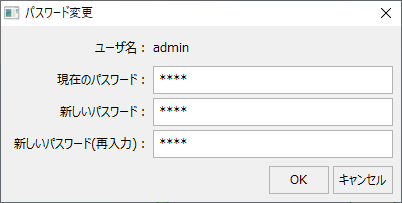
Clicking the "Change Password" button displays the "Change Password" dialog, where the currently logged-in user can change their own password.
Furthermore, if you click the "Logout" button on your My Page, you will be logged out.