Displaying the system settings screen via key operations
In the standard framework, you can customize it so that the system settings screen can be called up by keyboard operations. This function is enabled by setting the "_KeyForBrowserSetting" custom property of the standard framework to True.
■How to set up
From the property page of Panel Editor, display the properties of client.xml and select "_KeyForBrowserSetting".
This property is set to "False" by default, so change it to "True".
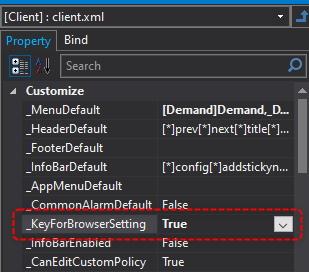
The above settings will enable you to access the system settings screen via keyboard.
By default, the "F1" key is implemented to display the system settings screen.
|
To add a user-added original form to the menu, the system settings screen must be displayed. However, for example, if you want to create a system that does not use the information bar, there may be cases where the icon for calling up the system settings screen is not located anywhere. In such cases, you can enable the above setting during development and disable it when releasing to the production environment, allowing developers to display the system settings screen with the "F1" key and edit menus, etc. |

Change the key to call up the system settings screen
By default, the system settings screen is displayed by pressing the "F1" key. To change the key that calls up the system settings screen, you can customize the source code of the standard framework.
■ How to customize
The process of accepting key input and displaying the system settings screen is written in the root OnKeyDown event.
event OnKeyDown(keycode,flag)
{
	switch ( keycode ){
	case 112:		//F1
		// Calls for system settings. Valid when the root property "_KeyForBrowserSetting" is True.
		OpenConfig();
		break;
	case 113:		//F2
		break;
	case 114:		//F3
		break;
	case 115:		//F4
		break;
	case 116:		//F5
		break;
	case 117:		//F6
		break;
	case 118:		//F7
		break;
	case 119:		//F8
		break;
	case 120:		//F9
		break;
	case 121:		//F10
		break;
	case 122:		//F11
		break;
	case 123:		//F12
		break;
	}
}
Change the processing statement above that calls the user-defined function "OpenConfig" to match the key you want to map.
For example, if you want to change it to the "F10" key, do the following:
event OnKeyDown(keycode,flag)
{
	switch ( keycode ){
	case 112:		//F1
		break;
	case 113:		//F2
		break;
	case 114:		//F3
		break;
	case 115:		//F4
		break;
	case 116:		//F5
		break;
	case 117:		//F6
		break;
	case 118:		//F7
		break;
	case 119:		//F8
		break;
	case 120:		//F9
		break;
	case 121:		//F10
		// Calls for system settings. Valid when the root property "_KeyForBrowserSetting" is True.
		OpenConfig();
		break;
	case 122:		//F11
		break;
	case 123:		//F12
		break;
	}
}
Although only function keys are described in the above process, by adding conditions it is possible to judge input of other keys or input in combination with the control key, shift key, etc.
For details on the corresponding key numbers and so on, please refer to the references for the common methods "OnKeyDown" and "OnKeyUp."