Resize the form to fit the actual size of the main area
If the size of the form differs from the size of the actual display area, it will be automatically enlarged or reduced according to the stretch mode setting. If you want to display the form created in Panel Editor faithfully in its actual size (i.e., if you do not want it to be automatically enlarged or reduced), you can find out the exact size of the actual display area using the method shown below, and create the form with that size in advance.
■How to set up
1.Check the actual display size of the main area
From the property page of Panel Editor, view the properties of client.xml.
To find out the display size of the views in the main area, set the "DeveloperMode" property of client (root) to True.
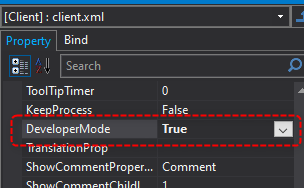
The above is normally set to False. If you set this property to True and run it in Panel Browser, the actual size of the view will be displayed on the screen.
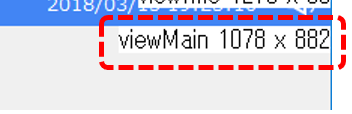
In the above example, the display size of the main area is 1078 width x 882 height. Therefore, by keeping the form size the same as this size, the form will not expand or contract when Panel Browser is executed.
Note that this value may change depending on the execution environment, OS version, etc.
2.Resize a form
Select the target form from Panel Editor and change the form properties.
Enter the actual dimensions of the main area confirmed above into the form's Height property and Width property.
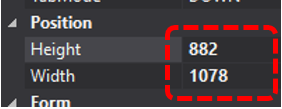
|
The forms of standard functions that are pre-installed in the standard framework, such as trend graphs and alarm summaries, are built using "RESIZE_FULL" as the stretch mode, and are adjusted so that the positions and sizes of controls such as buttons are properly arranged even when the screen size is changed. Therefore, there is no need to adjust the size of the forms individually. |

|
In addition to the main area, you can also change the display size of the actual forms displayed in the upper and lower areas in the same way as above. If you want to create a classic menu by placing your own buttons in these areas, adjust the size of each form as necessary. |