Manual duplex switching
You can also manually switch between the main and sub redundancies. To do so, open "Redundancy" under "Interface" in the Panel Server tree, and right-click to display a menu. Select "Switch main/sub machine" from the menu that appears to switch between redundancies.
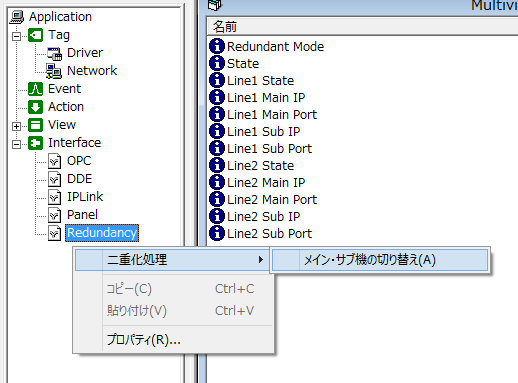
Switching between main and sub is possible from either the main or sub Panel Server.
|
It may take several seconds to several minutes for the standby secondary Panel Server to be promoted to the main and become online. The time required for the switchover will vary depending on the system scale and functional configuration. Note that server data such as logging will not be generated until the switchover process is complete. |

|
Duplex switching can also be done from a client script by manipulating the duplex interface. For details, see "System tag" in the Appendix. |

Recovery operations in the event of a disaster
The recommended procedure from failure occurrence to recovery in a redundant system is as follows. Note that the system recovery procedure differs depending on the system configuration and the type of failure, so the general procedure is introduced here.
1.A failure occurred on the main server Panel Server
If the Panel Server operating as the main fails, the standby Panel Server will automatically promote itself to main and start the server process.
2.Fault recovery
Restart the PC on which the failure occurred. If the PC starts normally, check that Panel Server is in standby mode. You can determine whether it is in standby mode from the message displayed in the "Output01" view at the bottom of the Panel Server screen.
If the PC hardware does not function, replace or repair the PC and reconstruct the application (restore the backup, etc.).
3.Check duplex switching
After the
PC is restored, please check to make sure that it switches over to the currently standby Panel Server. You can manually switch over from the redundant interface menu.
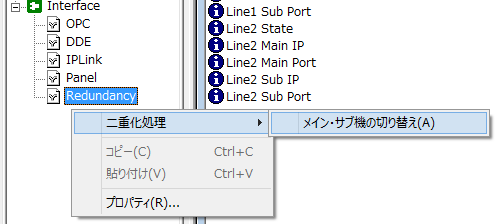
※ Switching operations can be performed from either the main or sub Panel Server
If the duplexing does not switch over correctly at this point, disconnect the problematic PC from the network and troubleshoot the PC separately to avoid affecting the running system.
|
Due to the specifications of Windows, if you remove the LAN cable from the LAN port, the IP address used for the LAN port from which the cable was removed may become invalid. In such an environment, when you want to temporarily disconnect the PC from the LAN and perform a test, prepare an independent HUB for testing and perform the test with the cable connected to that HUB. |
|
When recovering from a duplicated configuration, if one of the PCs has been operating alone for a long period of time, there may be a large amount of server data to be synchronized during the duplication process (i.e., there is a large amount of server data that exists only on one of the PCs). In this case, the synchronization process when duplication is restored copies a large amount of data files between the PCs, so it may take a long time to start the system. In such cases, you can reduce the system load caused by the synchronization process by manually copying the server data files using Explorer or similar before recovering the duplication. |
Program replacement procedure
To replace the program on Panel Server during redundant operation, follow the procedure below.
1.Reload the configuration file on the sub server
First, perform the work from the Panel Server PC that is currently waiting. After backing up the Panel Server configuration file text in some way, manually overwrite the new configuration file using Explorer or similar.
After updating the configuration file, select Operation > Reload from the Panel Server menu.
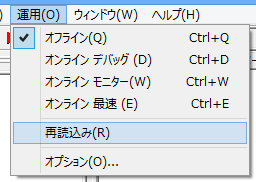
This will reload the configuration files for the standby Panel Server.
2.Manual main/sub switching
To switch to the new program, manually switch the main/sub of Panel Server. You can manually switch from the menu of the duplex interface.
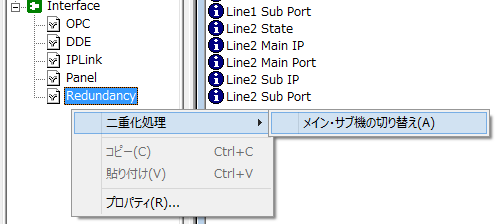
※ Switching operations can be performed from either the main or sub Panel Server
This operation will start operation with the new server configuration file. After switching between main and sub, be sure to check that there are no problems with operation with the new configuration file. If any problems occur with the new configuration file, switch between main and sub again and return to operation with the old configuration file.
3.Reload the configuration file on the main side Panel Server
Referring to step "1", overwrite the configuration file of the currently demoted main Panel Server with the new configuration file, then reload Panel Server.
*After reloading the configuration file, we recommend that you repeat step "2" to switch between main and sub and check that it works properly.
|
The reloading of the configuration file for the secondary server can also be done from a client script by manipulating the interface. For details, see "System tag" in the Appendix. |
Duplication status (Browser tag and System tag)
The status of the duplexing can be monitored by Panel Browser side Browser tag ($SYS) or System tag of the duplexing interface on the Panel Server side. By binding these tags, the operation status of the duplexing can be displayed on the monitoring screen.
|
A sample of the duplication status is available below.
|