overview
To display a form as a user dialog, use the common method "OpenDialog" or "OpenModalDialog".
To close the dialog, use the common method "CloseDialog".
|
You can call the OpenModalDialog method to open a form as a modal dialog (displayed in the foreground). You can also switch to a modal form after displaying it as a normal dialog. For more information about displaying dialogs modally, see "Displaying user dialogs modally". |

Example of implementation of form dialog display
Here we will explain the simplest implementation example for displaying a form as a dialog.
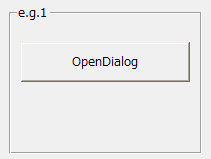
(Target sample: e.g.1)
•Dialog calling form: Form01
•Form to display as a dialog: Form02
(Processing Contents)
•Place one Button control to call the dialog in Form01. Call the OpenDialog method from the button's OnMouseUp event to display Form02 as a dialog.
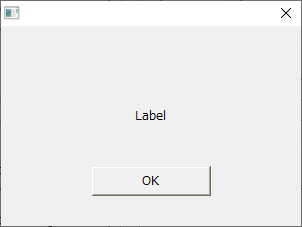
•Place one Button control in Form02 to close the dialog itself. Call the CloseDialog method from the button's OnMouseUp event to close the dialog itself.
■ Implementation of Form01
Place one button.
In the button's OnMouseUp event, write a code to call Form02 as a dialog (OpenDialog method).
event OnMouseUp(button)
{
	::OpenDialog("Form02");
}
■ Implementation of Form02
Place one button. For the sake of example, set the button's Text property to "OK". Also, place one label in the center of Form02 so that the displayed dialog can be identified as the desired form.
In the OnMouseUp event of the button, write the code to close the dialog (CloseDialog method). For details, see the tip at the end of this page.
event OnMouseUp(button)
{
	::CloseDialog(parent.GetDialogName());
}
■ Operation check
Run Panel Browser and click the button on Form01. Form02 will then be displayed as a dialog box.
Clicking a button in the dialog will close the dialog.
|
When closing a dialog using the CloseDialog method, specify the view name of the dialog as an argument. Since the view name may change depending on how the dialog is called, it should be obtained using the form's GetDialogName method.
For example, the following code closes a dialog box by triggering OnMouseUp of a button placed on the dialog box form. The view name obtained by the GetDialogName method of the parent of the button (i.e. the form the button is attached to) is passed directly to CloseDialog.
event OnMouseUp(button)
{
	::CloseDialog(parent.GetDialogName());
}
For more information about view names, see "About form names and view names". |
|
OpenDialog is provided as a common method. When you call OpenDialog, its behavior changes depending on which object you call it as a method.
For example, in the above example, it is called as a root method with "::OpenDialog()", but it can also be called as a method of your own object with "this.OpenDialog()" as shown below.
event OnMouseUp(button)
{
	this.OpenDialog("Form02");
}
If the above is the OnMouseUp of a button object, the called dialog will not be hidden under the button. This characteristic is particularly useful when you need to be aware of the display hierarchy of each dialog when displaying multiple dialogs (for example, when you want to prevent a dialog from being hidden under the screen on which it is displayed). For information about dialog hierarchy behavior, see "User Dialog Hierarchy". |