overview
In addition to accessing a single tag, you can also read/write multiple tags in bulk from a script. For example, this is useful when you want to get multiple tag values in bulk during initialization, or write multiple parameters in bulk when you operate a button. You can get the same results by repeating single tag operations, but since the system and communication load increases each time the method is issued, it is smarter to process in bulk.
Bulk reading can be done with "GetVal". "GetVal" can handle arrays, so bulk reading is possible by passing parameters as arrays. For bulk writing, use "WriteRefresh" (note that "WriteVal" cannot specify arrays).
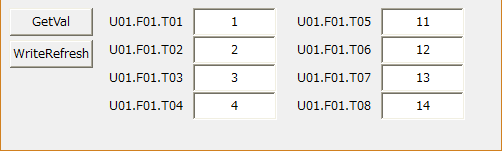
Here we will explain using a sample that shows how to read and write tags in bulk.
Download the sample
This sample is stored in:
setting
Tag configuration
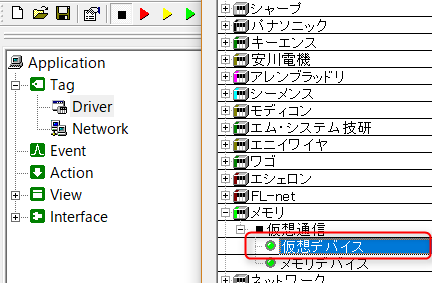
1.Right-click "Driver" and add a virtual device from "Add Unit".
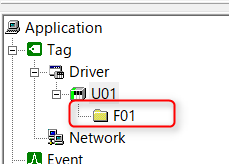
2.Right-click on the added unit "U01" and add "F01" from the Add Folder menu.
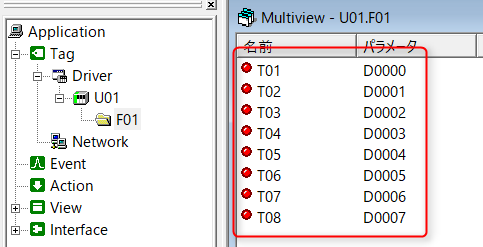
3.Right-click on the added folder "F01" and register tags "T01" to "T08". After registration, register the tag's "Device" as "04-D Data Register".
|
For details about the virtual device tags used here, see "Virtual Devices". |

program
Describes a bulk read/write operation.
*Please refer to the sample for object placement and property settings.
1.In the form object, write the following:
var vUnit = "U01!Alive"; var vTags = c( "U01.F01.T01", "U01.F01.T02", "U01.F01.T03", "U01.F01.T04", "U01.F01.T05", "U01.F01.T06", "U01.F01.T07", "U01.F01.T08");
event OnInitialize() { this.AddTag(vUnit); this.ReadRefresh(vUnit, "device");
this.AddTag(vTags); this.ReadRefresh(vTags, "device"); } |
2.Write the following to the GetVal button object:
event OnMouseUp(button) { if(button == 1){ var vValues = parent.GetVal(parent.vTags); var vCount = ::GetValueTotalElement(vValues);
if(parent.GetVal(parent.vUnit)){ for(var i = 0; i < vCount; i++){ var vEdtBox = parent.GetChildObj("edt" + ::NS(i + 1, 0, 2, F)); vEdtBox.Text = vValues[i]; } }else{ ::OpenModalMsg("Unit Error"); }
} } |
3.Write the following to the WriteRefresh button object:
event OnMouseUp(button) { if(button == 1){ var vWriteValues[8]; for(var i = 0; i < 8; i++){ var vEdtBox = parent.GetChildObj("edt" + ::NS(i + 1, 0, 2, F)); vWriteValues[i] = ::CNum(vEdtBox.Text); }
if(!parent.WriteRefresh(parent.vTags, vWriteValues)){ ::OpenModalMsg("WriteRefresh Error"); } } } |
Commentary
The form object's "OnInitialize" calls "AddTag" to set the tag that reads and writes tags. Here, "AddTag" is used to set the tags to be read and written in bulk as an array. Also, "AddTag" is used for "System Property to get the alive status of unit "U01". After "AddTag", "ReadRefresh" is called, which updates the client cache immediately after startup.
The GetVal button object first uses "GetVal" to read multiple tags all at once. Then, the System Property of "U01" is obtained with "GetVal" to determine the survival status of the unit. If the system property was obtained correctly, the tag value is set in the edit box in the for loop.
In the WriteRefresh button object, prepare an array of values you want to write all at once, and write the values all at once with "WriteRefresh". You can check whether the values were written to the tag successfully by checking the return value of "WriteRefresh".
|
For information on the object hierarchy represented by "this"/"parent", please refer to "Object Hierarchy and References". |