Setup process for running in IE
If you want to run Panel Browser embedded in IE, select "Use Internet Explorer" from the Panel Editor setup function and run the setup process.
Then, the plugin file including Panel Browser, the file for accessing Web (html), the client configuration file, and all the files referenced by the client configuration file will be output as distribution files to the specified folder.
The files output by the setup function are as follows:
file |
overview |
||||
Plugin files containing Panel Browser |
To automate the installation of plug-ins on each client PC, select "Automatically install on each client PC using IE" when outputting in the setup function. This setting creates a CAB file (browser.cab). A CAB file is like an automatic installer and contains plug-in software for displaying pages in IE. When a page is opened for the first time with IE, or when the version of the plug-in software installed on the client PC is old, the plug-in software is automatically installed on the client PC.
|
||||
Web access file |
The file will be output in the format xxx.html. When accessing from Internet Explorer, specify the URL of this file.
|
||||
Client Configuration Files |
This is the client configuration file (extension "xml"). If you check "Encrypt client file (xml)" in the setup function settings, it will be output as an encrypted file (extension "brw").
|
||||
A set of files referenced by the client configuration file |
Image files and setting files referenced by properties in the client configuration file will be copied into the "resource folder" specified during setup. In addition, each property that references the target file will be replaced with a relative path that references the folder under the resource folder.
|


|
For details about the setup process, please also refer to "About the client setup process" in Preparation before system implementation. |
How to set up
1.Click the Setup button on the Panel Editor toolbar.

2.The "Create files for distribution to clients" screen will be displayed.
Select "Use Internet Explorer" from the combo box.
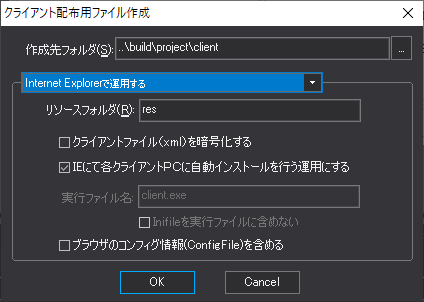
Please specify the following parameters from the above dialog.
Destination Folder |
Specifies the folder where the setup function outputs the distribution files. If the SetupFolder root property is specified, it is used as the default.
|
Resource Folder |
Specifies the folder in which resource files (image files and configuration files) are saved during the setup function. If the SetupResouceFolder root property is specified, it will be used as the default value.
|
Encrypt client files (xml) |
Check this box to encrypt the client setting file (xxx.xml). Encrypt the xml file if you do not want to disclose its contents.
|
Set up automatic installation on each client PC using IE |
Checking this box will create a distribution plugin (Panel Browser file). By checking this box, you can automate the application of the patch file in this package to each client PC that runs IE.
|
Include browser configuration information (ConfigFile)
|
If checked, the client configuration information (the configuration file defined by the ConfigFile root property) will be included in the setup and output. |
|
The initial settings such as the folder name displayed in the above dialog can be specified in the root properties. For details, see "About the client setup process". |
3.By clicking the "OK" button, a set of distribution files will be output to the "Destination folder".
Place the output distribution file set in the public folder of the Web server.