View Facility Registration
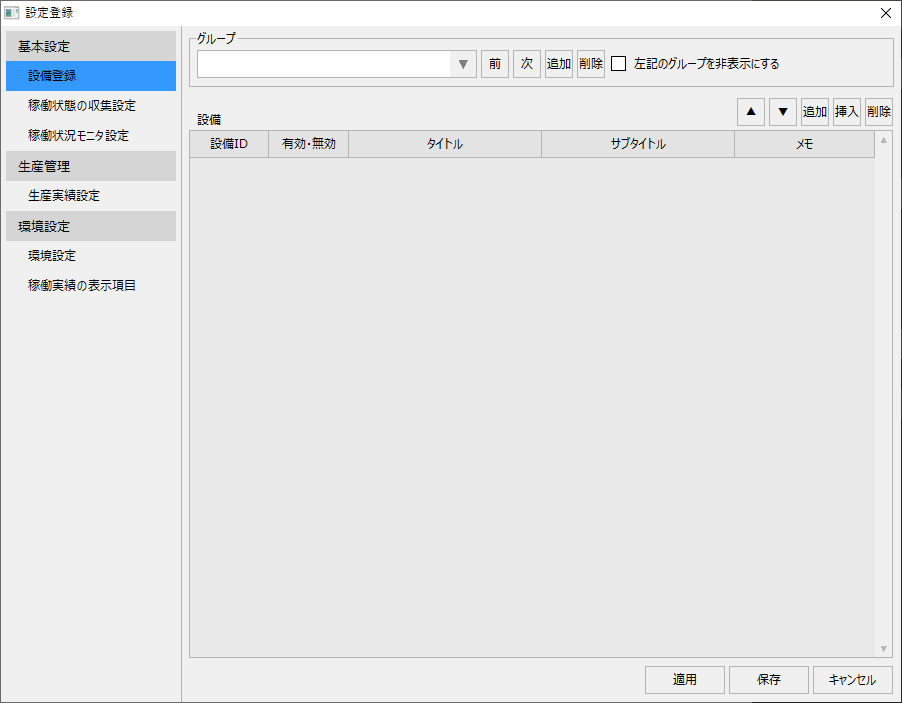
When you select "Equipment Registration" from the menu on the left of the Settings Registration screen, the display in the center of the screen will change to the following:
(Settings registration screen: Equipment registration)
Registering a group
First, add a group to manage the facilities.
To add a group, click the Add button to the near right of the group name.

This will add a group named "New Group 1".

If you want to change the group name, you can edit it directly in the combo box.
Below is an example of changing the name to "Group 1".

To switch the group you are editing, select the desired group from the combo box, or use the "Previous" and "Next" buttons to switch the currently selected group.

Click the "Delete" button to delete the currently selected group.

Furthermore, if you check "Hide the following group", you can hide the currently selected group from each operation monitoring screen.

|
When you delete a facility group, the registration information for the facilities registered in the group will also be deleted. If you want to temporarily disable a group, you can hide the group instead of deleting it completely. |

Registering equipment
Once you have added a group, you can register facilities from the list of facilities displayed in the center of the screen.
Immediately after registering a group, there will be no facilities registered in the list.
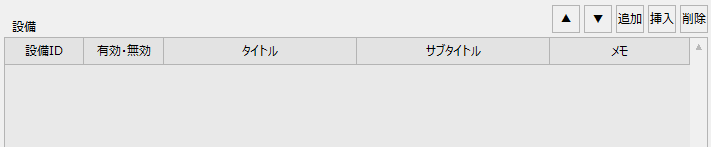
Clicking the "Add" button in the upper right corner of the list will add a new line to the list.
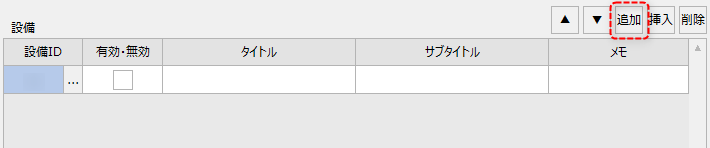
In the facility list, you can register the following:
item |
Contents |
||
Facility ID
|
Please select the facility ID to be assigned to the newly added facility. For details on facility IDs, please refer to "What is a facility?".
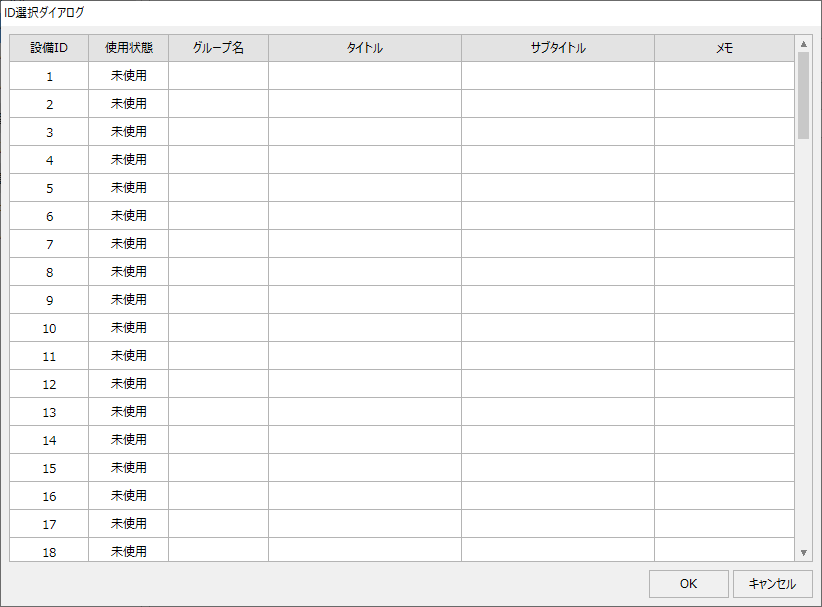
Click the "..." button to display the ID selection dialog for selecting equipment. Select an unused equipment ID from the dialog and click the OK button. Unless there is a special reason, equipment IDs are assigned in ascending order.
(ID selection dialog)
|
||
Enabled/Disabled
|
Set the equipment to be enabled or disabled. Each time you click, the check status will change. If you uncheck the equipment, it will be excluded from display on each screen. Furthermore, when you select a facility ID, the box will automatically be checked. |
||
title
|
Enter the title of the equipment directly. The title will be displayed as the first line label in the display frame of the operation status monitor. |
||
subtitle
|
Enter the text of the subtitle of the equipment directly. The subtitle will be displayed as the second line label in the display frame of the operation status monitor. |
||
Note
|
Enter any memo information directly. |

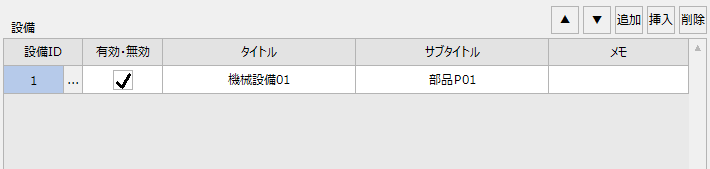
(Example of equipment registration)
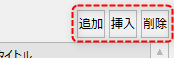
You can add, insert, and delete facilities using the following buttons at the top right of the facility list.
The following is an example of registering 5 pieces of equipment in Group 1.
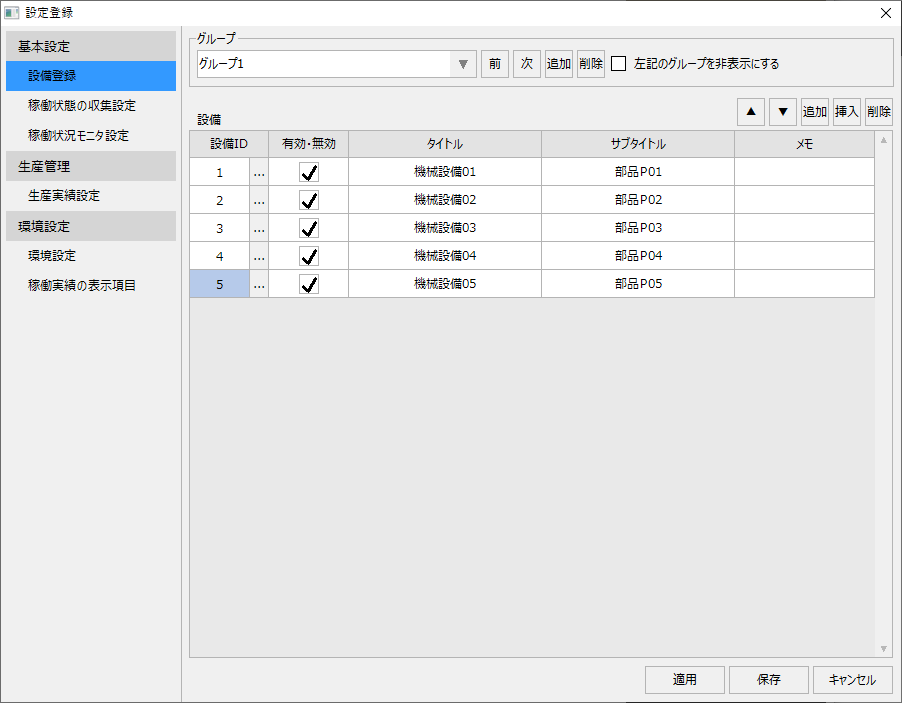
To save the settings, click "Apply" or "Save" at the bottom right of the screen. If you click "Save", the settings screen will automatically close after the edits are saved. If you click "Apply", the settings screen will remain displayed even after the settings are saved.