Consider form scaling
When using variable size or full screen display, you should consider scaling the form displayed in the main area.
The behavior when a form is scaled depends on the setting of the form's "Stretch" property.
The Stretch property can be set to the following values:
STRETCH_FULL |
The form will be stretched to fit the size. When the form is stretched, any controls placed on it will be stretched accordingly (for example, a perfectly circular form will be stretched to fit the size).
|
STRETCH_KEEPRATE |
Stretch the form to fit the display size while maintaining the aspect ratio of the original form. Each control placed on the form will also be stretched, but because the aspect ratio is maintained, they will be scaled to their original shape (for example, a circle will remain a circle).
|
RESIZE_FULL |
The form itself will automatically resize according to the size of the form. The size of each control placed on the form will automatically change according to the "AutoResizeX" and "AutoResizeY" settings of each control.
|
RESIZE_KEEPRATE |
The form itself will automatically resize to fit the original form's size while maintaining its aspect ratio (same as above for the sizes of each control).
|
If you select "RESIZE_FULL" and "RESIZE_KEEPRATE" above, the control position and size will be adjusted according to the "AutoResizeX" and "AutoResizeY" settings of each control on the form.
AutoResizeX |
Which x-axis to use as reference when resizing. •LEFT - Left reference •RIGHT - Right reference •LEFTRIGHT - Left-right standard •CENTER - Center reference
|
AutoResizeY |
Which Y axis to use when resizing. •TOP - Top standard •BOTTOM - Lower standard •TOPBOTTOM - Left/right reference •CENTER - Center reference
|
|
If you specify "STRETCH_KEEPRATE" or "RESIZE_KEEPRATE" for the Stretch property of the form, the aspect ratio will be maintained when displaying the graphic, so margins may appear on the top, bottom, left and right of the graphic display area. The color of the margins can be set with the "ViewFillColor" property of the form. For example, by setting the "ViewFillColor" property of the form to the same value as the "FillColor" property of the form, the margins will be the same color as the background color, making the margins less noticeable. |

Configuration Example
For example, in the case of the layout below, when the Panel Browser screen is enlarged or reduced, the size of the title label and the View control graphic screen display area can be set to change dynamically in conjunction with the size of the form.
(Layout example)
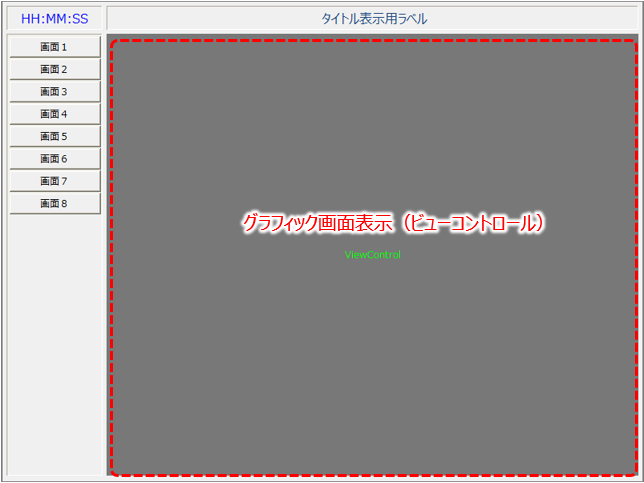
Below are examples of setting each zoom property.
control |
Property Name |
Configuration Example |
explanation |
root |
StartupSize |
MAXIMUM |
The initial display size of Panel Browser will be the maximum size. |
|
AllowResize |
TRUE |
Make the Panel Browser resizable. |
|
WindowsMinWidth |
800 |
Specifies the minimum screen size (width). When resizing the Panel Browser, the width cannot be narrower than this size. |
|
WindowsMinHeight |
600 |
Specifies the minimum screen display size (height). When resizing Panel Browser, the height cannot be narrower than this size. |
Parent Form |
Stretch |
RESIZE_FULL |
By setting the stretch mode of the parent form to RESIZE_FULL, the size of the form can be changed in tandem when the size of the Panel Browser is changed. |
View control |
AutoResizeX |
LEFTRIGHT |
You can automatically change the vertical width of the View control in which the child form is embedded in conjunction with changes in the size of the form. This setting allows the screen display area to dynamically expand and contract according to the expansion and contraction of the Panel Browser. |
|
AutoResizeY |
TOPBOTTOM |
Same as above. The vertical width of the control can be linked to the expansion and contraction of the form.
|
Child Form |
Stretch |
RESIZE_KEEPRATE |
Specifies the stretch mode of the child form embedded in View control. If you set it to "RESIZE_KEEPRATE", the size of the embedded form itself will change dynamically. If you set it to "STRETCH_KEEPRATE", the form will be automatically stretched while maintaining its aspect ratio. Please set it appropriately depending on the purpose of the screen you want to display. For example, if you want to display a graphic screen, "STRETCH_KEEPRATE" is appropriate. On the other hand, if you want to display a graph or other screen, "RESIZE_KEEPRATE" is appropriate. |
|
ViewFillColor |
@FormColor |
This is the display color of the margins when the form is resized. By specifying the same color as the form's FormColor, you will not be aware of the margins. |
|
For more information about form stretching, please also see the description in "About form stretching mode". |
|
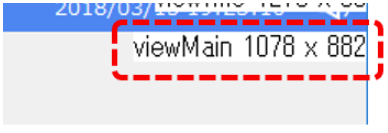
There are cases where you want to display a child form embedded in the View control of a parent form at the actual size it was drawn in Panel Editor without resizing, such as when you want to display it at a fixed size. In such cases, you can check the actual size of the target view by setting the root DevelopMode property to True and running Panel Browser. By specifying the size of the view checked by DevelopMode for the size of the form to be embedded and displayed in View control, it will be displayed at its actual size without being scaled at runtime.
For more information on this, please see the description in "Make the form fit the actual size of the main area".
(View size displayed by DevelopMode)
|