About the Information Bar
The standard framework has an "information bar." The information bar has a variety of functions, such as a "memo function (guidance function)," "related information function," "sticky note function," and "login function," and the content displayed changes depending on the currently selected information (such as a tag).
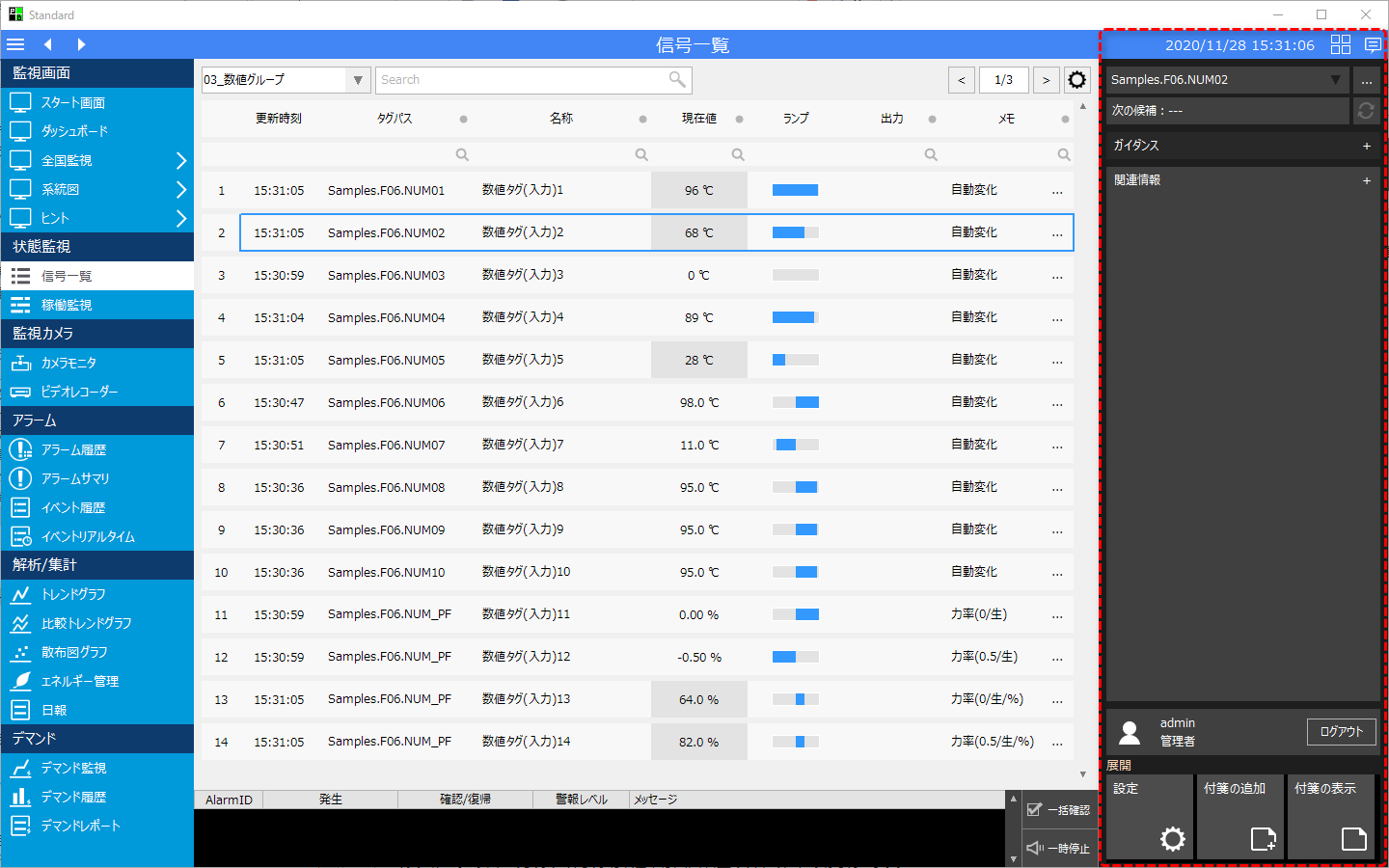
The information bar is displayed on the right side of the screen in the standard framework as shown below.
The information bar can usually be displayed/hidden using the following icon in the upper right corner of the screen.
The information bar changes depending on the currently selected information (e.g. tags).
When there is any related information, the information bubble icon will change as follows:
The information bar displays various information.
|
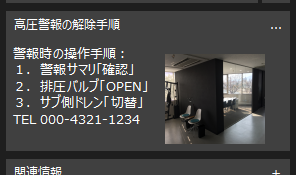
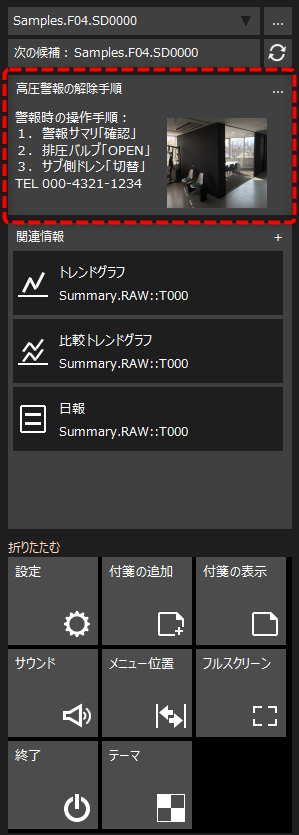
The image on the left shows the guidance information being displayed.
The guidance function allows you to freely register information such as memo information, image files such as photos, video files, and PDF files. Guidance information can be associated with information such as tags and alarms, and guidance associated with information selected from signal lists and alarm summaries can be displayed. For example, you can use it as a guide during operation, such as registering recovery procedures and emergency contacts when an alarm occurs, or displaying operating methods and precautions for the equipment to be operated.
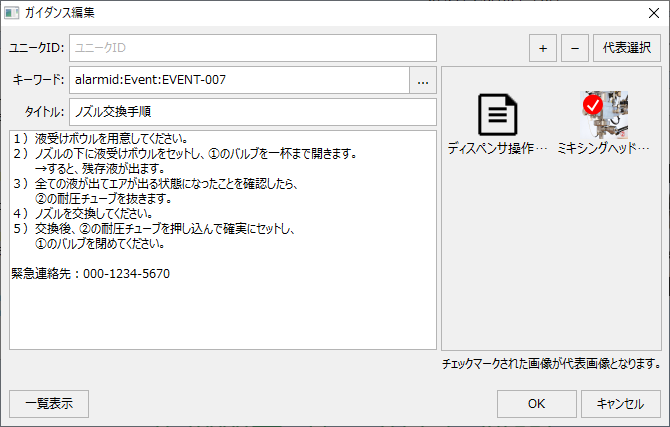
Guidance information can be freely added and edited from the Guidance registration screen.
(Example of guidance registration)
For more information about this feature, please refer to the Guidance. |
|
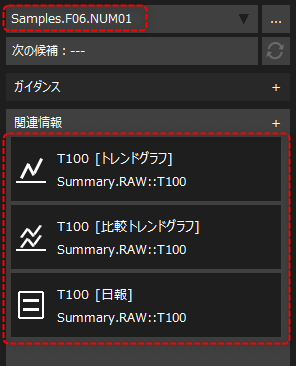
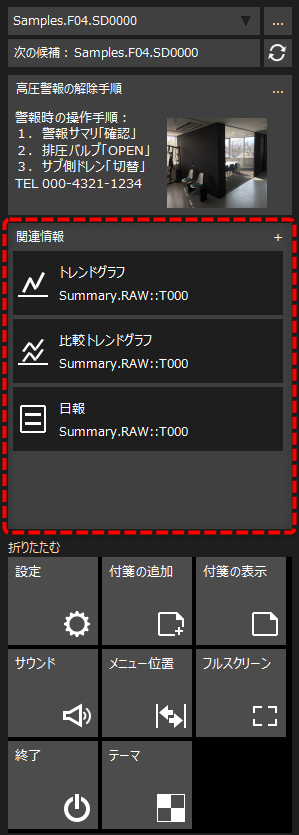
The image on the left shows related information being displayed.
Related information is information for linking to other functions based on the relationship between tags, data sources, alarm IDs, etc. For example, when you select a row in the signal list or alarm summary, if the selected tag has been configured as a target for logging and aggregation processing, it will be displayed as related information as shown on the left. By clicking on the related information on the left from the information bar, you can call up the trend graph screen associated with the target tag, or view a trend graph from the information of the alarm selected on the alarm history screen.
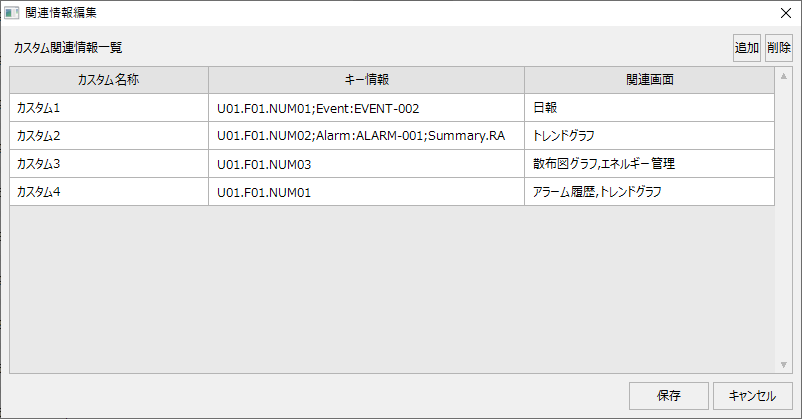
Furthermore, the definition of related information can be freely added/edited while the system is in operation. By registering your own related information, you can customize the screen transitions from the information bar.
(Example of related information editing screen)
For more information about this function, please refer to "Cooperation between functions (use of related information)". |
|
The information bar has an icon for calling up the sticky notes function by default.
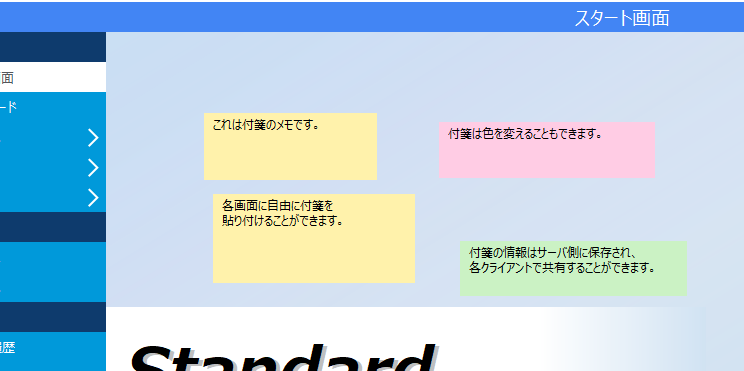
The sticky note function allows you to paste text information on the screen like a sticky note. The sticky note information is stored on the server side, so information can be shared between multiple clients using sticky notes.
(Example of a form with sticky notes attached)
For more information about this function, please refer to "Sticky Notes Function". |
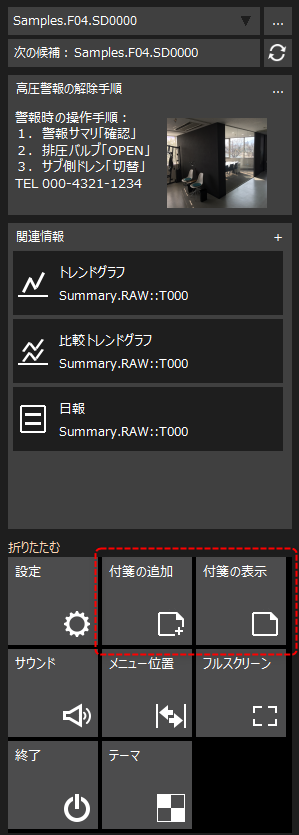
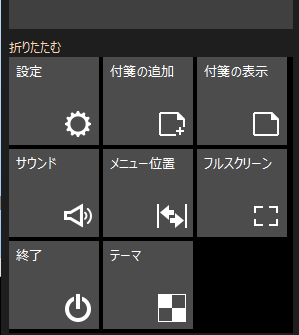
At the bottom of the information bar are icons for calling up various functions.
Normally, the icon appears collapsed like this:
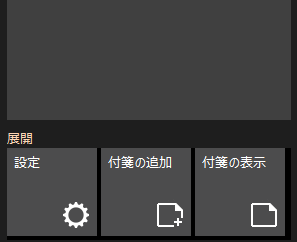
You can open the icon by clicking "Expand" at the bottom.
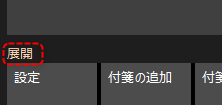
(icon open)
|
Furthermore, the icons placed on the information bar can be freely edited from the system settings screen.
For information on how to edit the icons in the information bar, see "Editing the Menu".
|
Candidate display and selection operation
The content displayed in the information bar changes depending on the information (such as a tag) currently selected on the screen.
Here it is again with nothing selected:
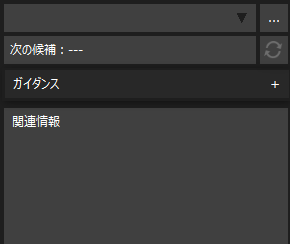
For example, select the tag "Samples.F06.NUM01" from the signal list screen.
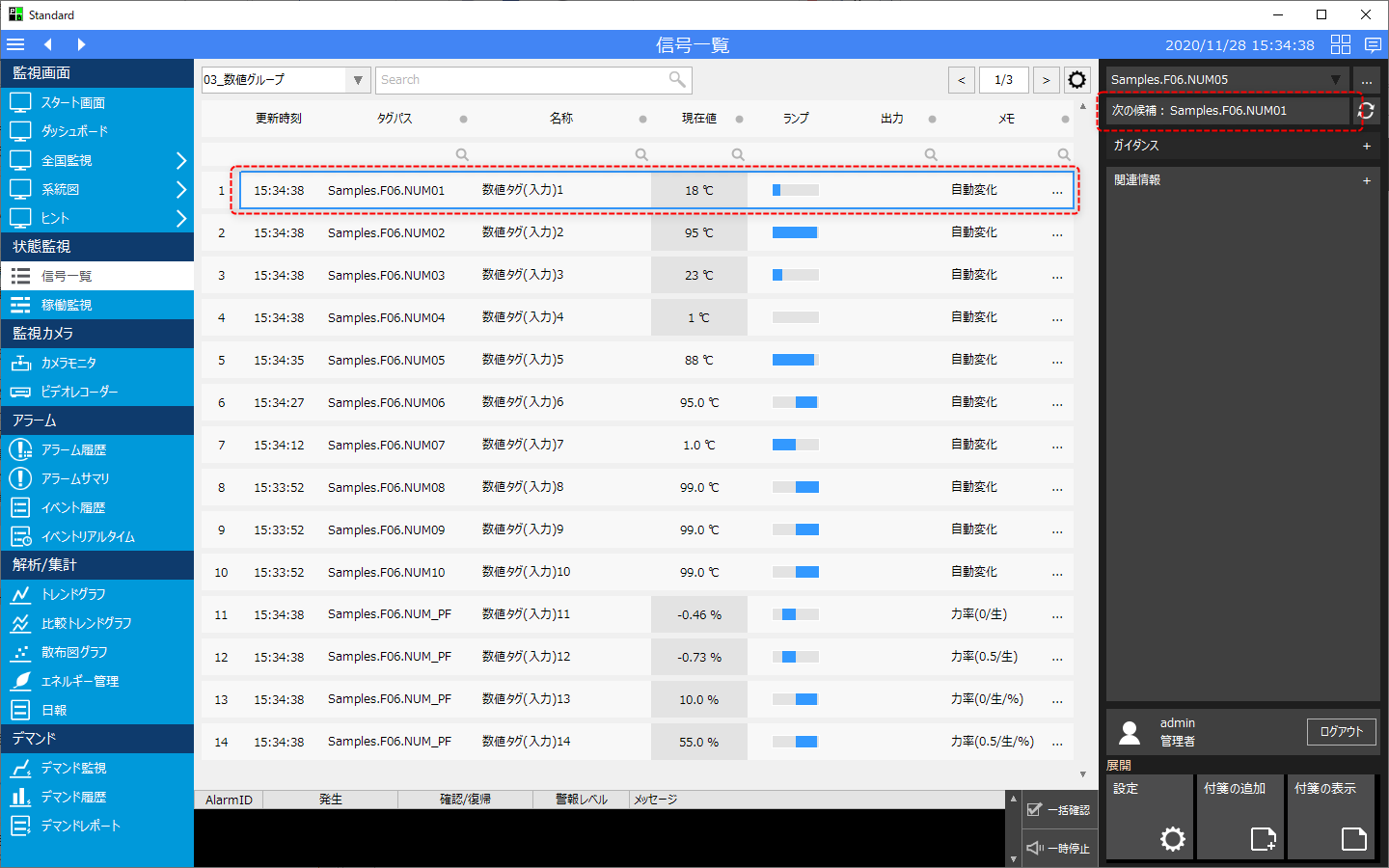
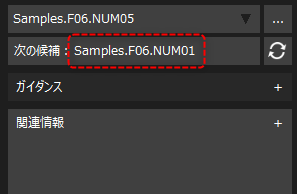
The currently selected tag path will then be displayed in "Next candidate".
In this state, click the Update button on the right.
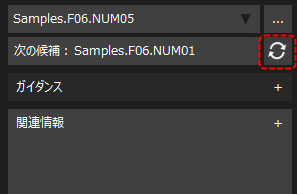
The combo box at the top will then be updated with your current selection and various information will be displayed in the information bar.
|
If the currently selected tag has guidance information registered, the registered information will be displayed in the Guidance field.
(Example of guidance information display)
Also, if related information is defined for the currently selected information, a list of related functions will be displayed. For example, if this tag is registered in a summary action, trend graphs, comparative trend graphs, and daily report screens will be displayed as candidates. Or, if the tag is registered in an alarm, the alarm screen will be displayed as a further candidate. |