To add a form to a standard project:
This procedure describes how to add your own form to a standard project.
■ Work procedure
1.Add a form
Forms can be added by right-clicking on the target folder in the workspace at the top left of the Panel Editor screen. The standard framework provides a folder called "User". This folder can be used freely as a place to store forms added by the user. Forms can be added freely to any folder, and other folders can also be created. As an example, we will add a form to the User folder.
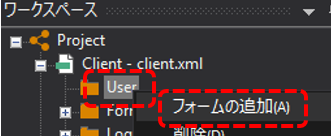
Right-click on the "User" folder in the workspace at the top left of the Panel Editor screen and select "Add Form" from the menu that appears.
Then, a new form "Form01" was added.
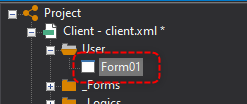
The name Form01 above is the default form name automatically assigned by Panel Editor. You can change this name as you like.
2.Change form settings (Form)
Once you have added a form, change the form properties as desired. To edit the properties, with Form01 selected, double-click anywhere on the form in the main area to display the properties dialog. Here, change the form's "stretch" (Stretch property) and "off-screen color" (ViewFillColor property), which are general settings when displaying a graphic screen in the standard framework.
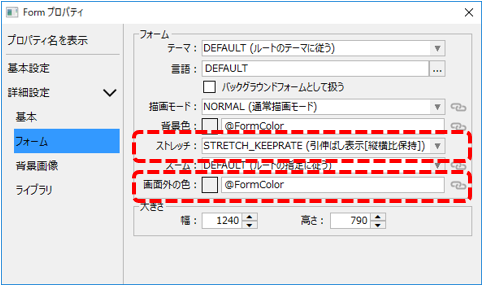
•Change the stretch to "STRETCH_KEEPRATE".
•Change the off-screen color to "@FormColor".
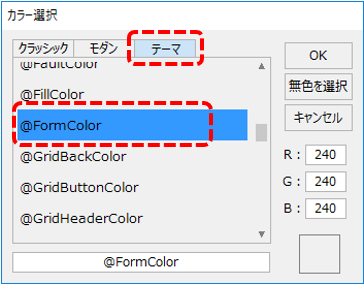
To set the above colors, select the "Theme" tab from the color selection dialog and choose "@FormColor" from the list (or you can enter "@FormColor" directly into the edit box).
(Color selection dialog)
|
For more information about form stretch mode, see "About form stretch mode" in the function explanation of this chapter. |

3.Change form settings (for menu settings)
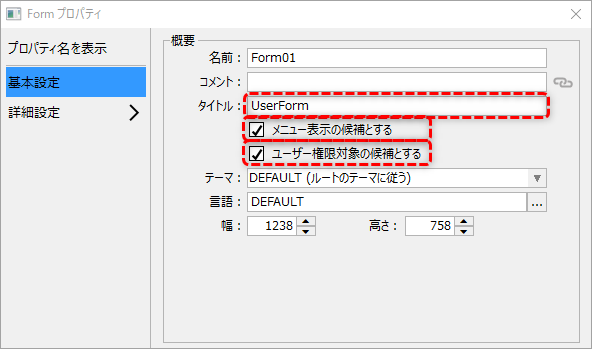
If you want to add the added form to the standard framework menu, also change the following properties of the form:
name |
Property Name |
Contents |
||
title |
Title
|
Please set any character string as the title of the form. The title set here will be displayed in the menu edit list on the system settings screen. If no title is set, the form name will be displayed. |
||
Candidate for menu display |
MenuCandidate
|
If you want the form to be displayed in the menu, check this box (True).
|
||
Candidate for user authority |
AuthCandidate |
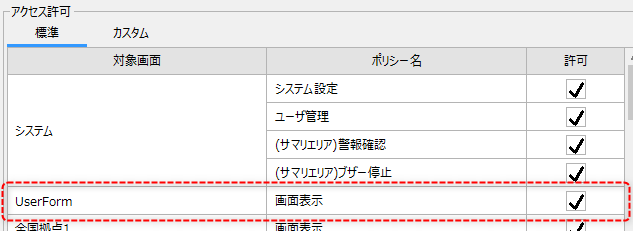
If you want to set the form as a display target for user permission, check this box (True). By enabling this property, you can set whether the screen can be displayed by the login user group in user management.
|
|
For details on user management, please refer to "User Management (Login) for Standard Projects". |