About the menu style of the standard project
The standard project comes with two complete menu functions, "Side Menu" and "Full Menu". These menus can be used immediately after simple configuration in the system settings screen. Alternatively, you can create a classic menu by placing buttons on the top, bottom, left and right areas of the screen.
The contents and reference images for each menu format are as shown in the table below.
■ Standard project menu format
Menu Style |
explanation |
Reference image (Click the image to enlarge it) |
||||
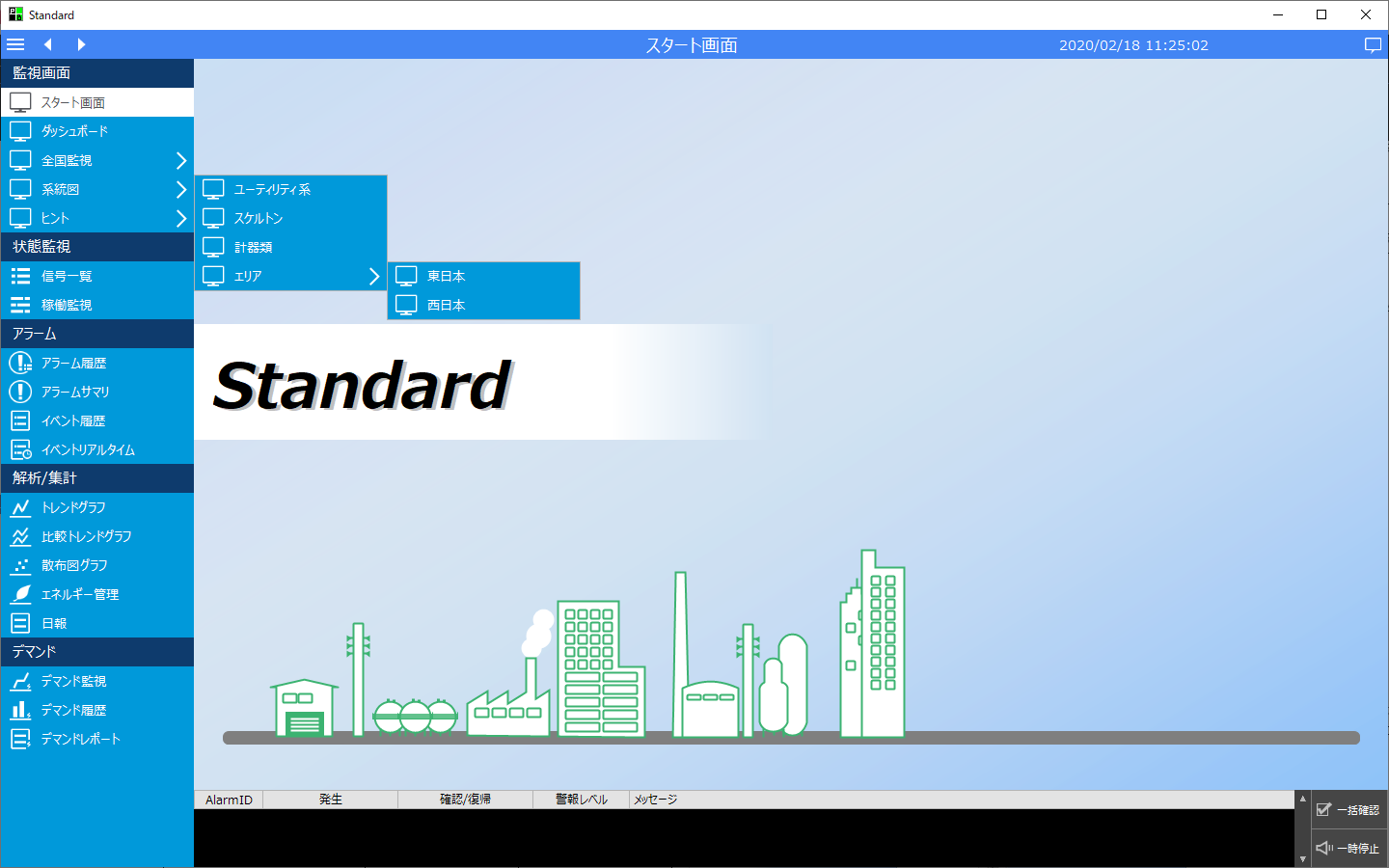
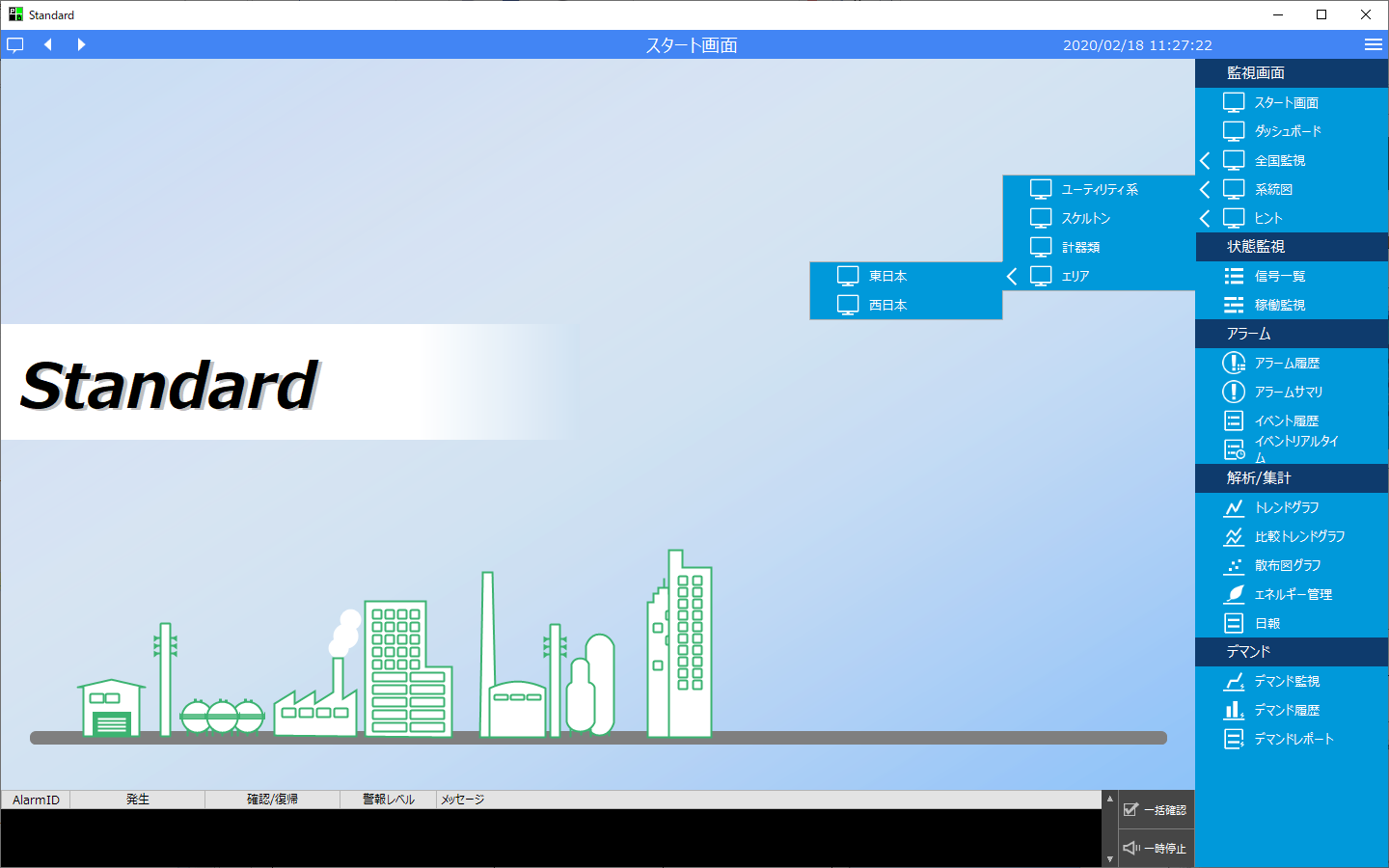
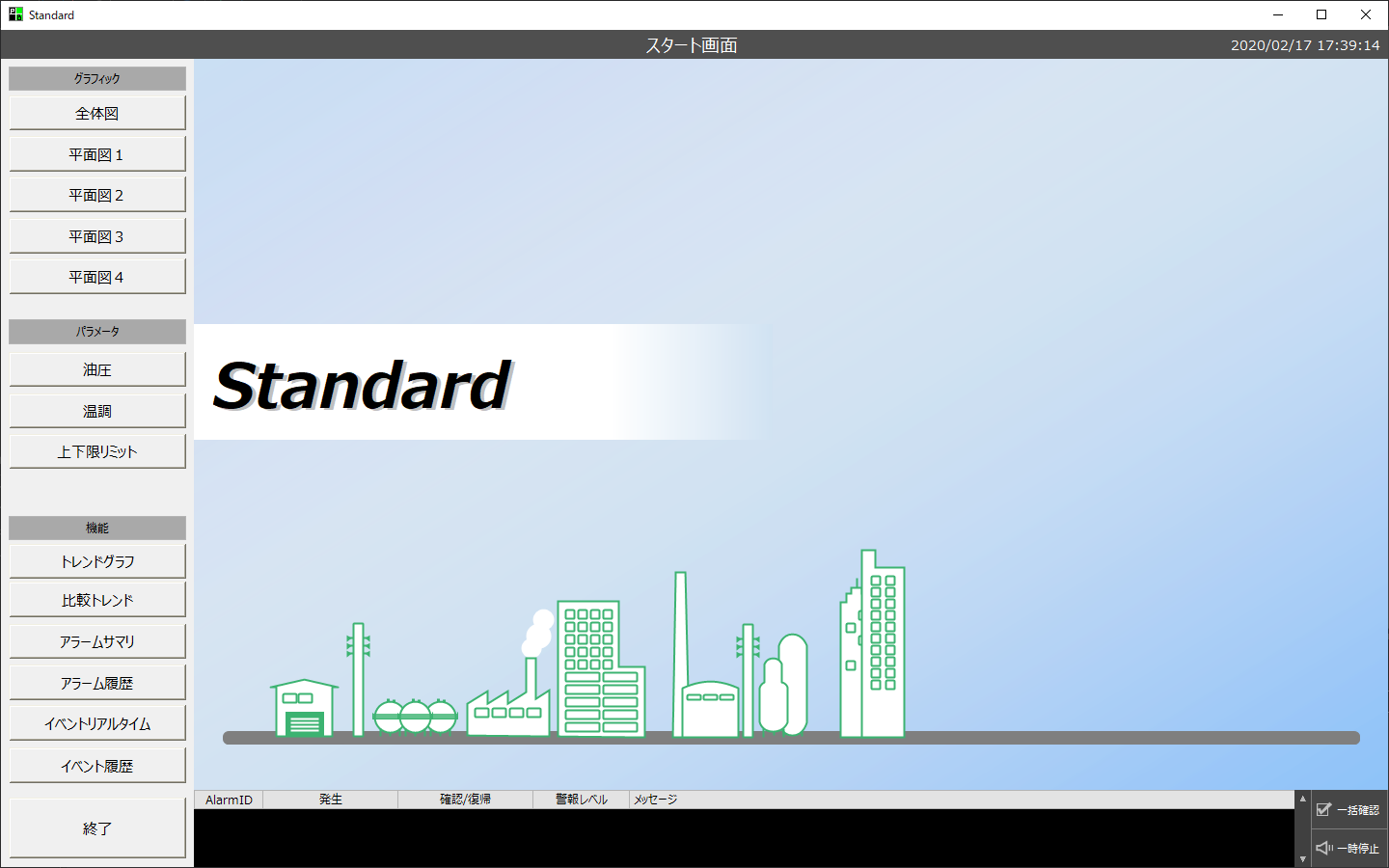
Side menu |
The side menu is a complete menu function that is pre-installed in the standard project. This menu can be used immediately by simply making simple settings from the system settings screen.
For information on how to set up the side menu, please refer to "Example of setting up the side menu". |
|
||||
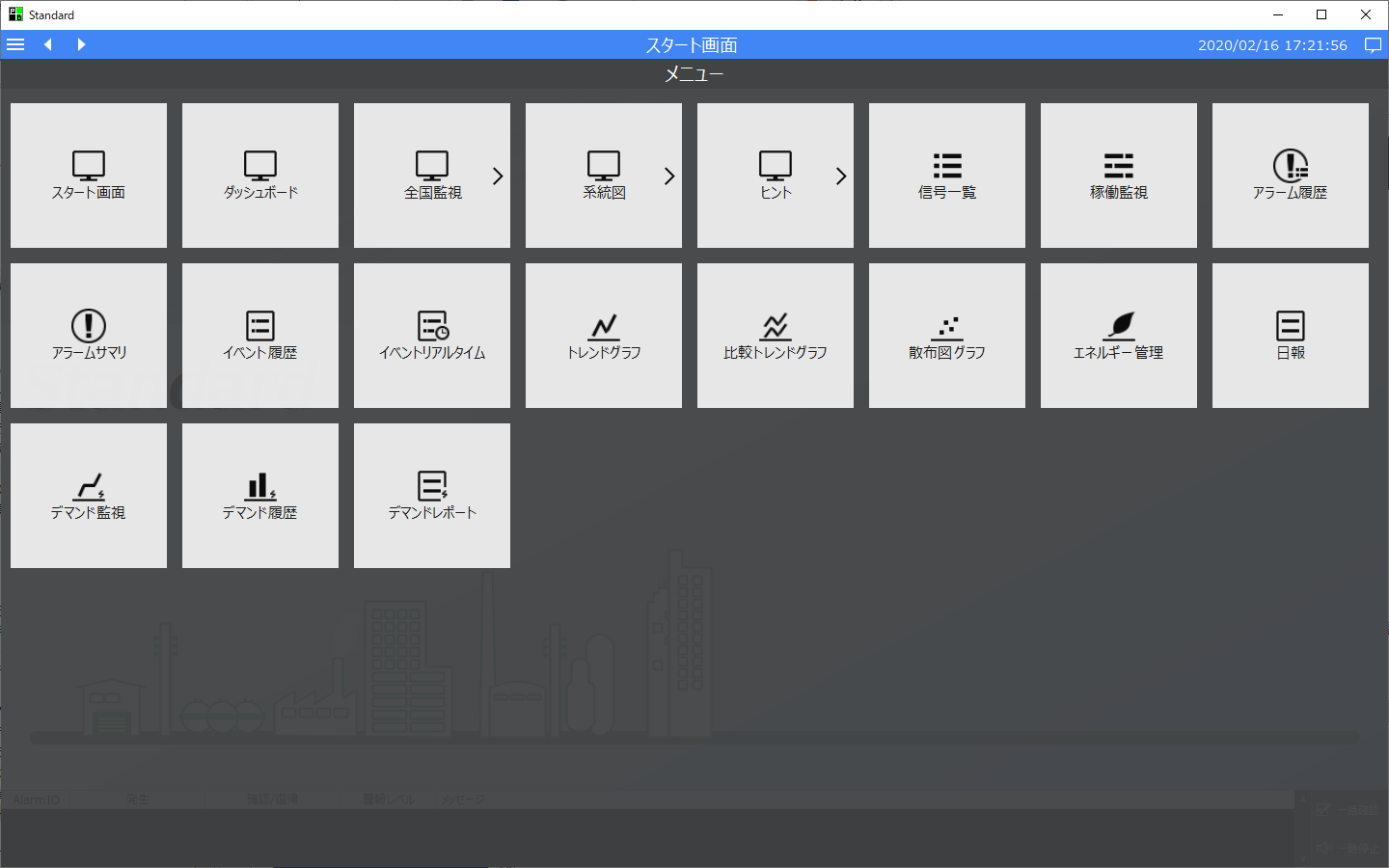
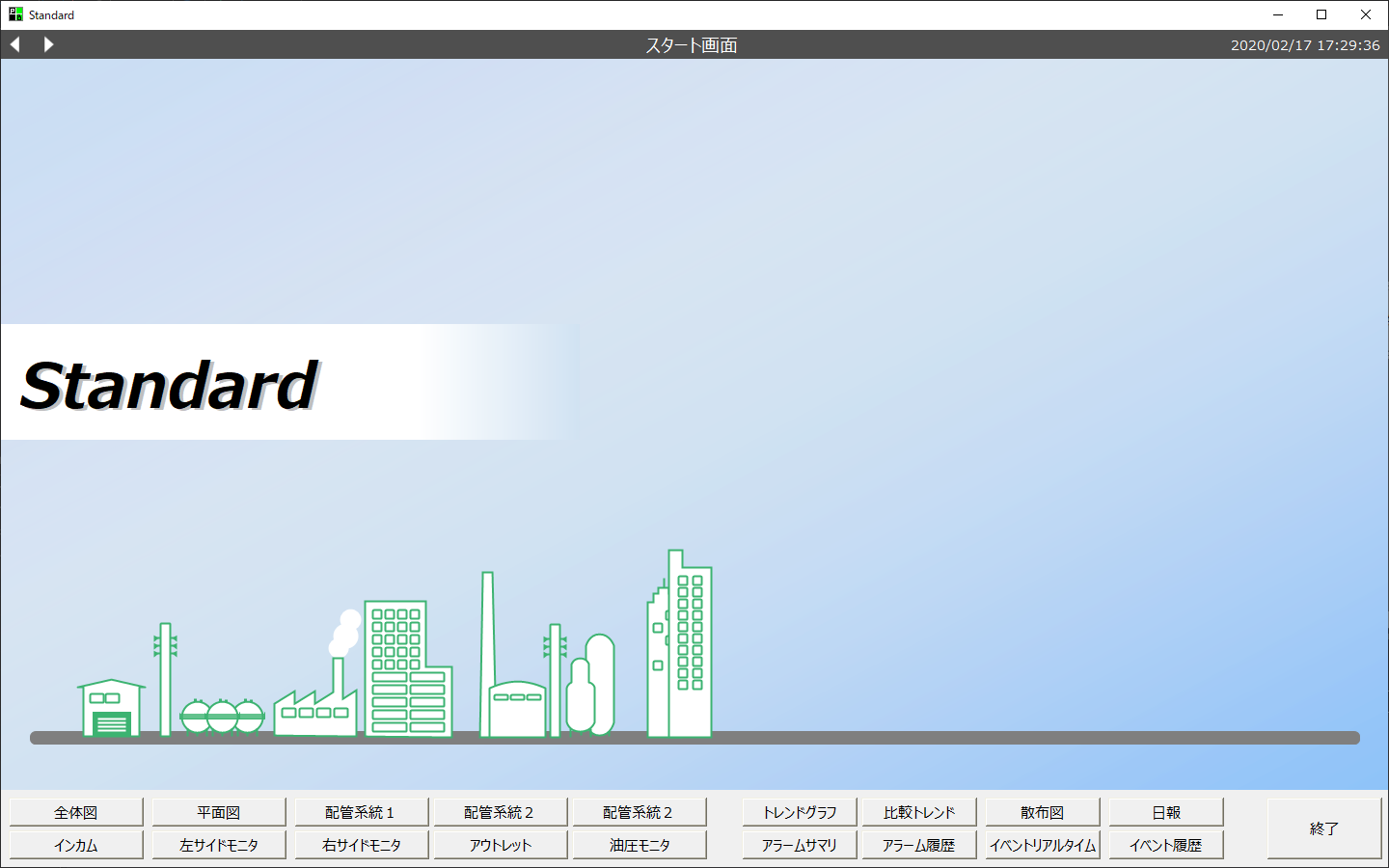
Full menu |
The full menu is a complete menu function that is pre-installed in the standard project. This menu can be used immediately by simply configuring it from the system settings screen.
For information on how to set up the full menu, please refer to "Full menu setting example".
|
|
||||
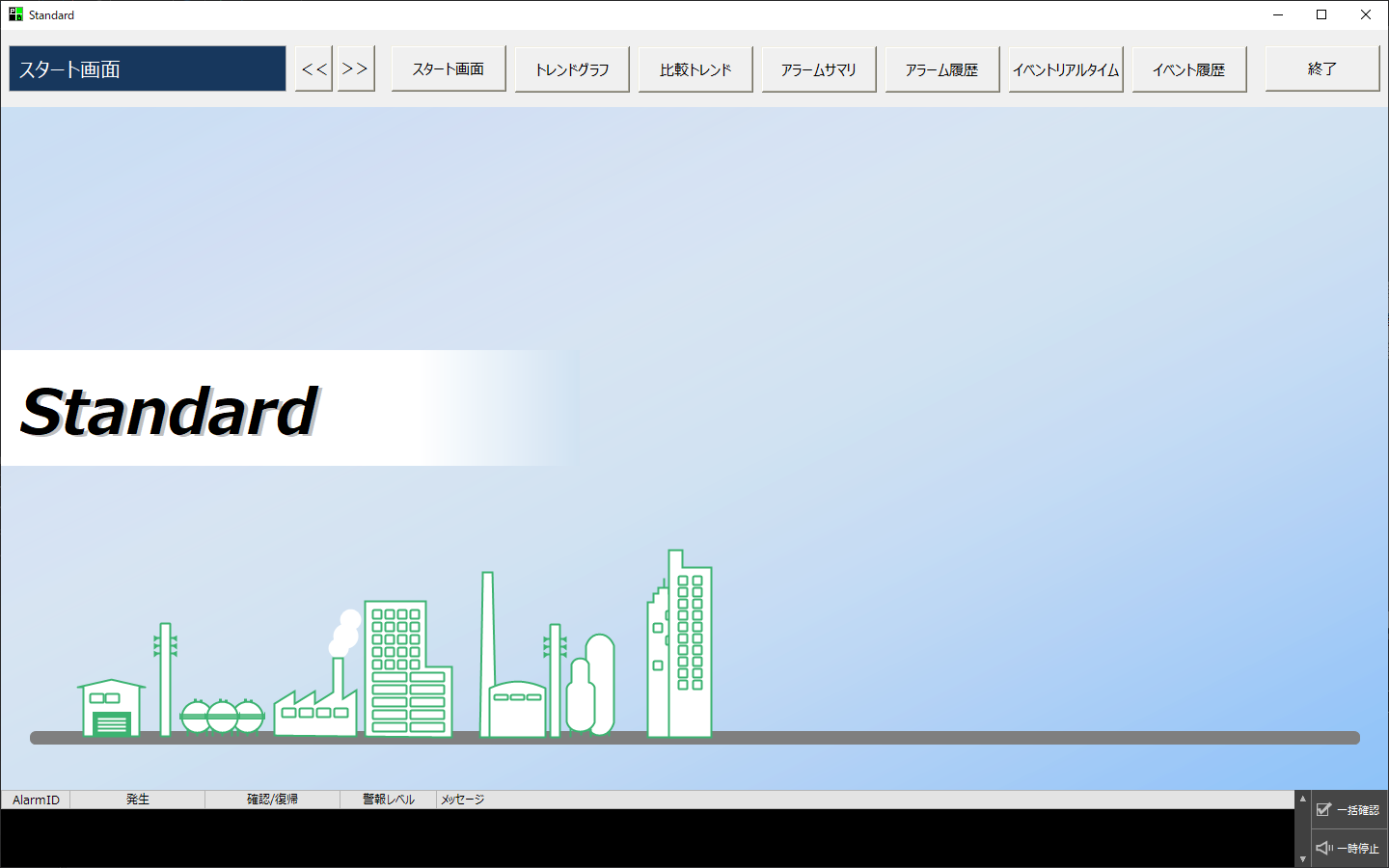
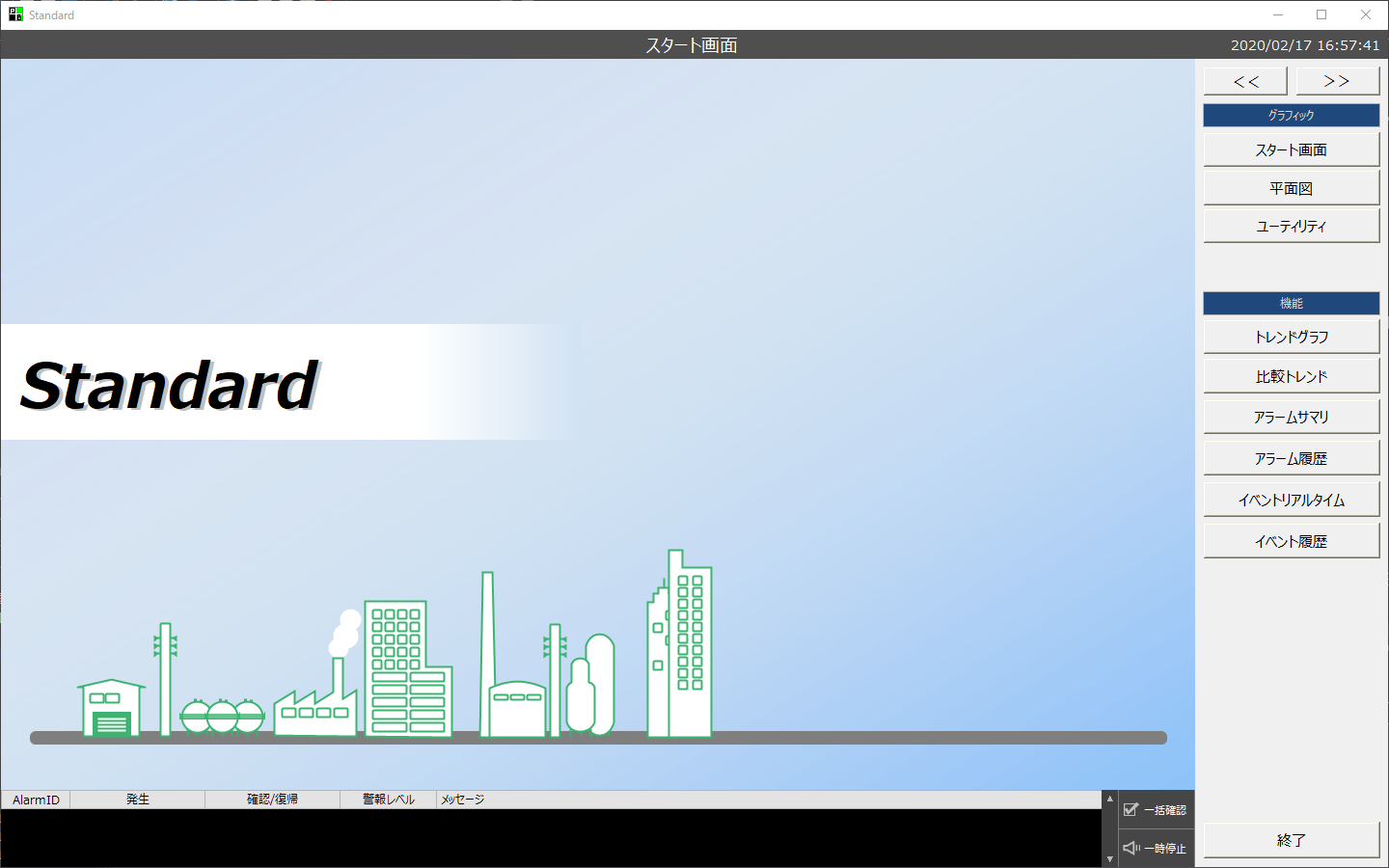
Classic Menu |
You can freely customize the forms displayed in the top, bottom, left and right areas of the screen. By placing buttons for calling up your own screens on these forms, you can create classic menus.
For an example of creating a classic menu, see "Creating a Classic Menu". |
|