Side menu display settings
In standard projects, the side menu (left area) is set to be displayed by default. The menu can be configured from the system settings screen of the standard framework. Display the system settings screen while both Panel Server and Panel Browser are running online. For information on how to display the system settings, see "Displaying the system settings screen".
■Side menu display settings
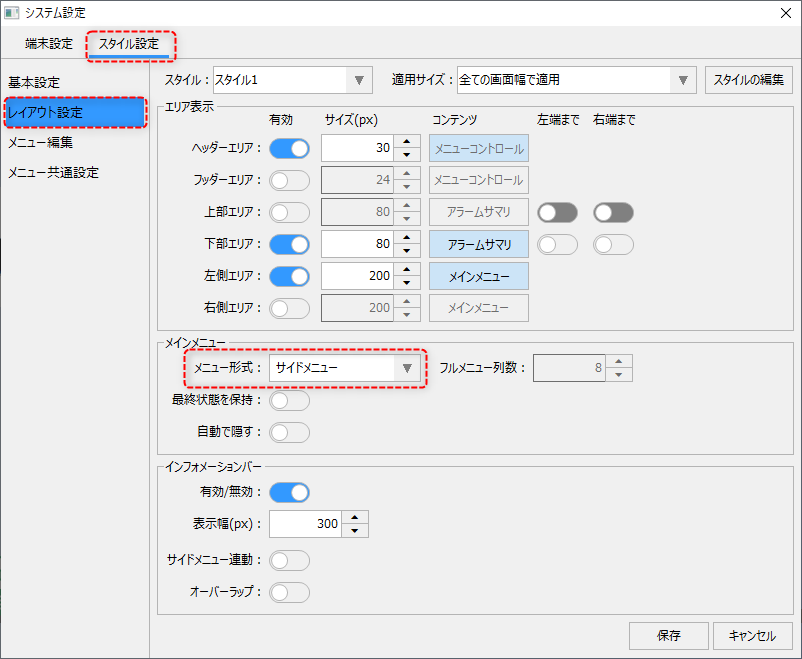
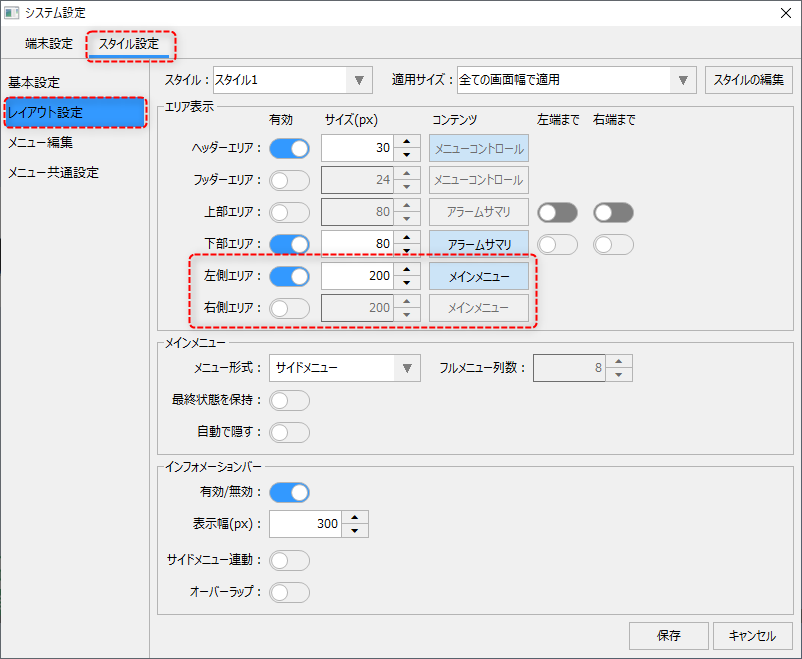
From the System Settings screen, select the Style Settings tab and display "Layout Settings" from the menu on the left side of the screen.
|
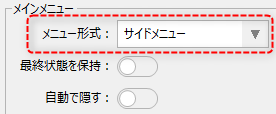
Please make sure that the "Menu Format" combo box in the main menu is set to "Side Menu." If it is set to other settings, select "Side Menu".
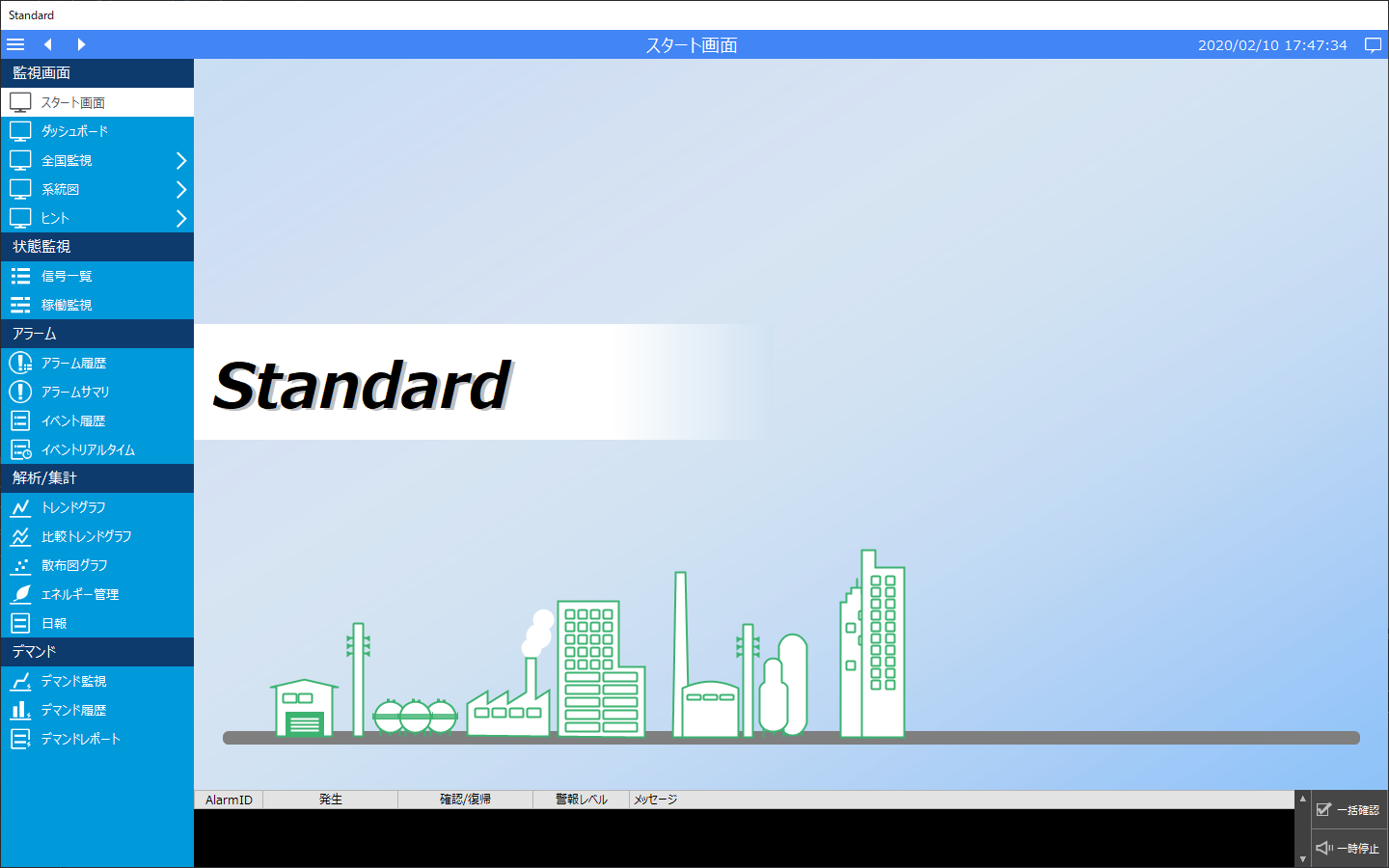
This setting will cause the menu items defined in the main menu to be displayed in the side menu.
|
This is an example of the side menu (left side).
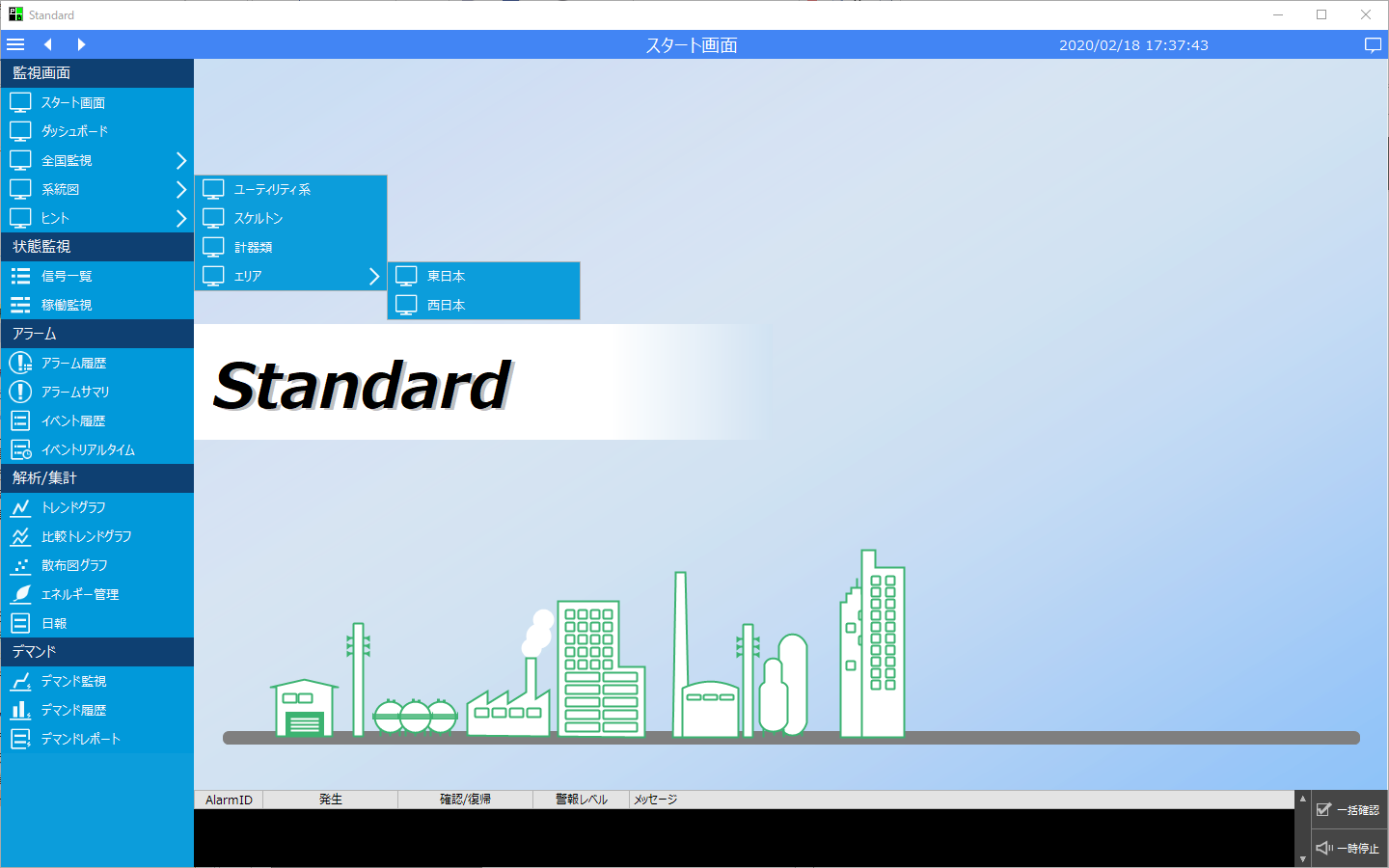
You can open the hierarchical menu by clicking it, as shown below.
For information on how to edit the items displayed in the menu, see "Editing Menus".
■ Display the side menu on the right
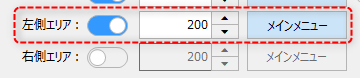
The display position of the side menu is defined by the following area display settings.
|
By default, the display of the left area is enabled and the content "Main Menu" is selected.
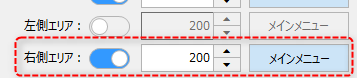
To change the side menu to the right, enable display of the right area and select "Main Menu" in the content. Below is a setting example. The left side is disabled because the left area is not needed.
|
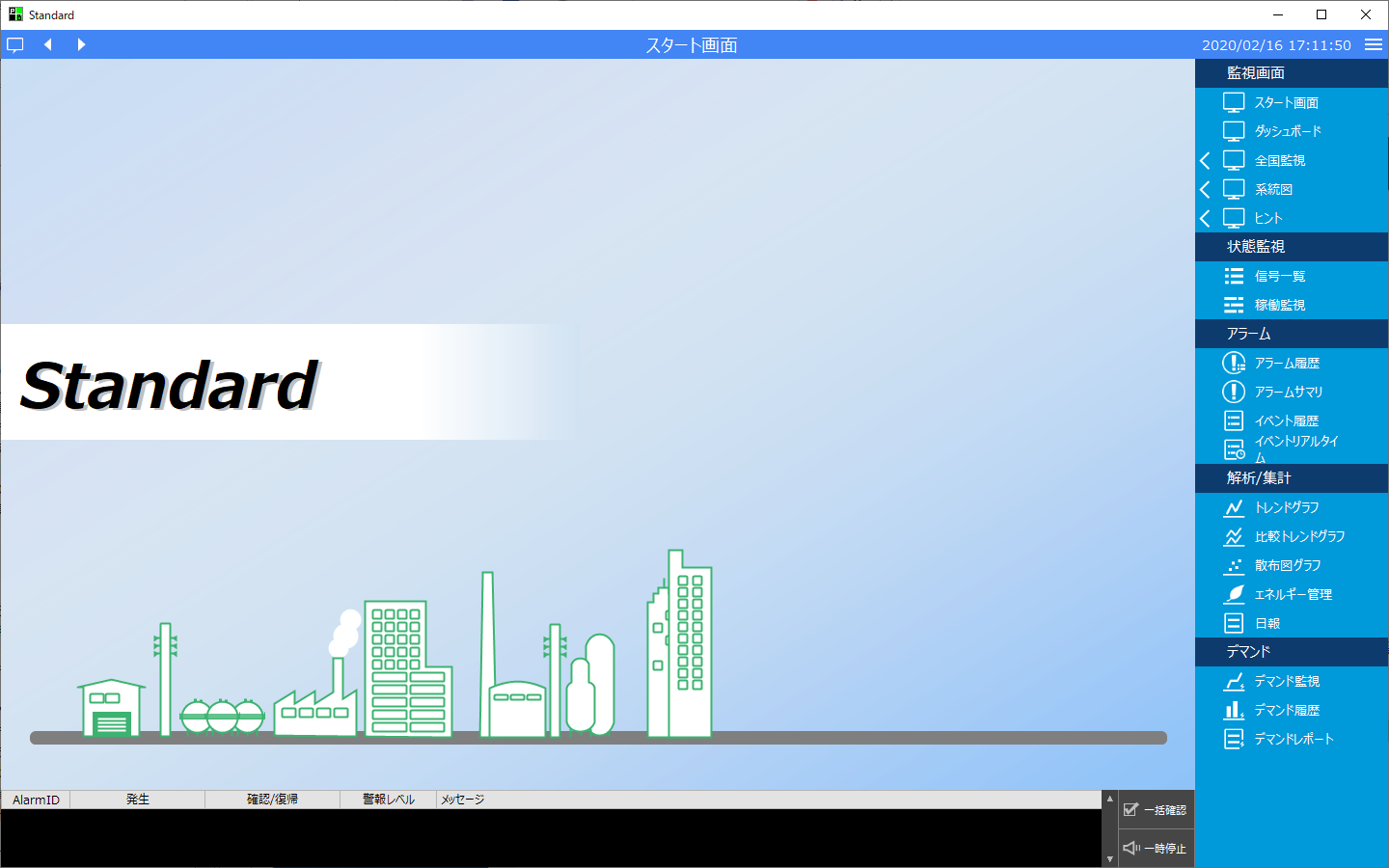
Below is an example of the side menu (right side).
For information on how to edit the items displayed in the menu, see "Editing Menus".