How to display the system settings screen (with information bar)
The system settings screen must be displayed from the client screen of the standard project. Therefore, to display the system settings screen, both Panel Server and Panel Browser must be running online.
The system settings screen can be displayed in the following ways.
1.First, from the Panel Editor where the standard project is opened, click the icon below to display the Panel Server.
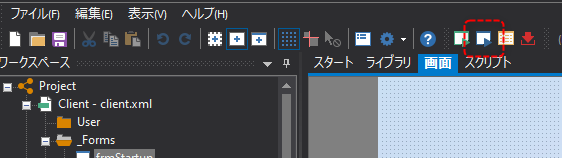
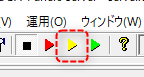
2.When Panel Server appears, click Online (yellow arrow) at the top of the Panel Server screen.
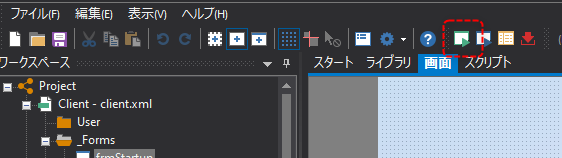
3.Next, click the browser run icon (green arrow) at the top of the Panel Editor screen to call up Panel Browser.
The standard project browser is launched.
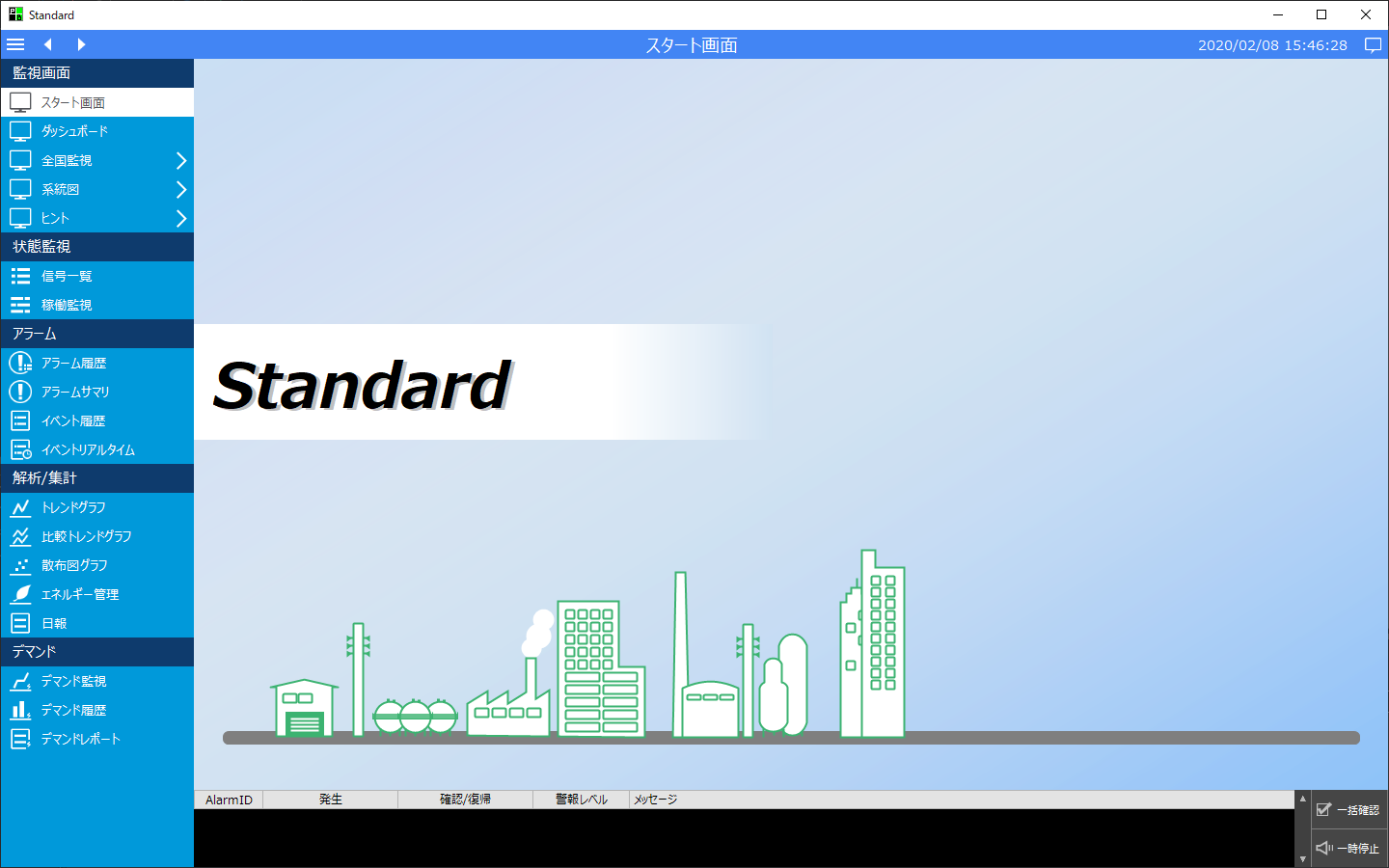
4.The system settings screen can be displayed from the settings icon located in the information bar of the standard project.
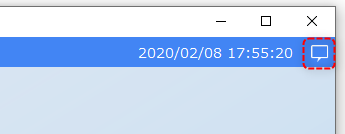
First, click the icon below to display the information bar (usually located in the top right corner).
Once the information bar is open, click the following icon located at the bottom of the information bar (this is where it is usually located):
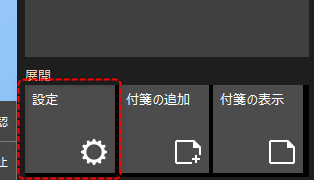
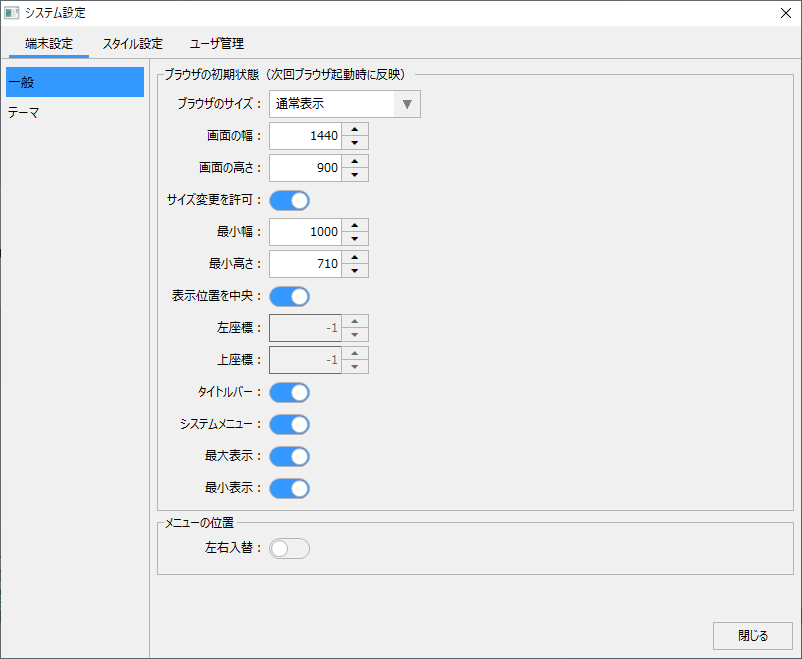
This will pop up the System Settings screen.
(Standard framework system settings screen)
|
The settings icon for calling up the system settings screen can be hidden by editing the menu. If you choose to hide the settings icon, please be careful to ensure that you will not be affected if you are no longer able to call up the system settings screen. If you want to display the system settings screen again after disabling it, you can do so by enabling calling up the screen via keyboard operations, as described in the hint below. |

|
You can also call up the system settings screen using keyboard operations. To enable this function, set the "_KeyForBrowserSetting" custom property of the standard framework to True. By default, the system settings screen is displayed when the "F1" key is pressed. You can customize the type of key to be supported by editing the source code of the standard framework. For information on how to configure and customize this function, see "Displaying the system settings screen using key operations" in the Monitoring System Construction Guide. |
|
The system settings screen can also be called from a script. For details, see "Displaying the system settings screen from a script". |
How to display the system settings screen (without the information bar)
When generating a standard project, if you disable the information bar check in the standard framework wizard, the icon for calling up the information bar will be hidden.
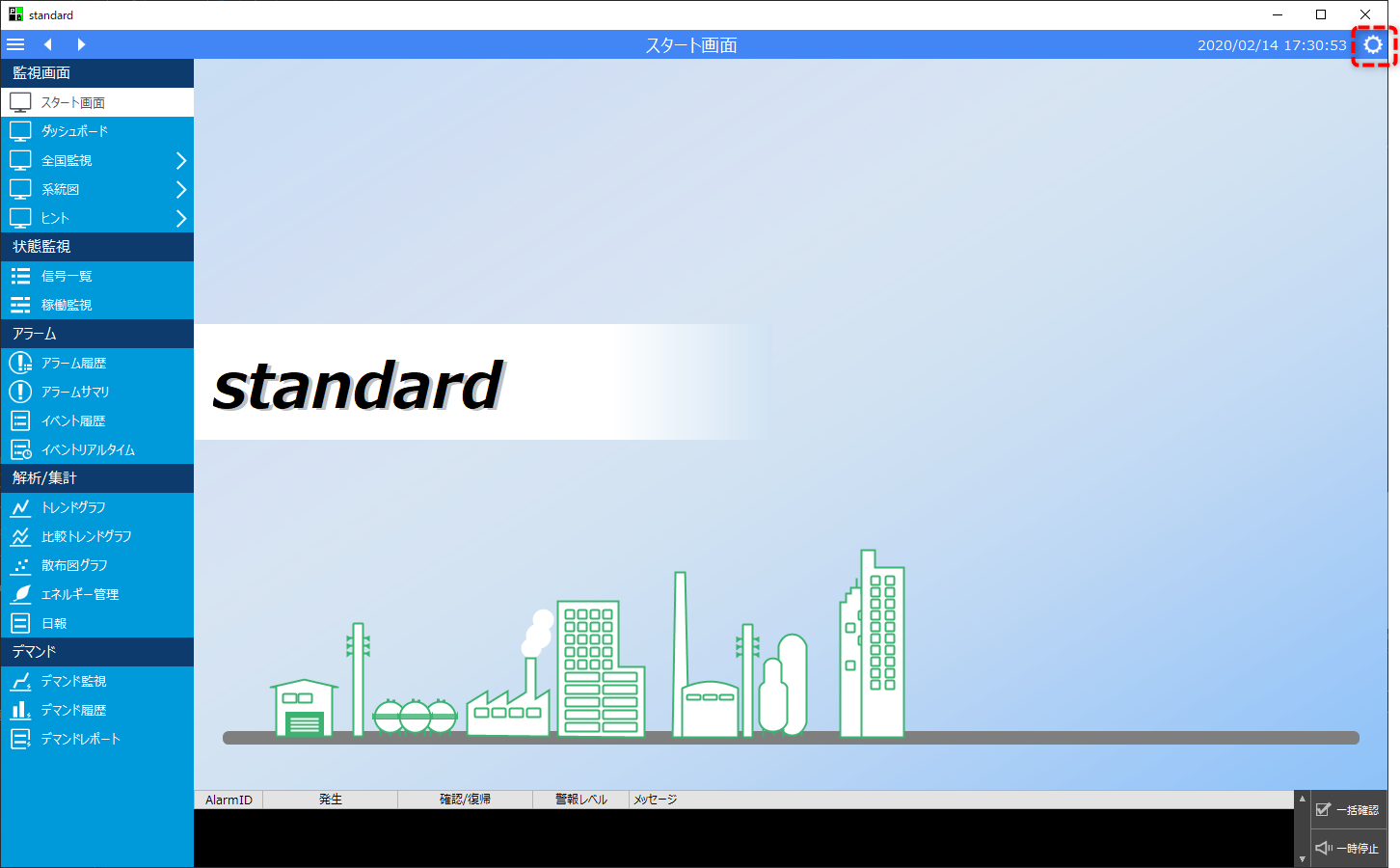
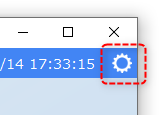
In this case, the settings icon to call up the system settings screen will be displayed in the top right corner of the screen as shown below.
Clicking this icon will take you to the system settings screen.
|
(Settings icon displayed in the header area)
|
|
If you want to disable the system settings screen, you can edit the menu so that it is not displayed. You can also add a settings icon like the one above later. For information on how to edit the menu, see "Editing the Menu". |