overview
Monitoring screen systems are required to support a variety of display formats depending on the system's purpose and operation mode.
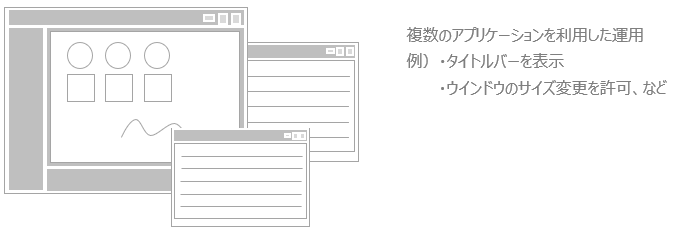
For example, in cases where you want to display the monitoring screen on the PC of an administrator who is away from the site, you may want to display the monitoring screen in a smaller size while using other applications such as a spreadsheet or business system.
In such cases, you can set the monitoring screen to operate as a normal display and allow operations such as resizing, maximizing, and minimizing the screen.
(Image of using multiple applications in normal display)
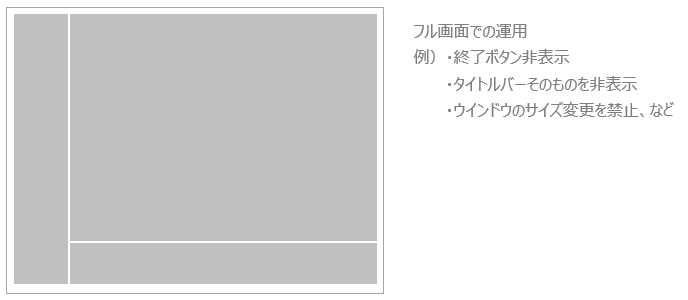
On the other hand, for PCs dedicated to monitoring systems installed on production lines and other production sites, it may be desirable to limit their use to the monitoring system alone and prohibit their use for other purposes.
In such cases, you can set the monitoring screen to be in full screen mode, with the Windows title bar hidden and non-resizeable.
(Full-screen display operation image)
The above screen display settings can be made in the "Terminal Settings" section of the system settings for the standard project.
About the Device Settings tab
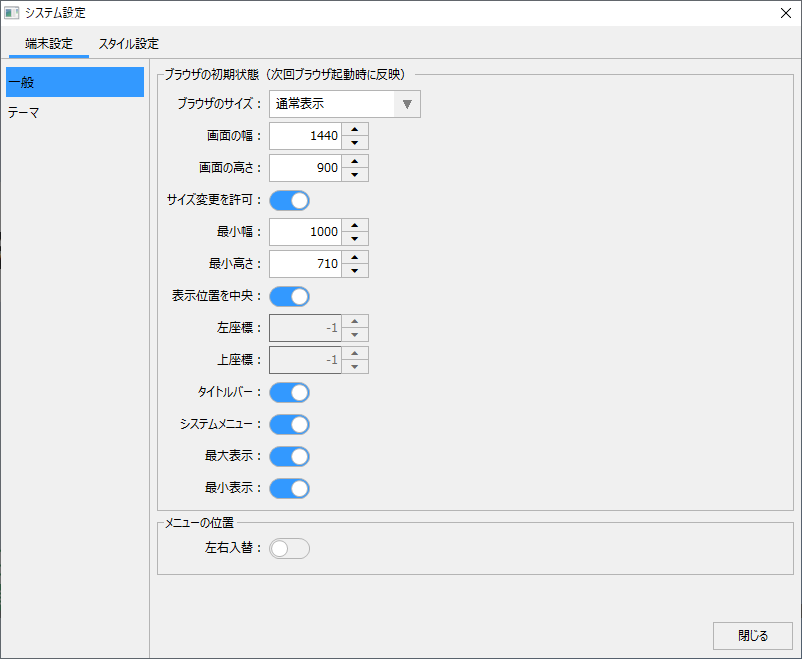
On the "Device Settings" tab of the System Settings screen, you can configure basic settings related to the browser screen display for each device that displays the client screen. For example, you can set the screen display mode (full screen display, normal display, etc.), initial display size, display position, whether or not the size can be changed, and visual theme.
(System Settings Screen / Device Settings / General)
|
By selecting "General" from the menu on the left side of the screen, you can edit the browser's initial settings and menu position settings.
The initial browser settings will take effect the next time you start the browser. Menu position settings are reflected immediately.
|
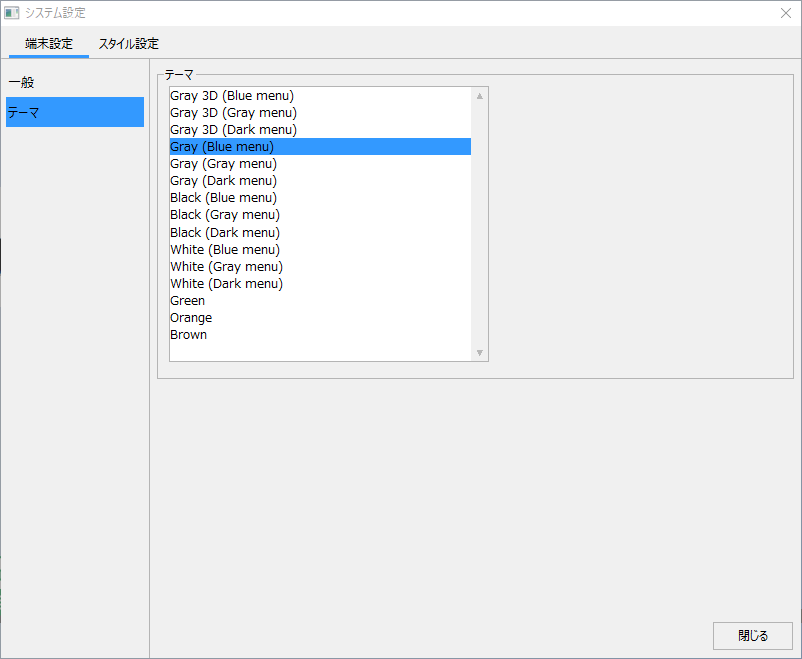
(System Settings Screen / Device Settings / Theme)
|
You can switch visual themes by selecting "Theme" from the menu on the left side of the screen. This setting takes effect immediately.
Visual themes are described in the Screen Creation Guide under "Visual Themes".
|
The following pages provide specific configuration examples for different cases.
content |
overview |
Normal display setting example
|
This section explains a setting example for normal display, assuming that the screen will be used in conjunction with other applications other than the browser-based monitoring screen. |
Example of full screen display settings
|
This section explains an example of settings for full-screen display, assuming that the PC displaying the monitoring screen will be used entirely for the monitoring system. |