Normal display setting example
Here we will introduce an example of normal display settings.
Click on the links below to jump to the relevant section of this page.
•Remove system menu (no exit button)
The standard settings are designed to meet the following needs:
Anticipated needs
•I would like to be able to freely change the screen size depending on the situation, assuming that I will be using it in conjunction with other applications.
•Applications can be freely maximized and minimized (for users who don't mind the monitoring screen being minimized).
The specific settings are as follows:
|
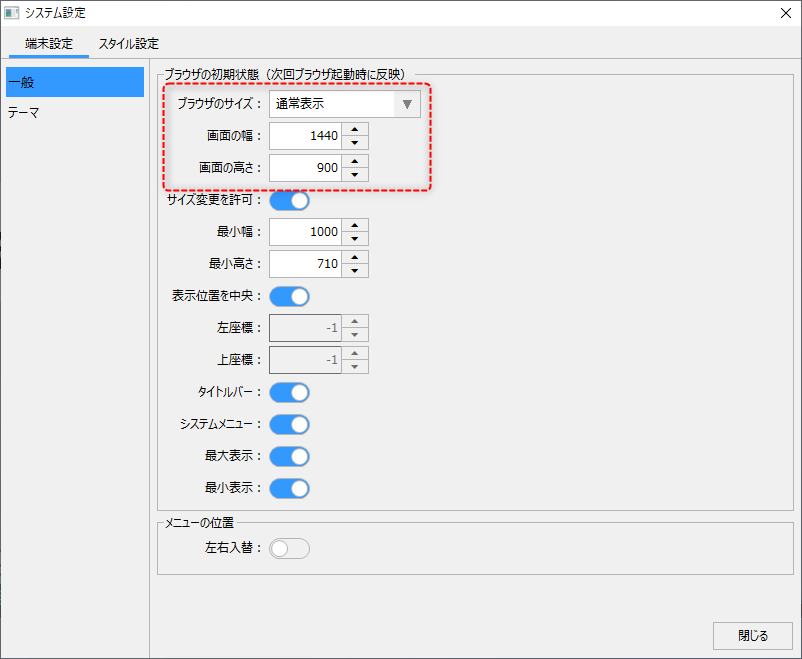
If you set "Browser size" to "Normal display", the initial display will be at the size specified by "Screen width" and "Screen height". The standard width and height are 1440 x 900. Please specify an appropriate size based on the screen resolution of the execution environment and the size of the graphic screen you are actually developing.
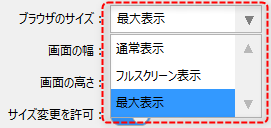
Furthermore, if you set this combo box to "Maximized display", the initial display state will be maximized.
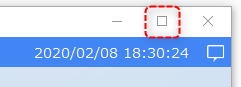
If you maximize the above, the initial display state when the browser is started will be maximized. This is the same as the enlarged state when the maximize button on the title bar is used. Therefore, if you usually want to display the browser maximized, and only want to temporarily display it in a smaller size when using another application, it is a good idea to maximize the display in advance.
|
|
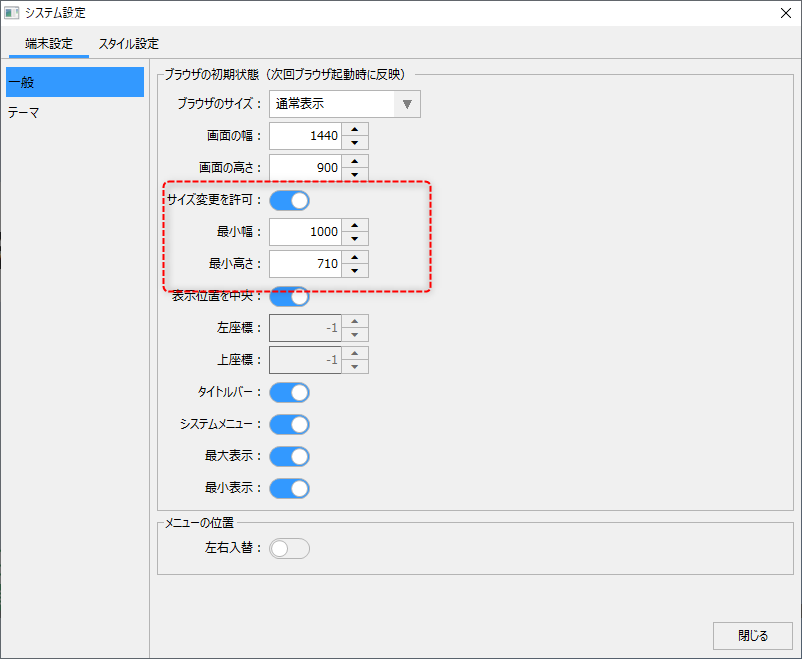
If you enable "Allow resizing" on the left, you will be able to resize the page using the mouse when the browser is in normal display mode.
Here, "minimum width" and "minimum height" refer to the lower limit of the size when the window is reduced by mouse operation, and are the sizes below which it cannot be made smaller. Please note that if you set these values too small, some standard function screens such as trend graphs may not be displayed correctly.
If you do not want the window size to be changed during operation, disable "Allow resizing."
|
|
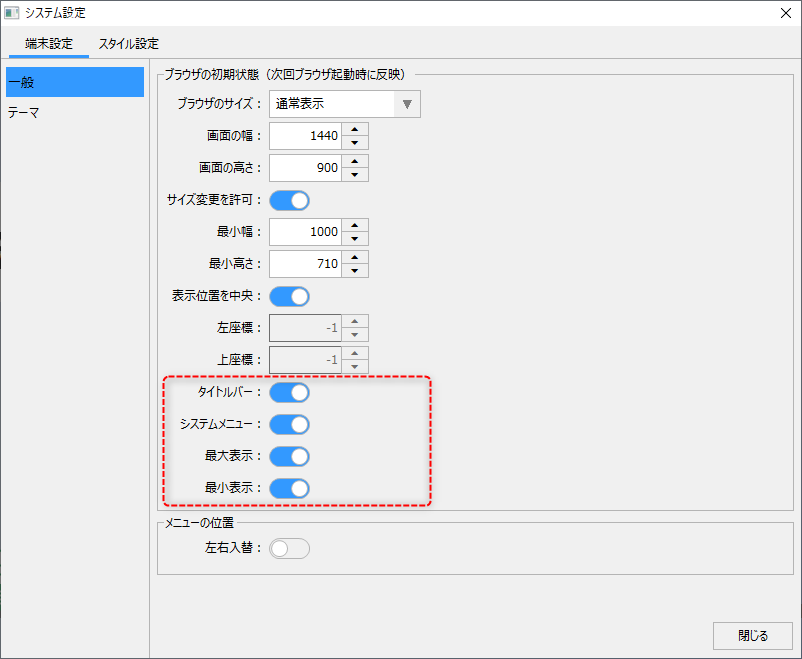
By default, the title bar, system menu, maximized display, and minimized display are all enabled.
If you disable the display of the "Title bar" here, the title bar itself will be hidden, so the system menu (exit button, etc.), maximize button, and minimize button will also be hidden. Please note that if you hide the title bar when the browser size is normal, you will not be able to move the browser window itself.
|
Hide system menu (no exit button)
In the field of monitoring screen operations, there are times when you want to prevent the system from stopping unintentionally due to user misoperation. In such cases, you can prevent users from easily quitting by hiding the exit button (x button) on the title bar (the part at the top of the screen where the title is displayed).
|
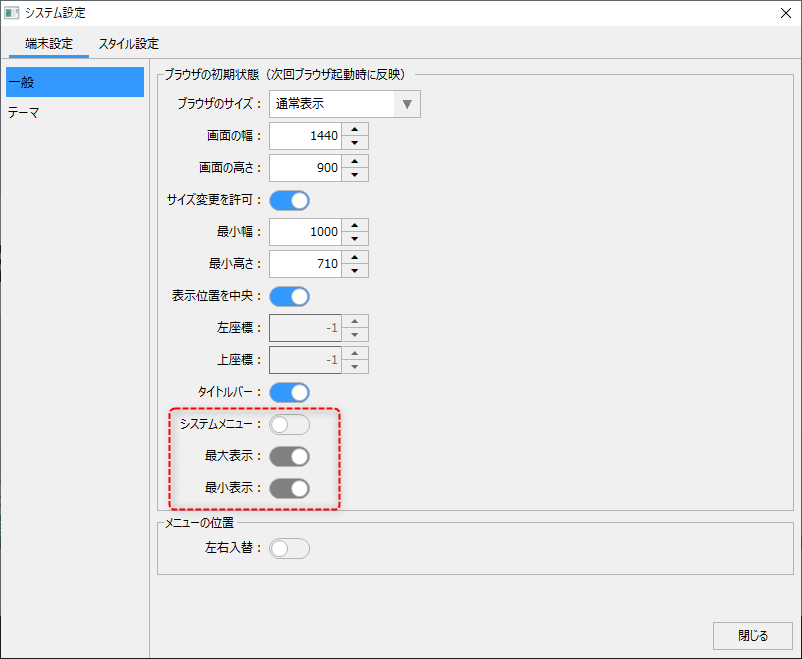
If you want to hide the Exit button on the title bar, disable "System Menu" as shown on the left.
Furthermore, disabling the system menu will also disable the maximum and minimum display.
|
With the above settings, your standard project will look like this:
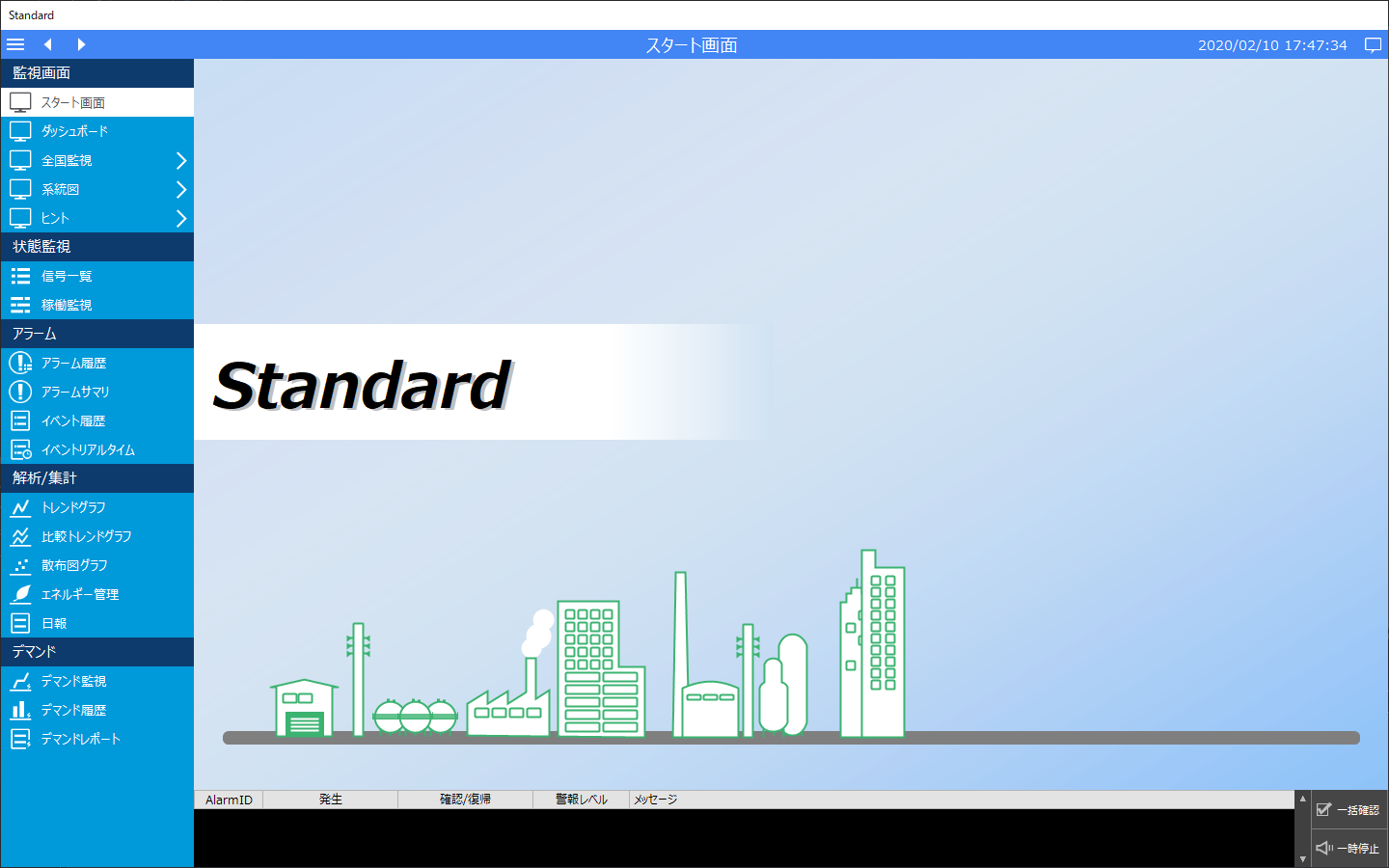
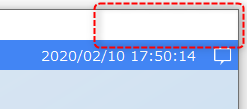
The title bar is displayed, but the icon in the upper left corner of the title is hidden.
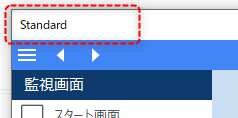
In addition, the minimum, maximum, and end buttons in the upper right corner of the title will all be hidden.
Furthermore, if you hide the exit button and disable the side menu, there will be no way to terminate the client application. Therefore, you will need to provide your own mechanism for terminating the client in some way. For details on how to terminate the client, please refer to "Methods for Terminating the Client" in the function explanation.