Example of full screen display settings
Here is an example of setting up full-screen display.
When full screen is enabled, the title bar is hidden, the browser takes over the entire screen, you cannot resize the window borders with the mouse, and the Windows taskbar is hidden.
Full-screen display anticipates the following needs:
Anticipated needs
•It will be used exclusively for monitoring purposes and will not be used in conjunction with other applications.
•We do not want operators to unintentionally shut down the system or change Windows settings.
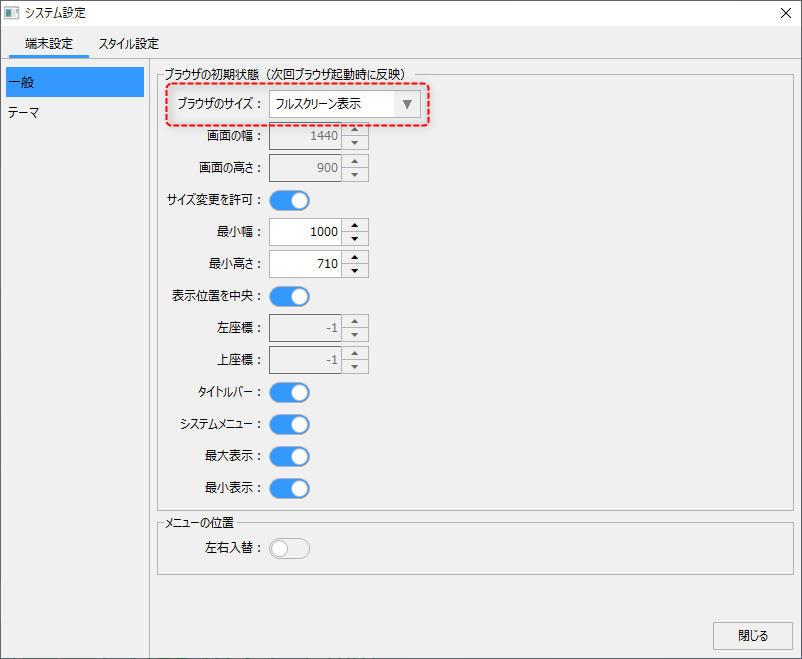
To view in full screen, set the "Browser size" to "Full screen".
|
If you set it as shown on the left, other settings will be ignored and the initial display will be in full screen mode.
|
The following shows the full screen state. The window is displayed across the entire PC screen, and the window title bar is hidden.
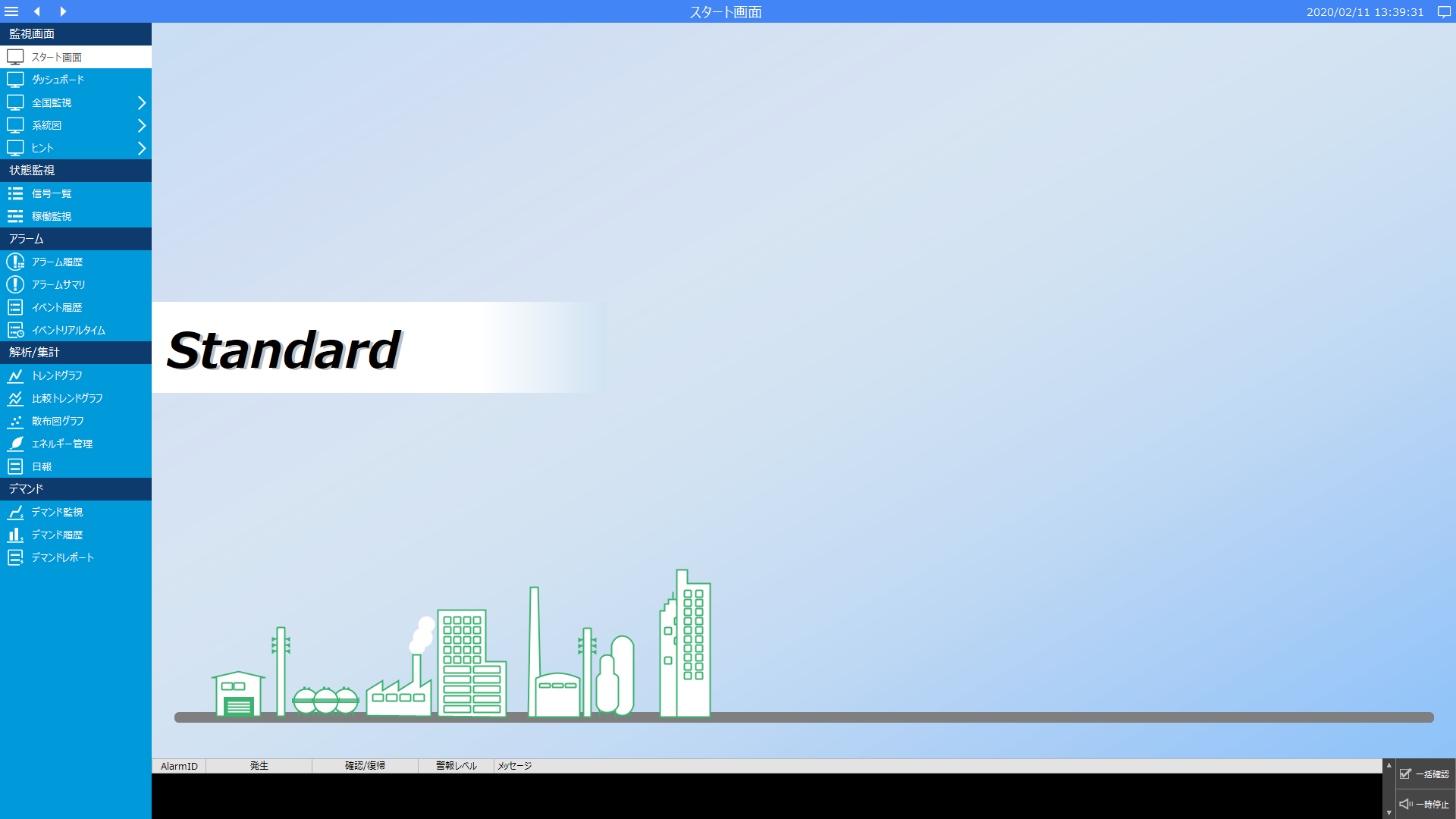
Furthermore, if you are in full screen mode and have disabled the side menu, there will be no way to terminate the client application. Therefore, you will need to provide your own mechanism for somehow terminating the client. For details on how to terminate the client, please refer to "How to Terminate the Client" in the function explanation.
Exiting full screen mode with ESC key
The full screen display can be returned to normal display by pressing the ESC key. This function is enabled by default.
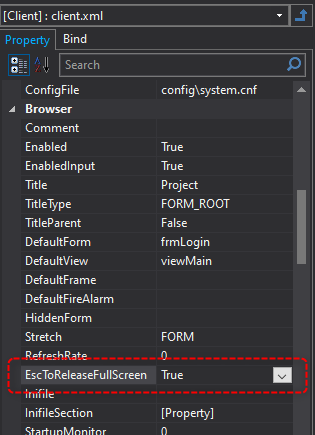
This function can be enabled/disabled by setting the root property "EscToReleaseFullScreen".
|
If you want to disable releasing full screen mode using the ESC key, set the "EscToReleaseFullScreen" property to False.
|