overview
In the "Style Settings" section of the system settings screen, you can edit the style, set the layout, and set the menu.
Standard projects have a concept called "styles." Multiple styles can be registered in a project, and layout and menu settings can be made for each style. In addition, by adding the display width of the screen to the style settings, the settings can be automatically switched according to the display size of the screen. For example, the side menu can be displayed when displayed on a PC screen, and only the icon buttons in the footer can be displayed when displayed on a small screen such as a tablet. In addition, in the group settings for logged-in users, styles can be assigned to each user group. By registering multiple styles for each user group, flexible operation is possible, such as dynamically switching the display items of the menu according to the user who logs into the system.
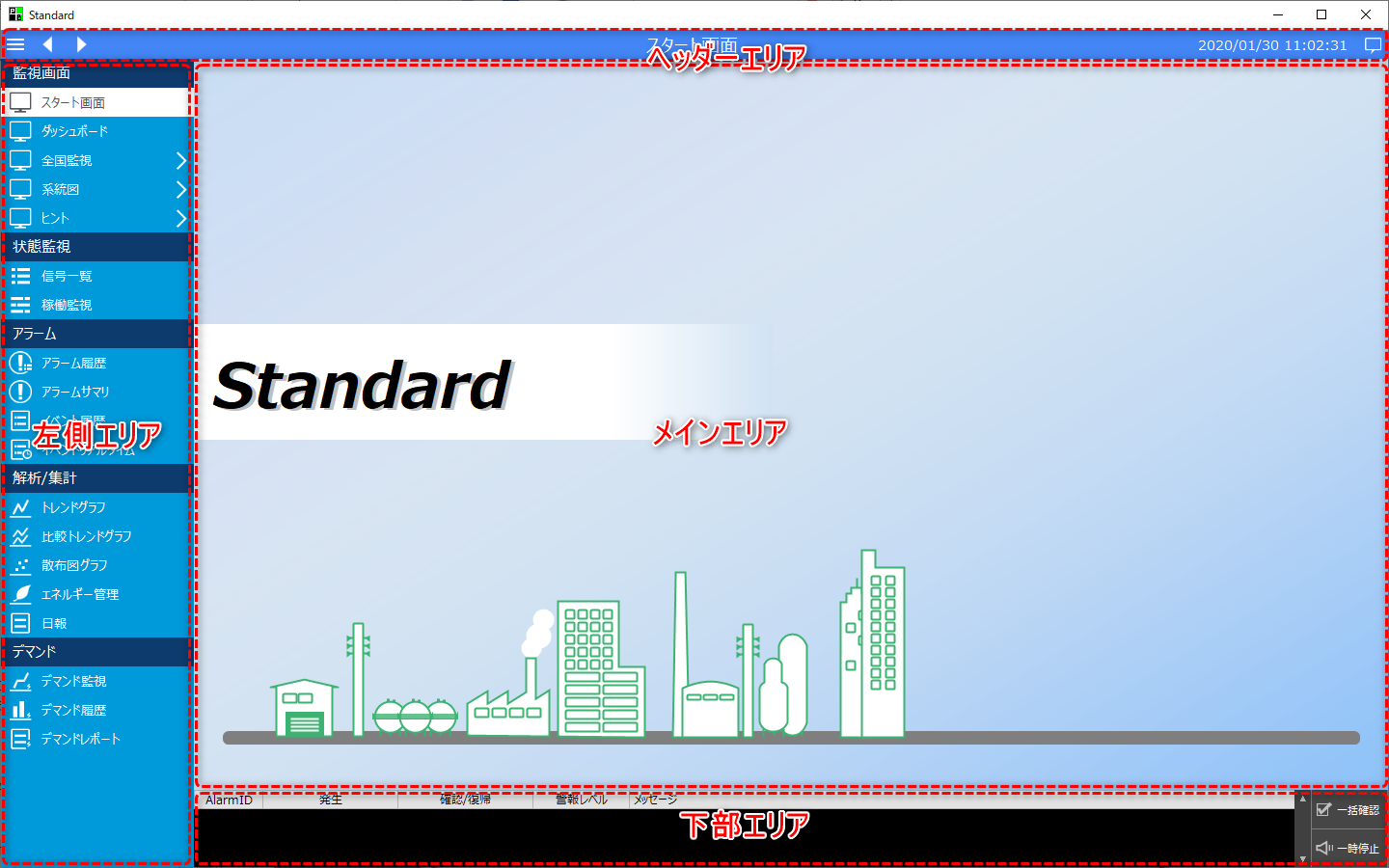
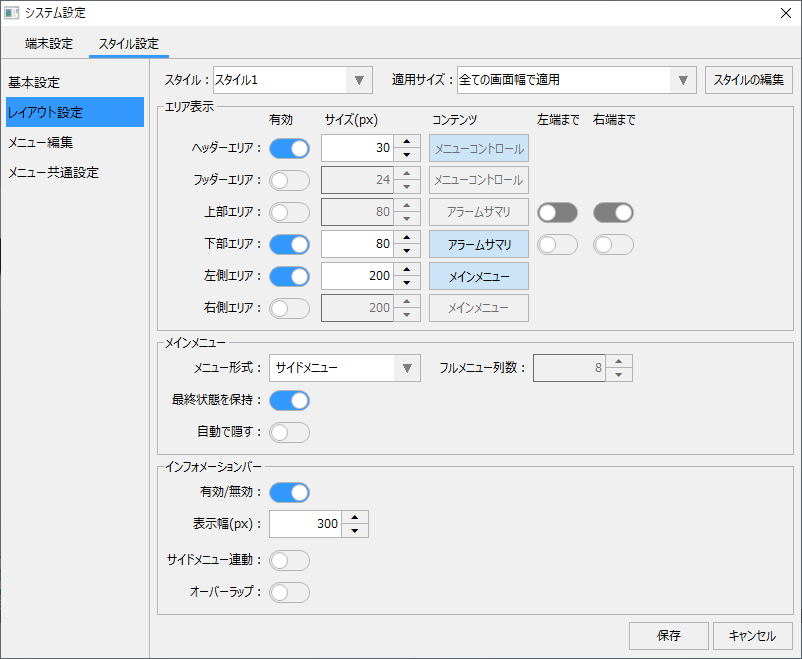
In the layout settings, you can edit the settings of the display area of the standard framework. The standard framework screen is composed of multiple display areas, and you can edit, for example, the display/non-display of each area, the display width settings of the upper area and lower area, and the contents to be displayed in each area (for example, the display of the main menu, the display location of the alarm summary, etc.).
(Standard framework default area configuration)
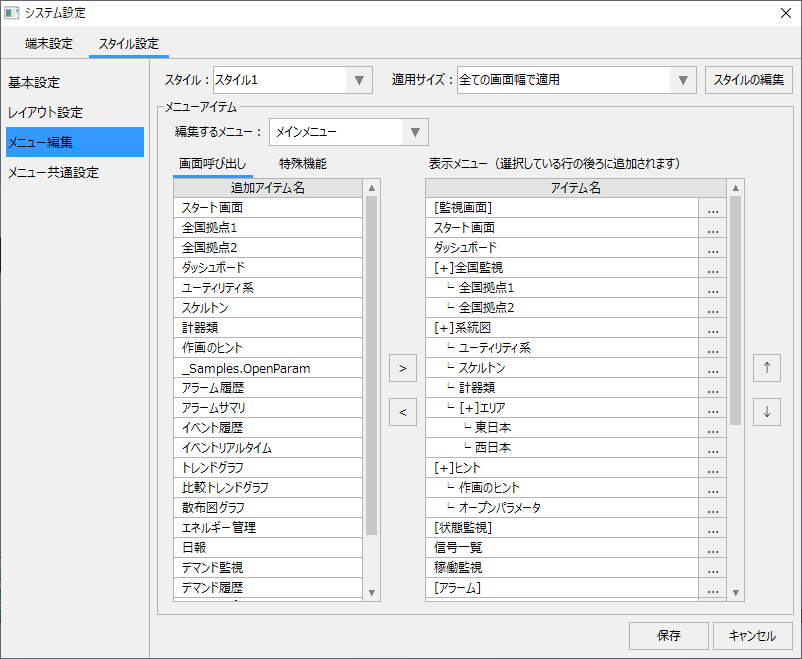
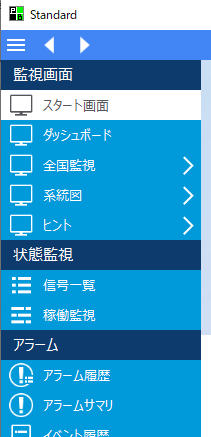
In the menu settings, you can freely edit the items displayed in the menu. For example, you can add your own original graphic screen to the menu, or place special functions such as system shutdown or setting screen access.
|
In addition, the menu settings can be set for each menu display position. For example, in addition to the main menu display contents shown on the left, you can add icons to the header area or footer area, or add your own application menu to the bottom of the title bar.
|
About the Styling tab
The following settings can be made on the "Style Settings" tab of the System Settings screen.
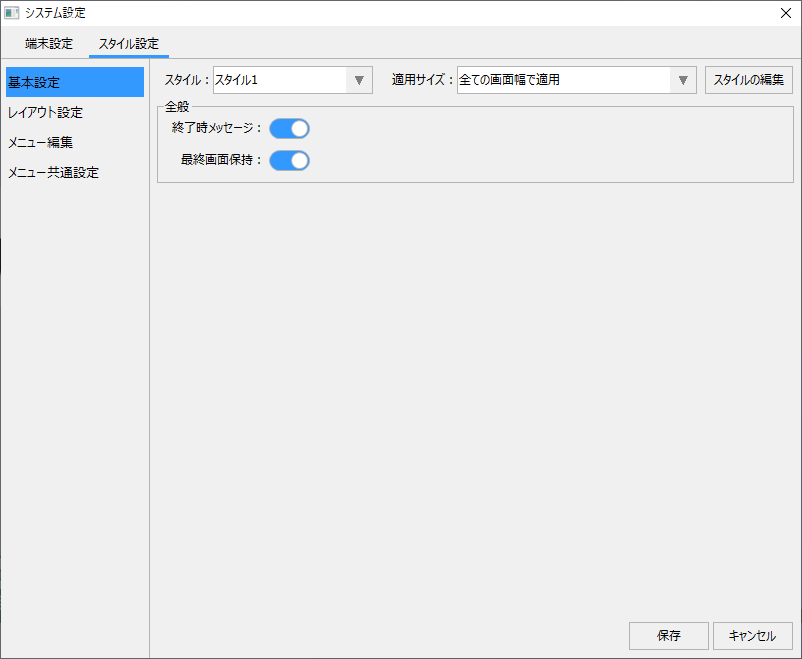
(System Settings Screen / Style Settings / Basic Settings)
|
By selecting "Basic Settings" from the menu on the left side of the screen, you can set the message to be displayed upon exit and the last screen to be retained.
You can also edit the style using the following button at the top of the screen. When editing the style, you can set individual conditions according to the display size of the currently displayed window, and the display style can be automatically switched depending on the screen size. For example, the main menu can be displayed when displayed on a PC screen, and only the footer icon buttons can be displayed when displayed on a small screen such as a tablet, allowing dynamic display switching according to the size.
For more information, see Editing Styles. |

(System Settings Screen / Style Settings / Layout Settings)
|
You can set the display area by selecting "Layout Settings" from the menu on the left side of the screen.
For more information, see Editing the Layout.
|
(System settings screen / Style settings / Menu settings)
|
You can configure menu items by selecting "Menu Settings" from the menu on the left side of the screen. In addition, in the "Menu Common Settings" you can set the height of the header menu and footer menu, icon size, etc.
For more information, see "Editing Menus".
|