Editing styles
To edit the style, click the following buttons on the Style Settings tab.
|
|
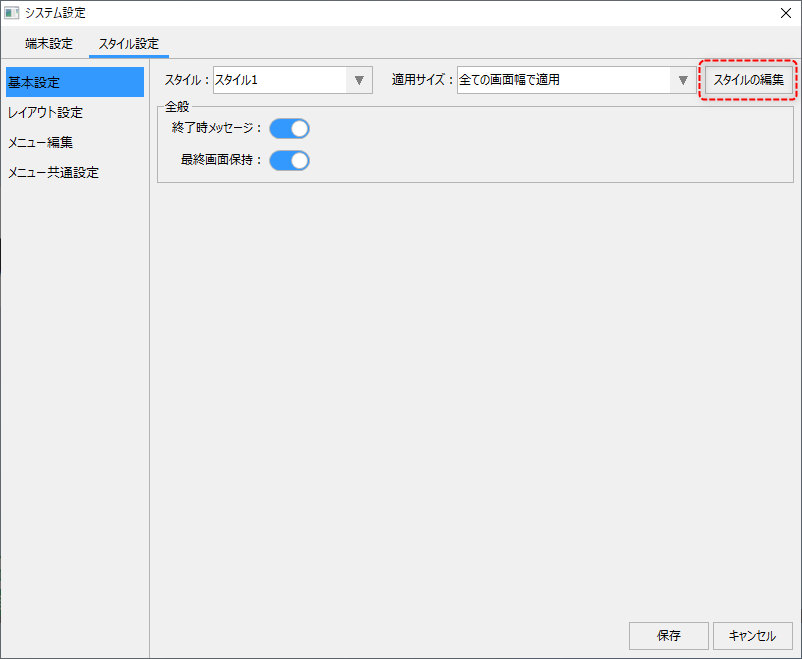
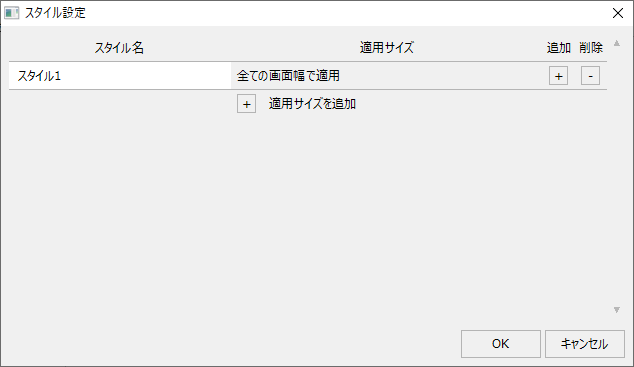
This will pop up a style setting dialog.
(Style Settings Dialog)
|
The style name can be edited directly from the left.
|
|
To add a new style, click the "+" button on the left.
|
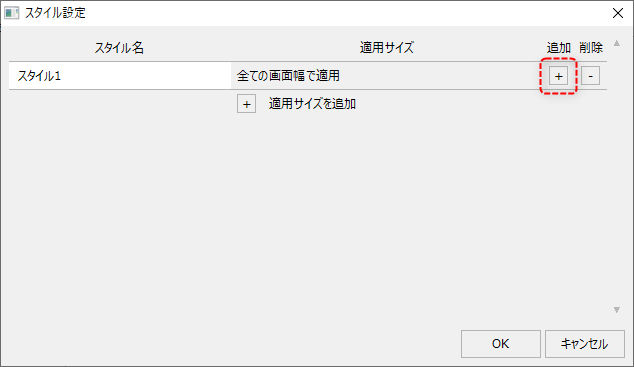
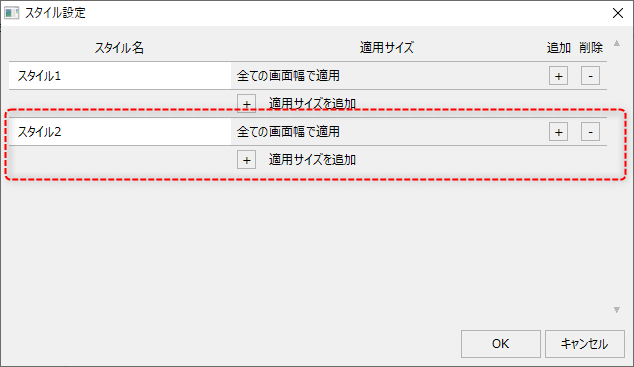
This will add a new style like this:
|
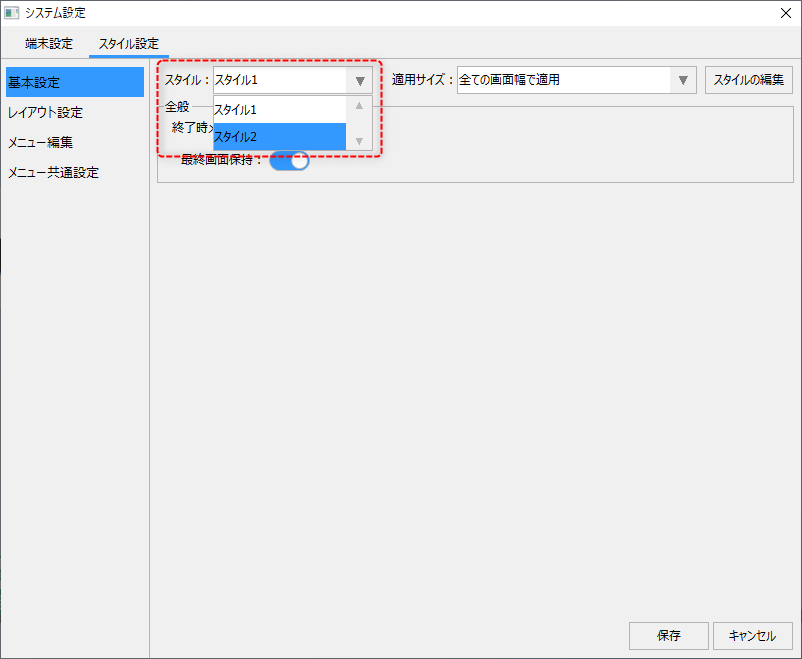
Once a style has been added, it will be available for selection from a combo box on the System Settings screen.
|
|
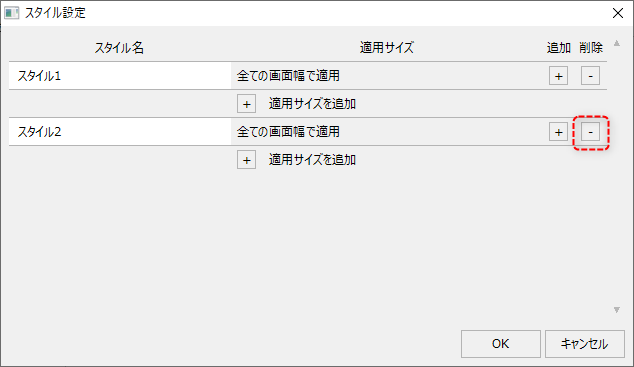
To delete a style, click the "-" button for the style you want to delete.
|
|
Adding an applicable size allows you to automatically switch the style display according to the screen width. To add a size, click the "+" button on the left.
|
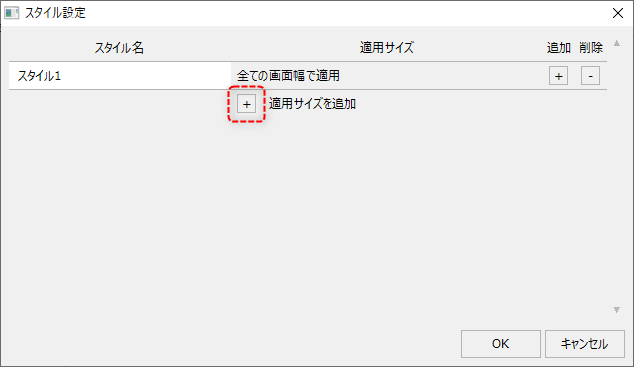
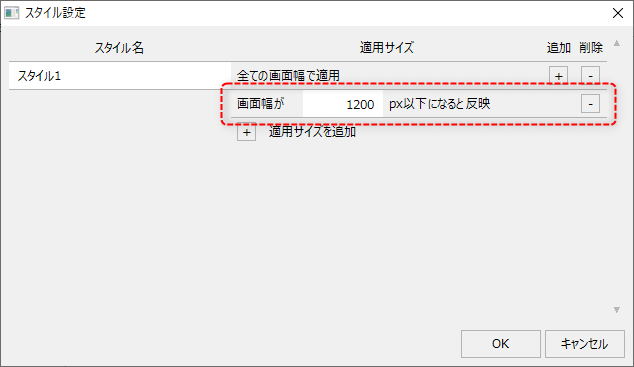
This will add the applicable size condition as follows:
|
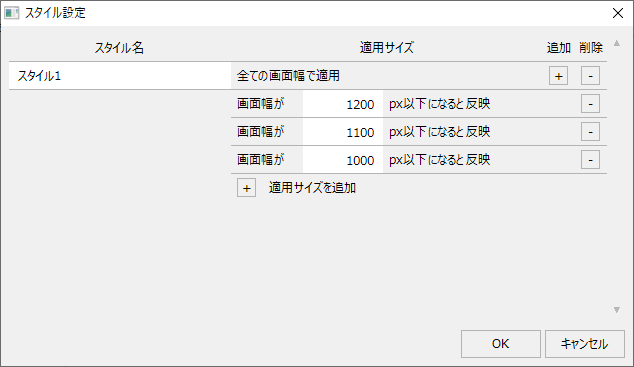
In the input box on the left, specify the screen width (in pixels) at which the display settings will be automatically switched. Furthermore, you can register multiple conditions by clicking the "+" button.
|
Below is an example of adding multiple conditions.
|
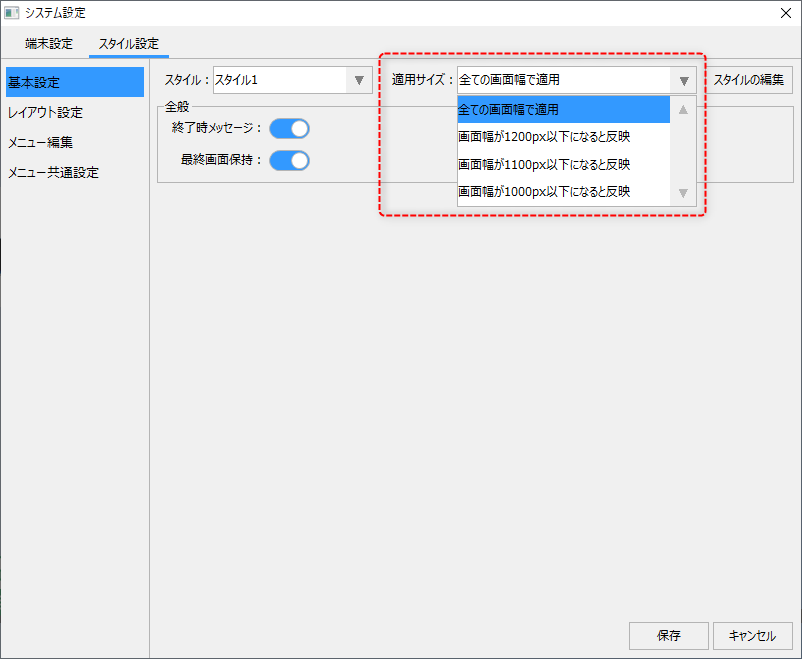
Once an applicable size has been added, it will be available for selection from the combo box on the System Settings screen.
|