Standard Framework Client Exit Method
There are the following methods for terminating a standard framework client. Select the appropriate method according to the user's needs.
Termination Method |
explanation |
||
Exiting Panel Browser via system button
|
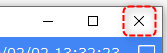
You can exit by clicking the "X" button on Panel Browser.
This button is displayed when the title bar display and system menu display are enabled in the standard framework system settings.
|
||
Use of standard framework exit button |
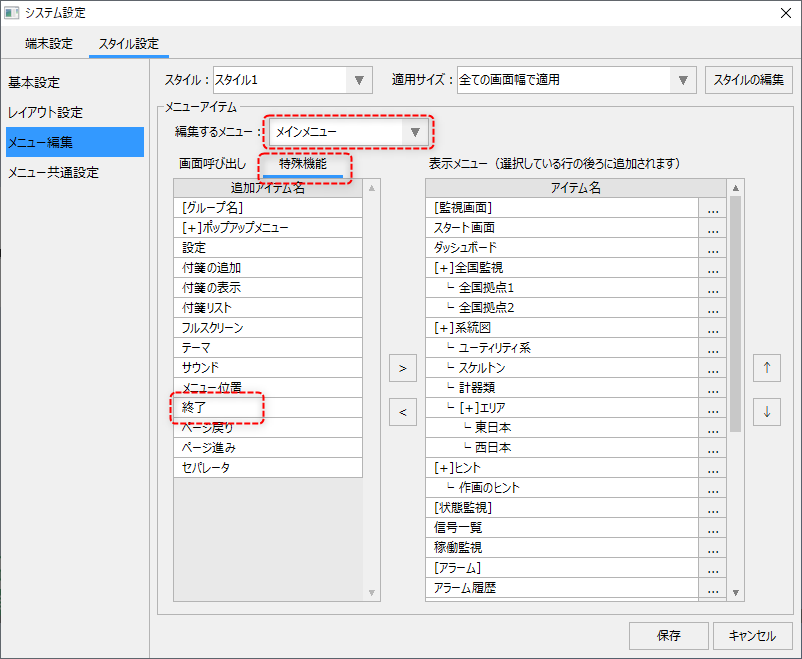
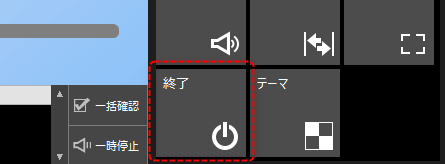
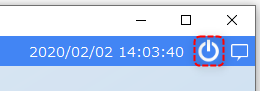
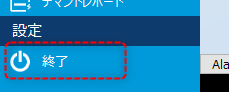
In the menu editing of the system settings of the standard framework, "Exit" is available as an item of special functions of the menu. When you add this item, the exit button is displayed.
(Edit System Settings Menu)
(Example of the exit icon in the information bar)
(Example displayed in the framework header area)
(Example of menu items displayed)
|
||
Use the Part Library Browser Exit Button
|
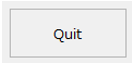
This is a method that uses the "Browser Exit Button" provided in the parts library. You can use it just by pasting it from the parts library.
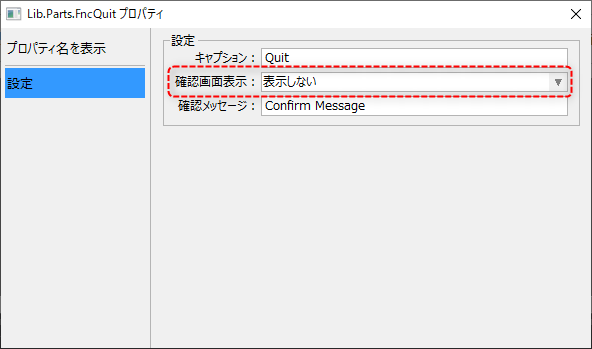
This part has a function to display a confirmation screen when the application is closed. The standard framework itself has a setting for whether or not to display the confirmation screen when the application is closed, so change the setting on the part side to "Do not display" to avoid the application being double-confirmed when the application is closed.
(Exit button property setting screen)
|
||
Using scripts
|
This is a method to call the termination process (CloseBrowser root method) from a script using Button control or similar.
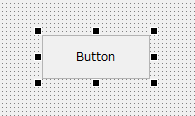
Paste Button control into the calling form and open the script.
In the script editor, write the following code. Below is an example using the OnMouseUp event.
event OnMouseUp(button)
{
	::CloseBrowser();
}
|