Login mode
One of the most important settings in the login settings for user management is the login mode. There are two login modes: "Normal login mode" and "Guest login mode".
The features and setting methods of each mode are explained below.
mode |
Contents |
Normal login mode |
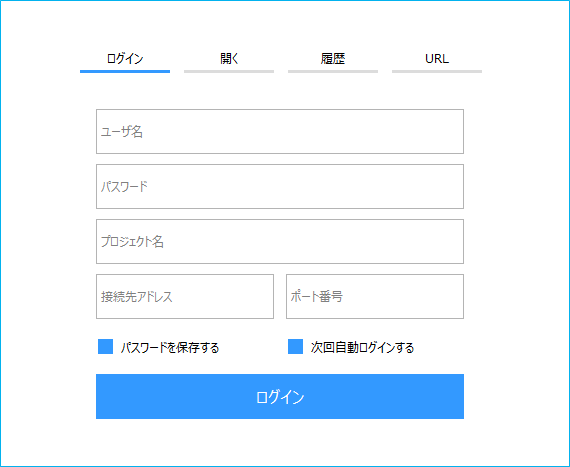
In normal login mode, to display the monitoring screen, you must log in. If you log out in normal login mode, the login screen will be displayed again.
(Example of login screen)
Clicking on the links below will take you to the relevant section of the Normal Login Mode settings.
|
Guest Login Mode |
In guest login mode, when you log out of the system, the system will automatically enter a "guest login" state, where the guest user specified in the login settings is used to log you in. For example, if you set the guest user to "guest" with browsing user permissions, when you log out, the system will automatically enter a guest login state as guest, and the screen will be displayed with only the permissions granted to the browsing user (in other words, you can only view the screen, and not perform operations such as settings).
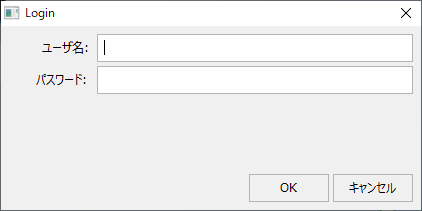
If you try to log in again while logged in as a guest, the following login screen will pop up. You can enter your desired username and password from this screen to log in as normal.
(Example of the login screen when logging in as a guest)
Click the links below to jump to the relevant sections of the guest login mode settings.
|
The following explains how to set up the normal login mode.
■Login mode settings
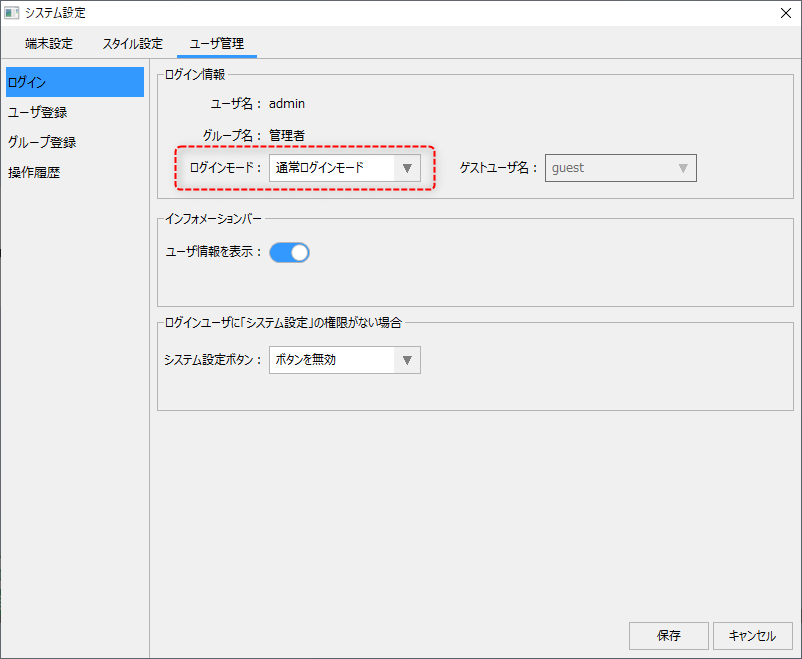
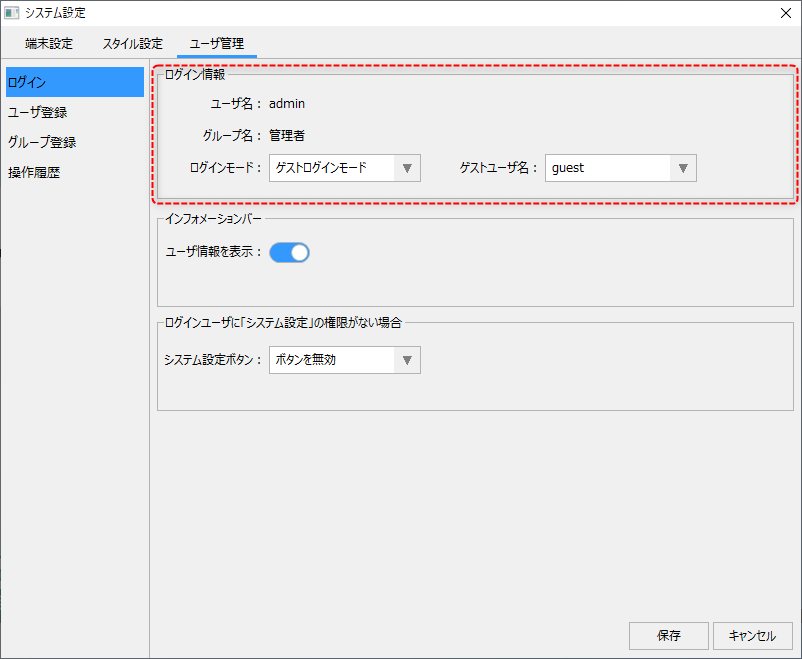
To configure the login mode, select the "User Management" tab on the System Settings screen and select "Login" from the menu.
|
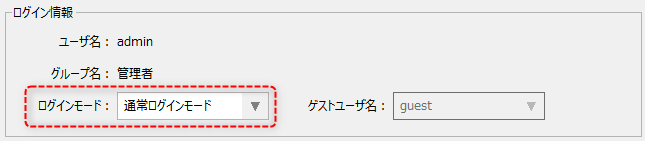
To set the normal login mode, select "Normal login mode" from the "Login mode" combo box in the login information group. By doing this, the mode will be switched to normal login mode.
Once you have changed the settings, click the "Save" button.
|
The following describes how to set up the guest login mode.
■Login mode settings
To configure the login mode, select the "User Management" tab on the System Settings screen and select "Login" from the menu.
|
To set the guest login mode, first select "Guest login mode" from the "Login mode" combo box in the login information group, then select the user name that will perform the guest login from the guest user name combo box.
|
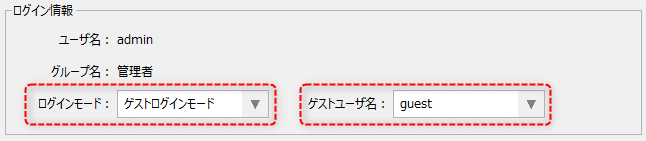
Once you have changed the settings, click the "Save" button to save the settings.
With this setting, when you log out, the guest user configured above will be logged in as a guest (the logged out state will be the logged in state as the guest user).