Registering and editing logged-in users
The user information used to log in must be registered in the system in advance.
This section describes how to set up user registration.
■ New login user registration
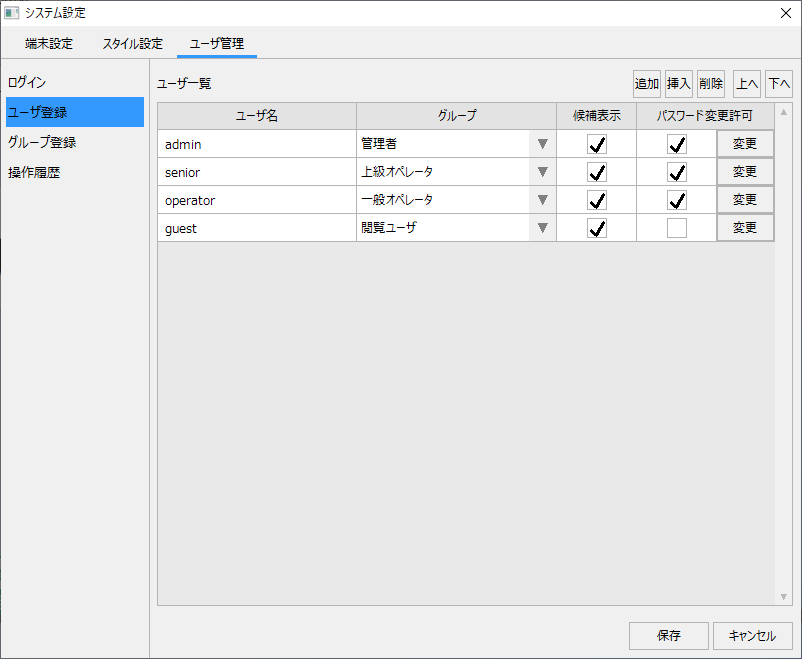
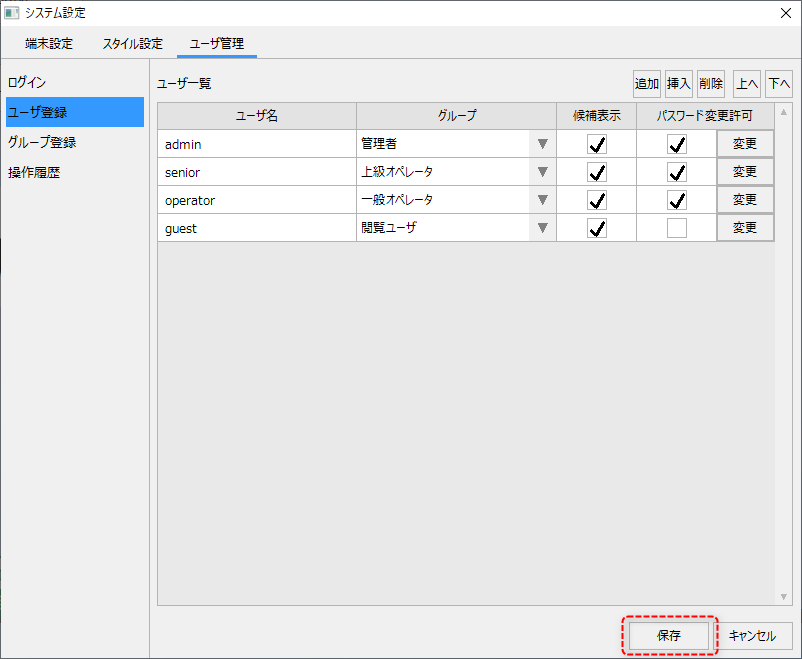
To register or edit a login user, select the "User Management" tab on the System Settings screen and select "User Registration" from the menu.
|
The user list displays a list of users who are already registered.
To add a new user, click the Add button at the top right of the list.
|
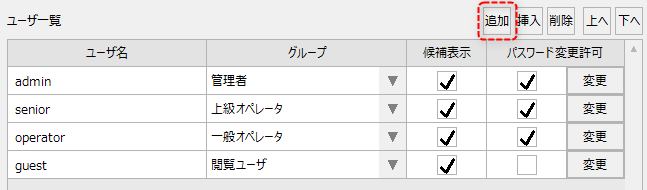
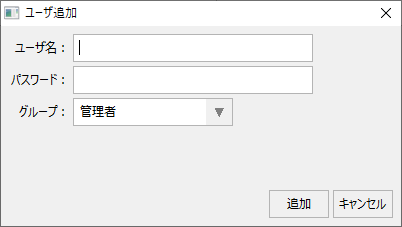
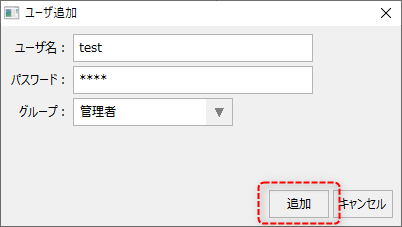
This will display the Add User dialog.
|
In the dialog box, enter the new user name and password. Note that the password will be replaced with other characters on the screen and cannot be seen. Next, select the group to which the user will belong from the combo box. This combo box displays a list of groups that have already been registered.
Once you have finished entering each item, click the "Add" button.
|
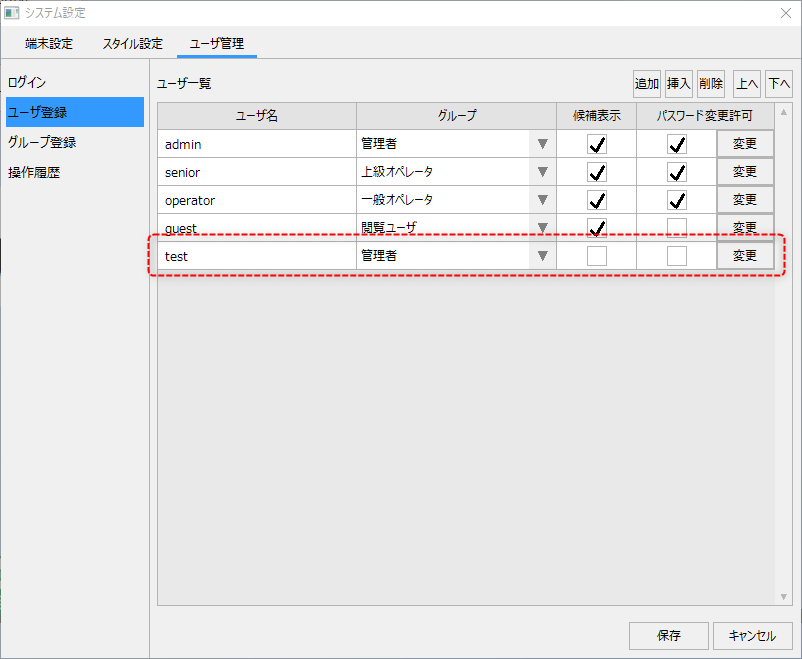
The new user you added will be added to the user list.
|
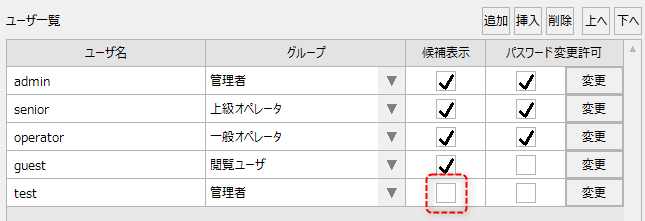
By default, the candidate display checkbox is unchecked for newly added users. If you check this box, user name candidates will be displayed when you open the user name combo box on the login screen. If you do not want to display user name candidates on the login screen, uncheck this box.
Furthermore, even users who are not displayed as candidates can log in by directly entering their user name in the combo box on the login screen. If you do not want to display user candidates on the login screen, uncheck Display Candidates for All Users.
|
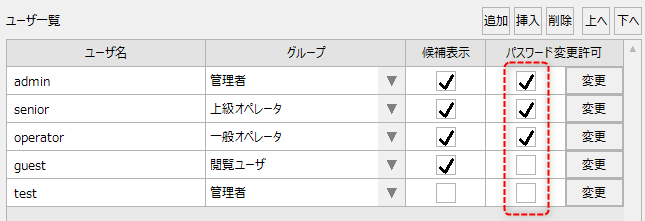
Password change permission sets whether or not the user can change their own password from the My Page dialog. Check this box to allow password changes. For details about the My Page dialog, please refer to the function explanation "Displaying the My Page dialog and changing password".
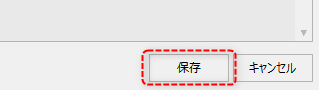
To save your settings, click the "Save" button at the bottom of the screen, then close the screen.
■Editing the logged-in user
On the user registration screen, you can edit users who have already been registered.
|
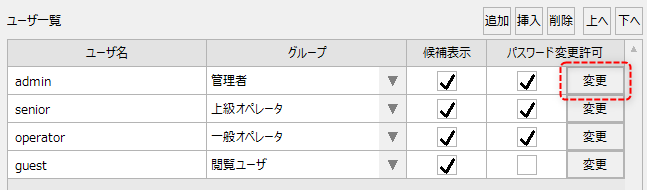
To edit a user's information, edit it directly from the user list.
still,If you change the user name, the password set for the previous user will be initialized to blank.In reality, the user information for the previous user name is deleted, and a new user with the new user name and no password is added.If you change your user name, please set your password again..
To set a password, click the Change button in the desired user's row.
|
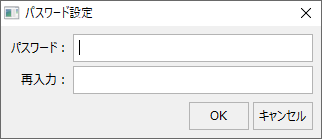
The password setting dialog box will appear. Enter your password and click the OK button.
|
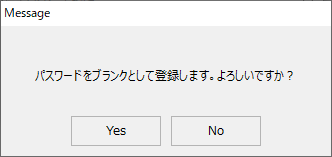
In addition, in the dialog on the left, the password will be displayed as blank even if the user already has a password set. If you do not need to change the password, close the screen by clicking the "Cancel" button. If you select "OK" with the password blank, the following confirmation dialog will be displayed, and clicking the Yes button will register the user with no password.
|
To save the edits you have made to your user information, be sure to click the "Save" button on the settings screen and close the screen.
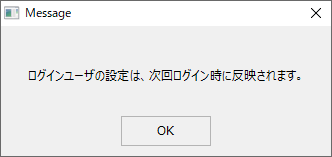
Any changes to your user information will be reflected the next time you log in.