Video Player Part Settings
The video player part is configured using the settings dialog provided with the part.
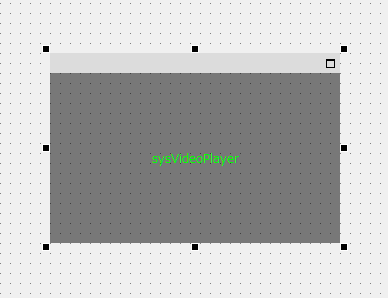
To open the configuration dialog, open the client configuration file in Panel Editor and double-click the component pasted on the form.
(Image of video player parts)
This will display the following settings dialog:
(Video Player part settings dialog)
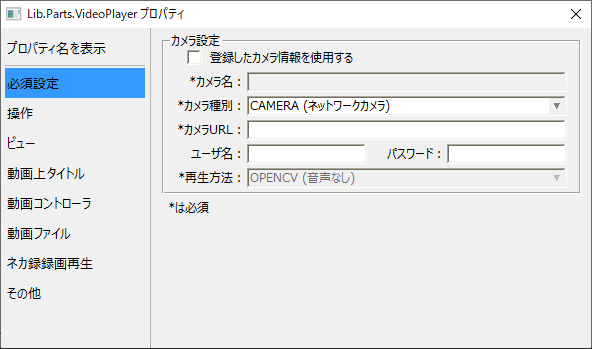
The settings of the video player part can be linked to the camera information set in the camera registration. When linked to the camera registration, most of the settings can be made on the camera registration side (such as setting the title bar and showing/hiding various icons on the controller). On the other hand, you can also make settings individually for each setting item of the part without using the camera registration.
■ When linking with camera registration
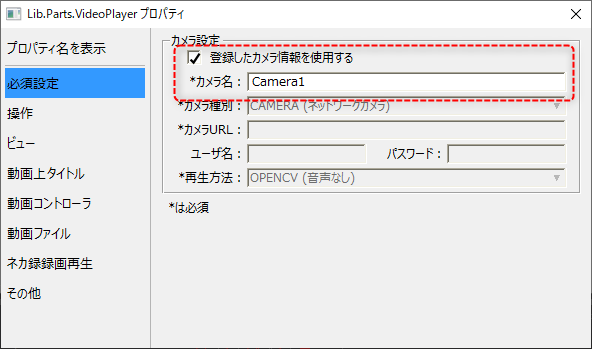
If you want to use the camera registration information, open "Required Settings" from the settings screen, check "Use registered camera information" below, and specify the camera name you set when registering the camera.
|
For more information about camera registration, see "Camera Registration".
For most of the settings of the video player part, you can use the settings on the camera registration side as is. For example, in the camera registration "Display/hide settings", you can set in detail the display/hide of the video player title bar, the operations that are allowed, etc.
|
Even if you use camera registration, you can configure the settings individually from the settings screen of the video player part.
|
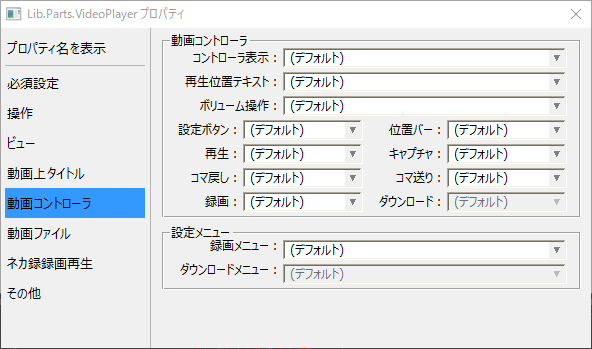
The image on the left shows the video controller settings on the part settings screen.
For settings items for which "Default" is selected as shown on the left, the settings from the camera registration side will be used.
|
|
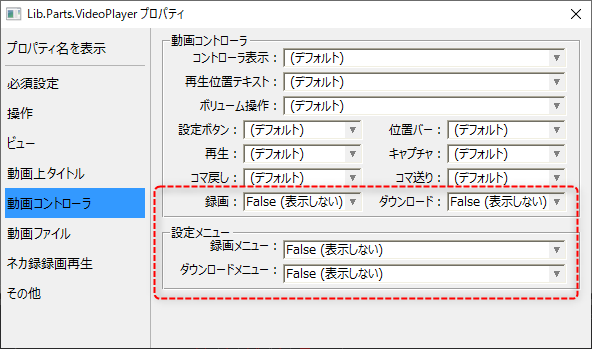
If any settings other than the defaults are configured individually on the component side, the settings on the component side will take priority.
The red frame on the left is an example of a setting changed to a non-default value.
|

■ If you do not want to use camera registration
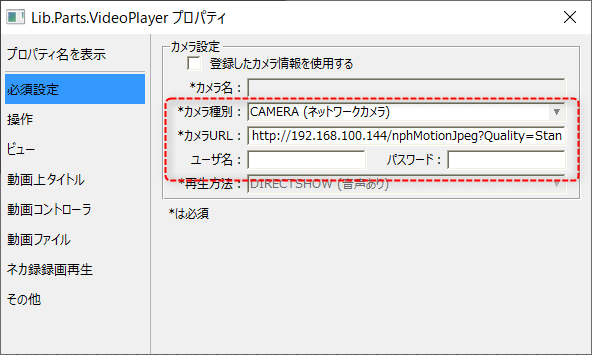
If you do not want to use the registered camera information, uncheck "Use registered camera information" and set each setting item individually.
|
For information on the various settings of the video player part, see "Video Player" in the library reference.
If you do not link with camera registration and the setting item is set to "default," the default value for the video player part will be used. For details about the default value of the part, please refer to the description in the library reference.
|