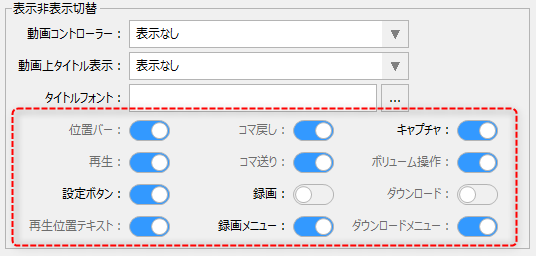
View tab/display/hide switch
The visibility setting for the viewing tab allows you to configure the display of the video controller and various operation icons on the video player.
|
|
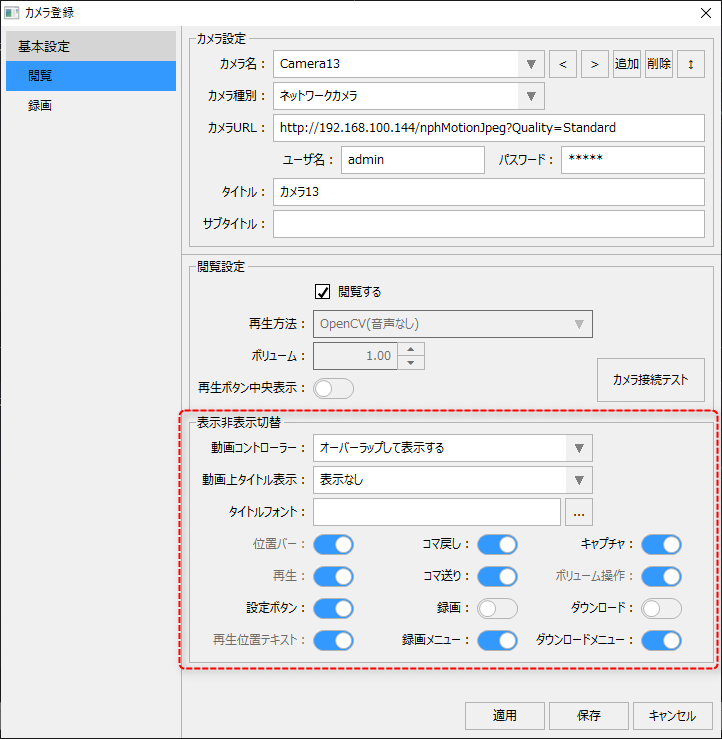
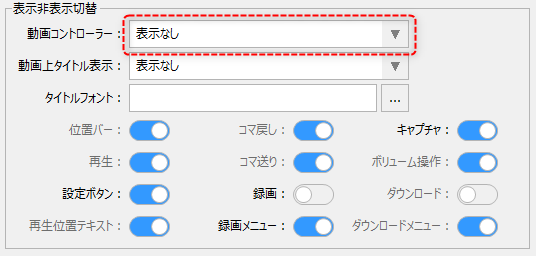
The following settings configure the display of the Video Controller.
|
You can choose from the following:
|
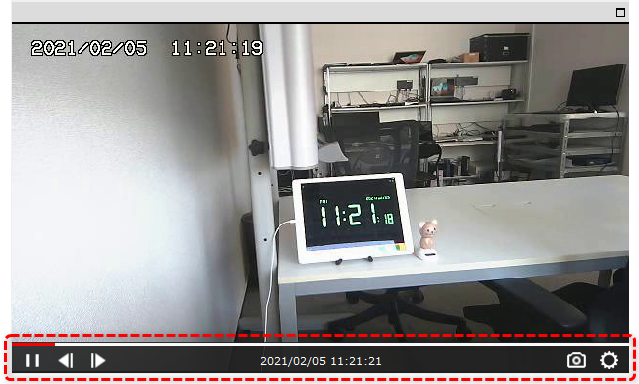
The video controller will be displayed at the bottom of the video player as shown below. If you set it to overlap display, it will only be displayed when you hover the mouse over it.
The following settings determine whether or not to display a title over the video and what font the title will be displayed in.
|
You can choose from the following:
|
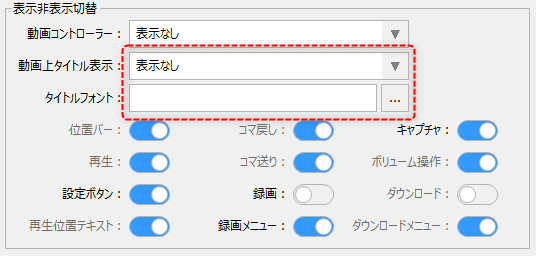
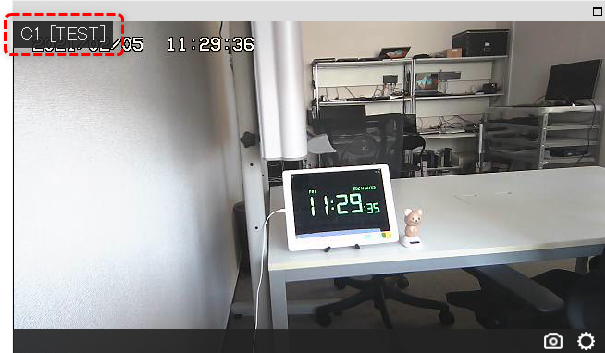
Below is an example where the title is always displayed in the upper left corner.
|
In addition, the image from a general network camera may display the date and time due to the camera's functions. If you want to display a title, be careful about the position where you display it so that it does not overlap with these displays.
|
In addition, the following settings allow you to individually set whether to show or hide various icons and operation buttons displayed on the video player controller. The available settings vary depending on the camera type and playback method.
|
For details on each of the above, please refer to "Video player screen operations". |