Viewing Settings

<< Click to Display Table of Contents >>

Manual > Surveillance system construction guide > Construction of main functions > Camera registration > Camera registration operation > Viewing settings >

Viewing Settings

View tab / View settings

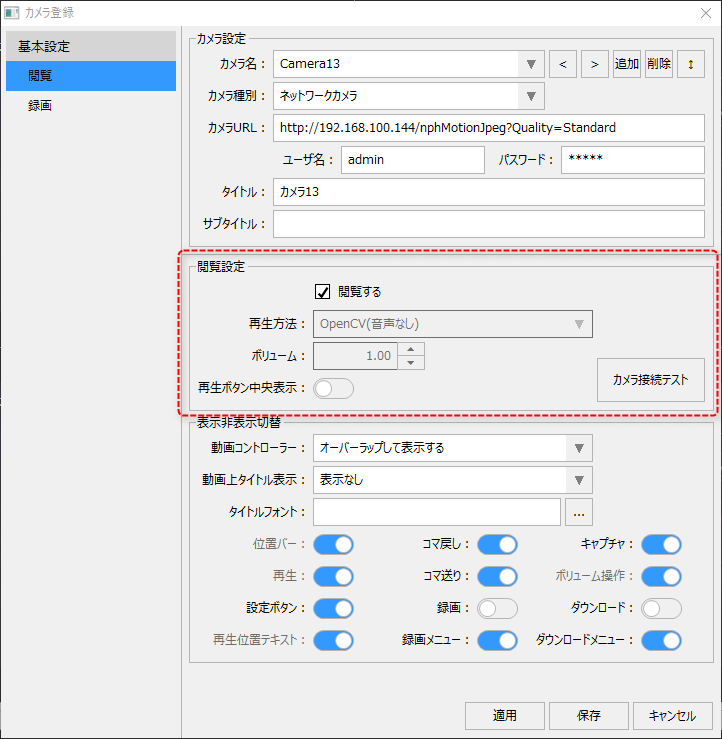
In the Viewing Settings section of the Viewing tab, you can set the video playback method, volume, etc.


p_videosetup_0025


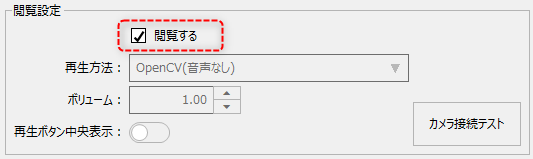
To make this camera available for viewing, check "View."


p_videosetup_0024


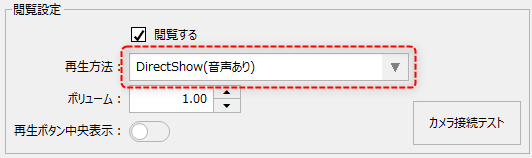
First, select the video playback method. This setting is only available when the camera type is "Video File". For other types, it is fixed to "OpenCV".


p_videosetup_0026

How to play

explanation

OpenCV(No Audio)

Select this if you want to use OpenCV. You can play video files and view network cameras (MJPEG/H.264). It is characterized by its light processing, and you can display multiple screens at the same time using split display, etc. However, audio is not supported.

DirectShow(With audio)

Specify this when using DirectShow. DirectShow supports audio and is suitable for playing video files that require audio, such as device guidance and operation manuals. However, because DirectShow places a high processing load, it is not possible to create a screen that displays multiple video players simultaneously, such as in a split display. OpenCV is recommended for playing video files that do not require audio.


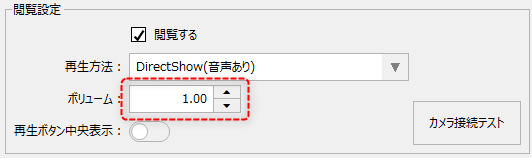
If you select DirectShow as the playback method, you can set the initial volume during playback.


p_videosetup_0027


When setting the volume, specify 0 as minimum and 1 as maximum.


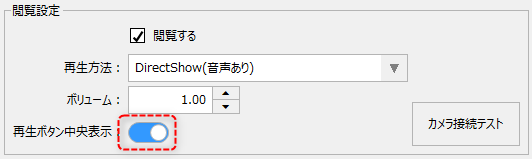
By turning on the following setting, you can display the play button in the center of the video display area. This setting is hidden by default.
 

p_videosetup_0028


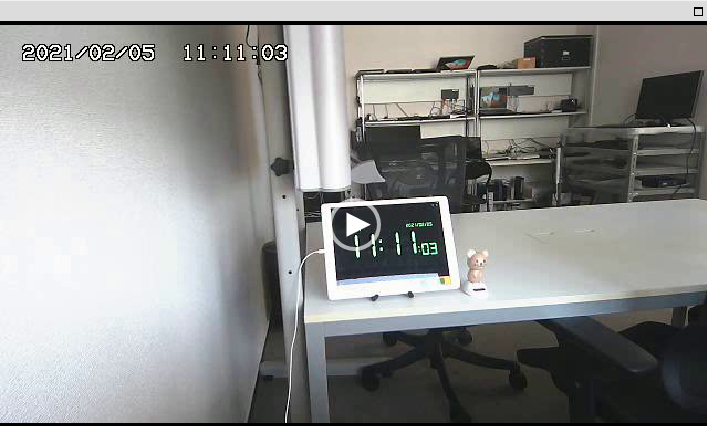
When the play button is enabled, a button will be displayed in the center of the playback image on a video player, etc., and you can click it to play or pause the video.


(Example of play button displayed in the center)
p_videosetup_0029


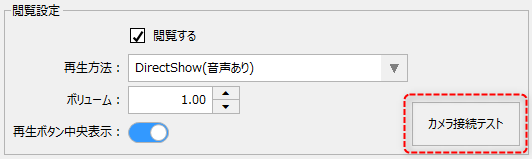
Also, clicking the "Camera Connection Test" button will perform a connection test with the camera using the current settings.
 

p_videosetup_0030


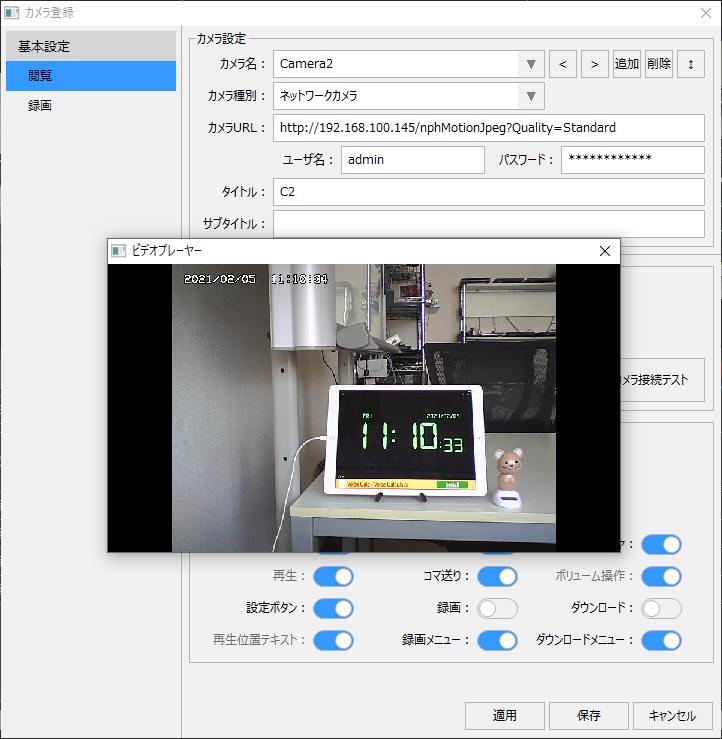
Running a camera connection test will pop up a video player so you can verify that it displays correctly.


(Example of camera connection test display)
p_videosetup_0031