overview
For example, when it comes to dialog screens that pop up when operating equipment, there are many cases where you want the data items and screen layout displayed on each dialog to be the same, with only the target tags and display names being different. In this case, it is possible to deal with the situation by preparing individual original forms for displaying the dialogs, but as the number of dialogs increases, implementation and maintenance become cumbersome. In such cases, creating a common original form to be displayed as a dialog and implementing it so that it is displayed in a common way will lead to more efficient development work.
If you need to simultaneously display multiple dialogs based on the same common form, you need to be aware of the dialog's "form name" and "view name." Normally, you cannot simultaneously display multiple forms with the same form name, but you can open multiple dialogs of the same form by specifying different form names and view names when calling to display the dialog. Specifically, you call the OpenDialog method by specifying the form name and view name of the entity after the dialog is displayed in the "dialog parameters" of the second argument.
Example of common implementation of dialog
This section explains how to display multiple dialogs in a common format based on a single form.
(Target sample: e.g.4)
•Dialog calling form: Form01
•Form to display as a dialog: Form05
(Processing Contents)
•Place two Button controls in Form01 to call up the dialog. In the OnMouseUp event for each button, specify the dialog parameters so that each button has a different form name and dialog name, and display Form05 as a dialog. Also, include an identification string in the open parameters to let users know which button caused the dialog to be displayed.
•In Form05, place one Button control to close the dialog box, and one label to display the identification string. In the OnInitialize event of Form05, display the string received in the open parameter in the label.
■ Implementation of Form01
Place two buttons and implement processing for displaying a dialog on each button.
In the OnMouseUp event of the first button, write the code to call Form05 as a dialog (OpenDialog method). First, set the dialog parameters to variables. As an example, the dialog parameters viewName is set to "Dialog1" and formName is set to "DlgForm1". These parameters will be the view name and form name after the dialog is displayed. Next, set the open parameters to variables. As an example, the parameter name is set to "Param1" and the string "OpenDialog1" is specified. Then, specify the form name of the original form as the first argument of OpenDialog, the dialog parameters as the second argument, and the open parameters as the third argument to call it.
event OnMouseUp(button)
{
	var vDialogParam = c("viewName:Dialog1","formName:DlgForm1");
	var vOpenParam = "Param1:OpenDialog1";
	::OpenDialog("Form05",vDialogParam,vOpenParam);
}
Next, write a process for the OnMouseUp event of the second button to call Form05 as a dialog (OpenDialog method). Using the same procedure as for the first button, set the dialog parameters viewName to "Dialog2", formName to "DlgForm2", and the open parameter parameter name "Param1" to the string "OpenDialog2" to call OpenDialog.
event OnMouseUp(button)
{
	var vDialogParam = c("viewName:Dialog2","formName:DlgForm2");
	var vOpenParam = "Param1:OpenDialog2";
	::OpenDialog("Form05",vDialogParam,vOpenParam);
}
■ Implementation of Form05
Place one button and one label. For the sake of example, let's name the label Label1.
Define the OnInitialize event for Form05, and use the GetOpenParam method to extract "Param1" from the open parameters and assign it to the label's Text.
event OnInitialize()
{
	this.Label1.Text = this.GetOpenParam("Param1");
}
Next, write the code to close the dialog in the OnMouseUp event of the button (the CloseDialog method). For details on closing the dialog, see the implementation example in "Displaying a form as a dialog".
event OnMouseUp(button)
{
	::CloseDialog(parent.GetDialogName());
}
■ Operation check
Run Panel Browser and display Form01.
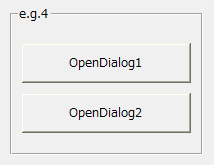
When you click the button above, Form05 will be displayed as a dialog. The label will say "OpenDialog1".
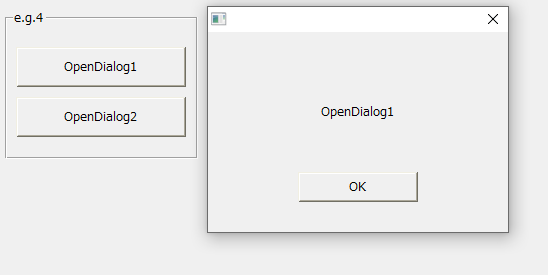
With the dialog still displayed, click the other button on Form01.
Then, a new dialog box different from the one above will be displayed. The label will say "OpenDialog2".
In other words, two dialogs are now displayed based on the same form.
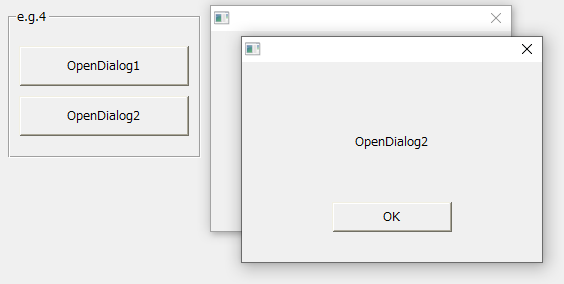
Furthermore, even if you click each button in Form01 while the dialog is displayed, the dialog will not be displayed because a form with the same name already exists.