overview
There may be cases where you want to reference or write values to objects in a form displayed as a dialog screen from the calling form. In such cases, in addition to passing and receiving values via open parameters or OnCommonEvent, you can also access the object directly from a script. Note that if you want to access an object from a script using an absolute path, you must give the referenced object a name. For details about referencing objects from scripts, see the description in "Object Hierarchy and References".
|
If you access an object, such as a dialog's form, directly from a script, it is very important to remember that the object you reference must exist - if you try to access an object that does not exist, your script will generate a runtime error. |

Example of implementation of accessing dialog from script
This section describes how to access objects in a dialog box directly from the script of the calling form.
(Target sample: e.g.5)
•Dialog calling form: Form01
•Form to display as a dialog: Form06
(Processing Contents)
•Place one Button control in Form01 to call the dialog. In the button's OnMouseUp event, set the view name and form name in the dialog parameters and display Form06 as a dialog. After calling the form, directly rewrite the value of the dialog label by using an absolute path reference based on the form name specified in the dialog parameters.
•In Form06, place one Button control to close the dialog box and one label to display the value. Give the label a name for the absolute path reference above.
■ Implementation of Form01
Place one button. In the button's OnMouseUp event, write a process to call Form06 as a dialog (OpenDialog method). As an example, the dialog parameters viewName are set to "Dialog3" and formName to "DlgForm3". These parameters will be the view name and form name after the dialog is displayed. Use this form name to reference the object with an absolute path.
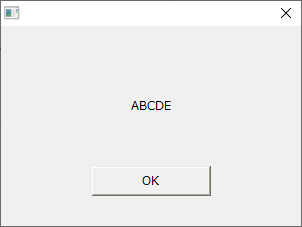
After display is called with OpenDialog, a string is directly assigned to the Text of the label "Label1" placed on the displayed dialog. Here, the string "ABCDE" is specified as an example. Note that the form name used for reference here is not the form name of the source form "Form06", but the form name "DlgForm3" passed in as a dialog parameter.
event OnMouseUp(button)
{
	var vDialogParam = c("viewName:Dialog3","formName:DlgForm3");
	::OpenDialog("Form06",vDialogParam);
	::DlgForm3.Label1.Text = "ABCDE";
}
■ Implementation of Form06
Place one button and one label, and name the label "Label1".
Write the code to close the dialog in the OnMouseUp event of the button (the CloseDialog method). For details on closing the dialog, see the implementation example in "Displaying a form as a dialog".
event OnMouseUp(button)
{
	::CloseDialog(parent.GetDialogName());
}
■ Operation check
Run Panel Browser and display Form01.
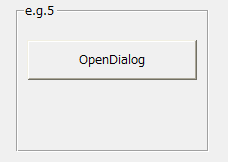
When you click the button, Form06 will be displayed in the dialog. Please confirm that the label display content is the string directly assigned by the script of the button in Form01.
|
In addition to accessing the properties of an object, a script can also call methods that an object has and call user-defined functions that are implemented in the object. |