Run the configuration file by specifying it in the shortcut of Panel Browser
You can specify startup parameters for the shortcut that launches Panel Browser. If you specify the file name of a configuration file with this parameter, the configuration file will be automatically loaded and executed. The following explains how to specify parameters and execute the shortcut.
1.Create a Windows shortcut to run Panel Browser.
To create a shortcut, right-click on an empty space on the desktop or in a folder in Explorer to display the menu and select "New - Shortcut".

2.In the Create Shortcut wizard, click the Browse button and select Panel Browser6.exe in the installation folder.
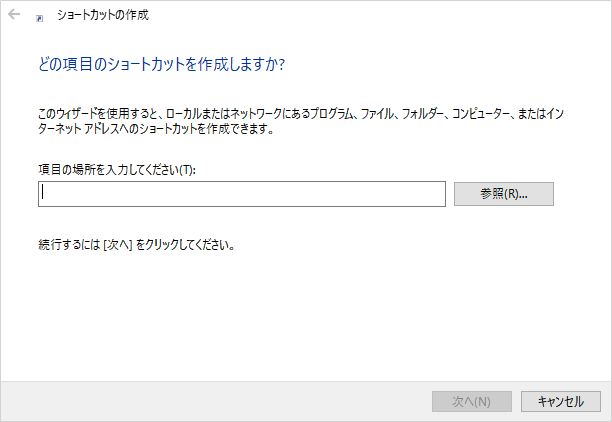
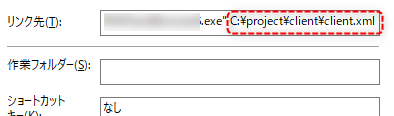
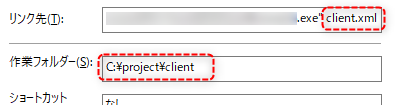
3.After the execution path of Panel Browser, specify the file name of the client configuration file you want to execute.
example)

|
If you encrypted the configuration file during the setup process, make sure to specify a file with the extension "brw" (e.g. client.brw). |

|
The path name of the client configuration file can be specified in the following ways:
•Specify using an absolute path.
•Set the working folder for the shortcut.
|
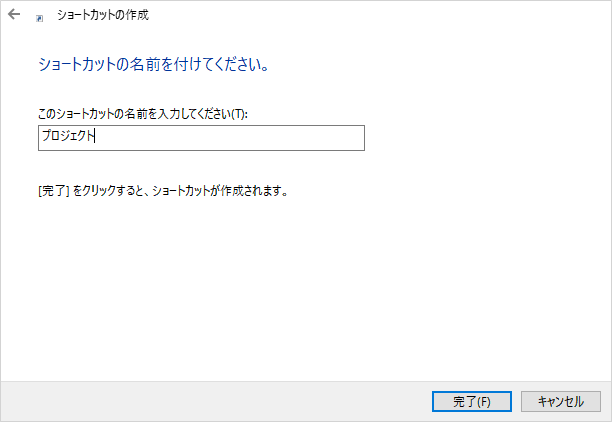
4.Enter a name for the shortcut and click "Finish" to create the shortcut.
When you launch the above shortcut, Panel Browser will automatically load and run the specified client configuration file.
|
In addition to specifying the client configuration file name at startup, Panel Browser has various startup options available. For example, you can set a limit on the number of clients that can be started at the same time. For information on options that can be specified at startup, see "Panel Browser startup options". |