Demand monitoring for multiple energy tags
|
In the demand monitoring of the standard framework and screen library, three demand actions are preregistered: Demand01, Demand02, and Demand03. If the preregistered demand actions are no longer needed, manually delete the unnecessary actions and also delete the processes that call those actions from various events, etc. |

Multiple demand actions can be registered at the same time.
As an example, we will explain how to register two demand actions for demand monitoring in the screen library.
1.Register two demand actions on Panel Server.
Example of action name:
•Demand01
•Demand02
Please make sure to specify separate folders for each demand action.
2.Prepare a tag for outputting demand monitoring information.
Information related to demand monitoring, such as the demand alarm detection status and previous demand value, can be output to tags. In the sample standard project, the following tags are preregistered.
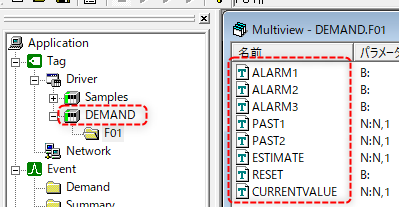
Registered unit: DEMAND
Type: Memory device
For more information about these tags, see "About tag output of demand monitoring information".
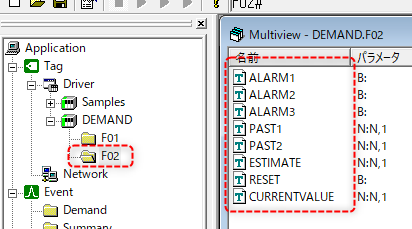
The above tags should be registered in separate folders for each demand action. An easy way to register them is to copy the F01 folder and paste it as F02, etc.
Below is an example of copying as F02.
3.Set the update cycle event to call the two demand actions above.
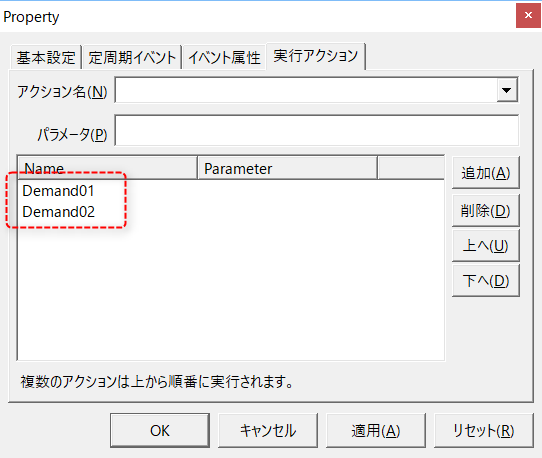
In addition, you will also need to add the same procedure for resetting the demand cycle. Please set the appropriate demand reset procedure according to the specifications of the system you are building. For details, please refer to "Demand cycle reset procedure".
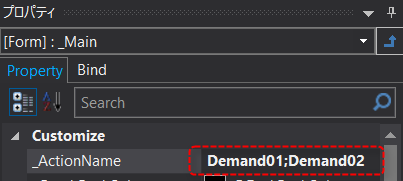
4.From Panel Editor, set the names of the demand actions to be connected in the "_ActionName" property on the "_Main" form on the demand monitoring screen, separating them with semicolons ";".
For example, if the destination action names are "Demand01" and "Demand02", set them as follows.
5.Display the Demand Monitoring screen and configure the newly added demand monitoring.
Please bring Panel Server online and display the demand monitoring screen from Panel Browser.
Please confirm that the newly added demand monitor can be selected from the combo box in the top left of the demand monitor screen.
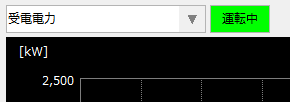
Open the setting screen from the newly added demand monitoring and configure the demand monitoring settings. In particular, be sure to properly configure the tag output destination of demand information such as demand alarm tags for each demand action.
For information on how to set up demand monitoring, please refer to "Setting up demand monitoring (advanced demand settings)".