Assigning a camera to a split display frame
You can assign pre-registered network cameras and video files to the display frames of the split screen by selecting them through camera registration. Camera assignment is also performed from the "Display List" dialog in the same way as screen assignment.
|
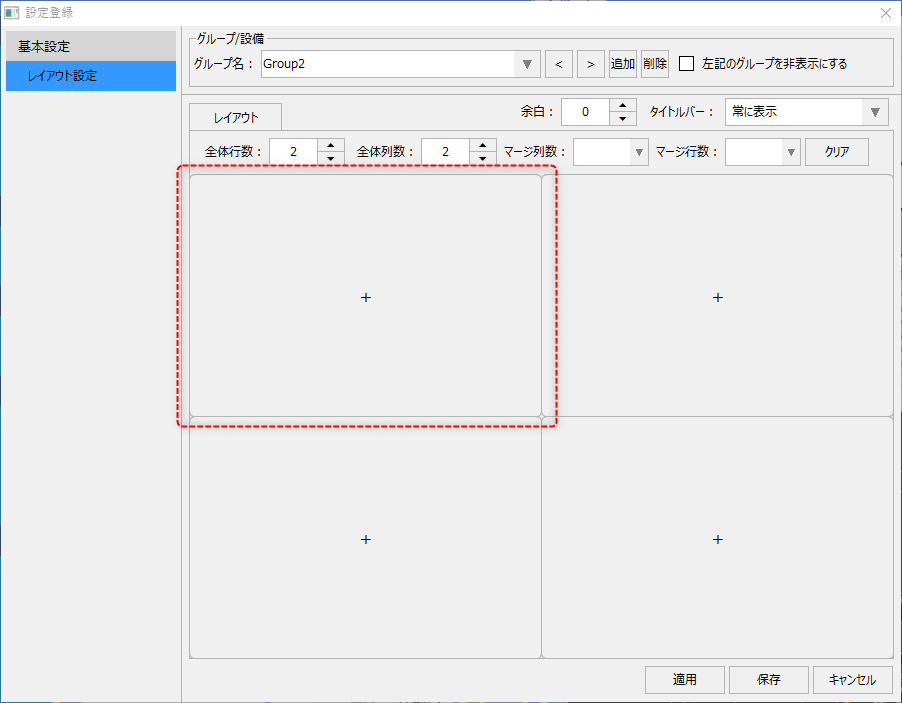
When you click on the display frame, the "Display List" dialog pops up.
|
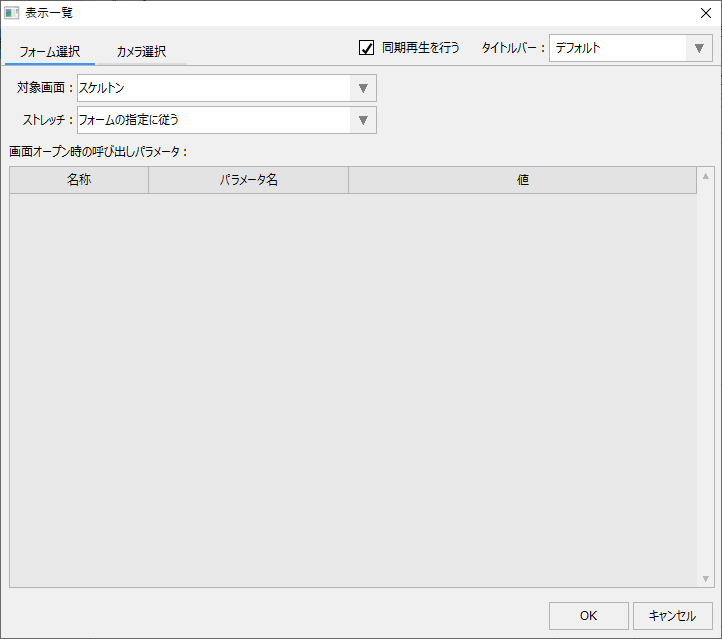
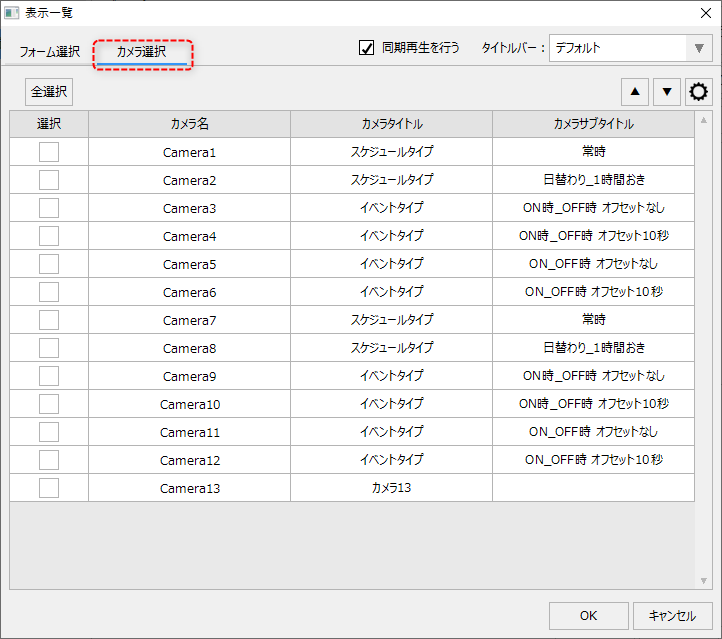
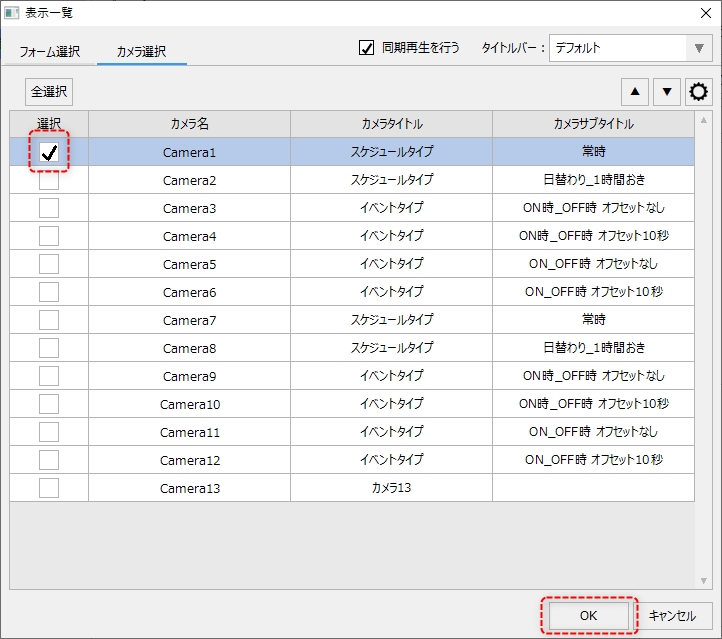
When you open the "Camera Selection" tab from the display list dialog, a list of cameras that have been registered using Camera Registration will be displayed.
|
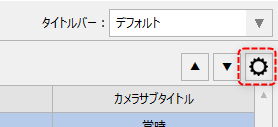
The camera list displays a list of cameras that have been registered on the Camera Registration Settings screen. Camera registration can be accessed from the Settings button (gear icon) in the upper right corner of this screen.
Please note that camera registration is a common setting for the entire system. For details on how to register a camera, please refer to "Camera Registration Operation" in the main function configuration.
*The following explanation assumes that the camera has been registered.
|
|
From the camera list, check the cameras you want to display and click the "OK" button. You can also specify how the split screen will behave using the following settings at the top of the screen.
|

The camera will then be assigned to the display frame as shown below.
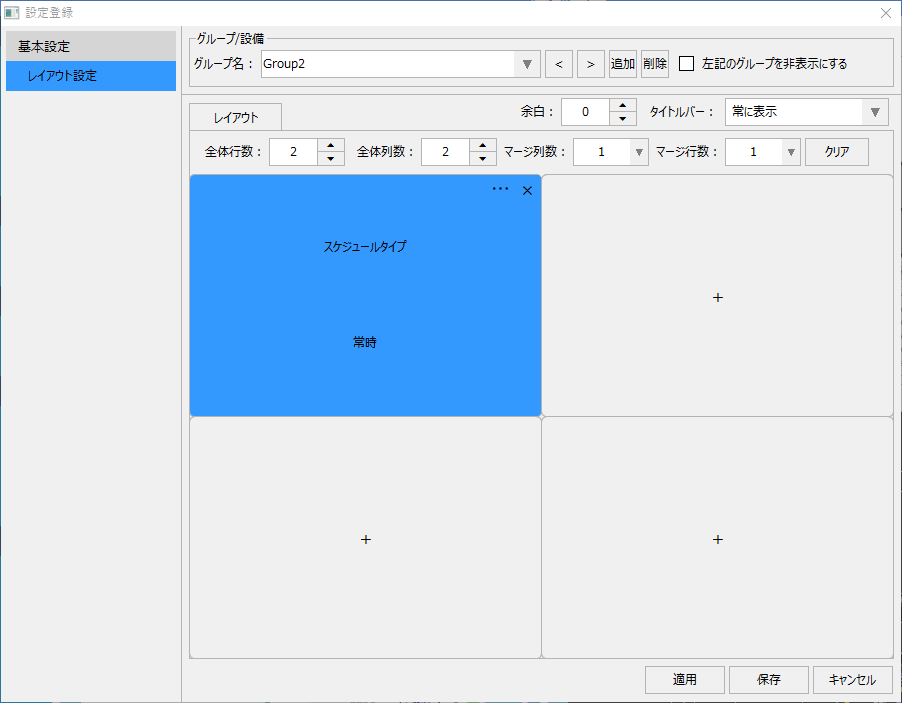
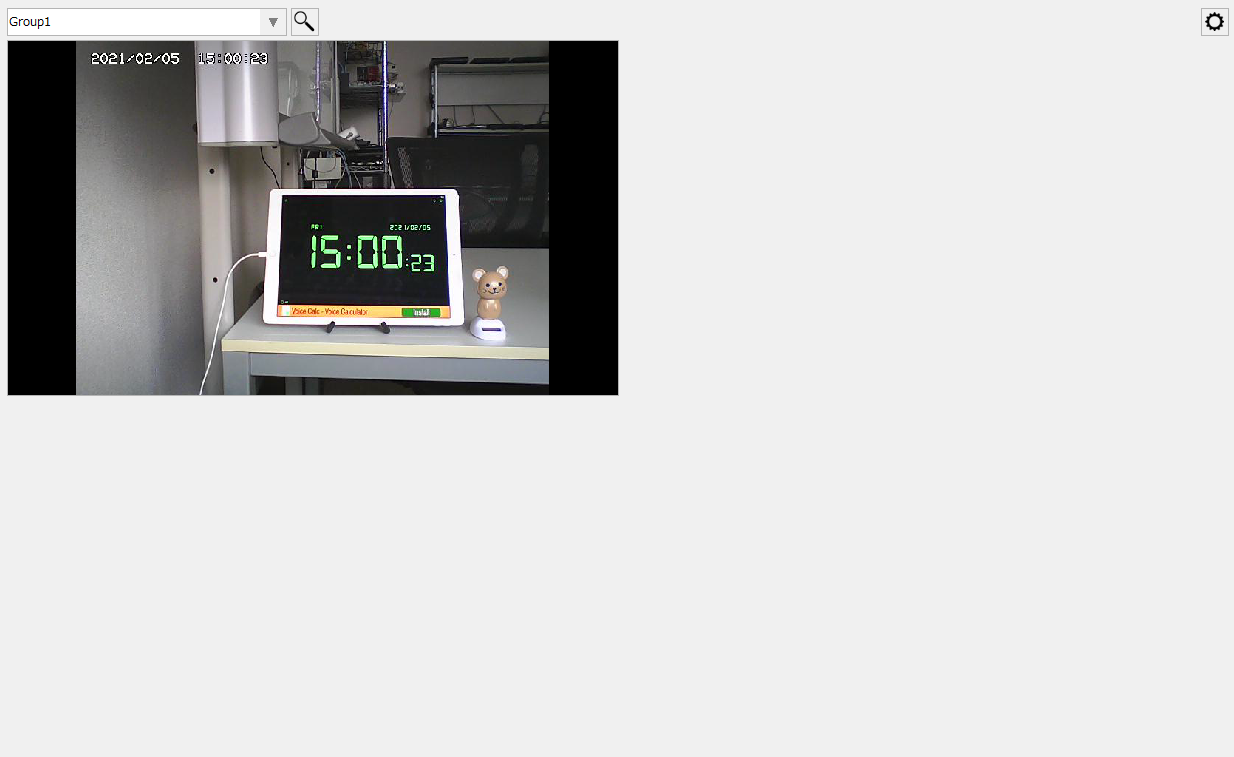
Click the "Save" button to close the settings screen, and the video from the network camera will be displayed in the split screen frame.
|
The camera display on the split screen is internally displayed by embedding the video player part from the parts library. Therefore, the various operations that can be performed with the video player can also be performed from the split screen camera monitor. For information on how to operate the video player, please refer to "Video Player Screen Operations". |

|
In split display, you can display a mixture of graphic screens and camera images in the same group of display frames. You can also set up split display to be used primarily as a network camera monitoring screen. "Registering split display as a camera monitor in the menu" introduces how to register a screen split in the main menu of a standard project and set it up to be called up primarily as a camera monitor. |