overview
If you want to switch the display on a form-by-form basis, you should mainly use buttons to implement the form switching process.
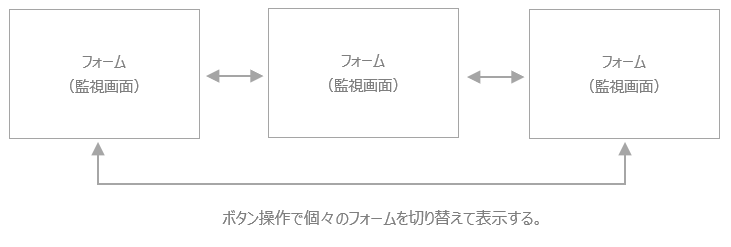
The following describes how to call a form using a button.
Calling a form with a button
There are the following methods to switch the display on a form-by-form basis in your own project.
■ Use the form call button in the parts library
The parts library provides a part for calling up a form. Using this part is the easiest way.
From the Library tab, narrow down your search to "Basic Components" and "Function Buttons", select the button component labeled "OpenForm" (fncOpenForm), and paste it into the form where you want to place the component.
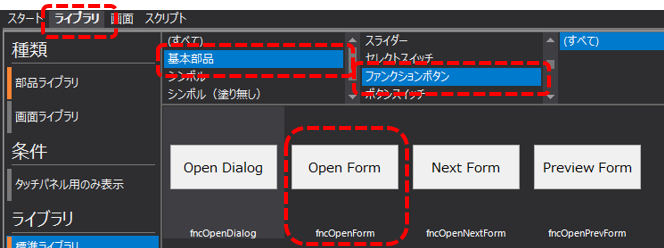
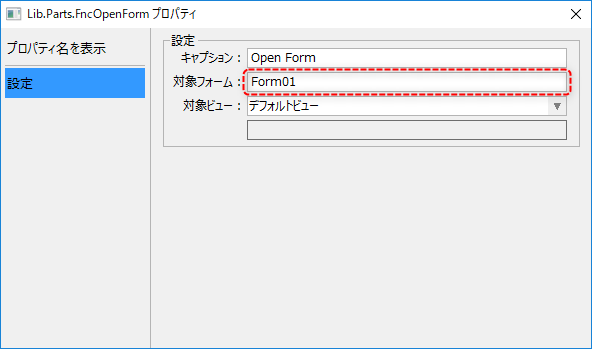
After pasting the form call button component, open the properties dialog and specify the name of the form you want to call in "Target Form".
(Screen call button properties dialog)
|
For information on how to use the part library, please refer to the description in "Using the Part Library". |

■Using Button control
You can also use Button control to write a script to call the form.
Paste Button control into the form and open the script.
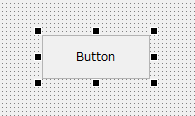
From the script editor, add the OnMouseUp event and write the following code.
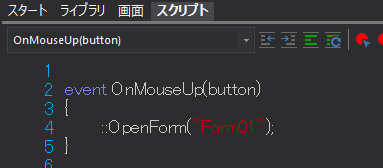
Key points for describing the process:
•Use the OnMouseUp event.
•Use the OpenForm root method.
•The first argument is the name of the form to be called.
|
For details about the Button control specifications and the OpenForm method, see "Control Reference". |
|
In the script editor, you can easily call the control reference of the desired method or event. For details on how to do this, see "Opening the manual from the script editor". |
|
For information on writing scripts using Button control, please refer to "Scripts". |