overview
In your own project, you will need to create your own process for switching the display (screen transition) of the monitoring screen (form).
There are two ways to transition between screens: switching the display for each form (Example 1), or embedding a form using View control (Example 2).
Example 1) When switching display by form
This is a method to switch screens on a form-by-form basis. This is the simplest method. To switch screens, you can use the screen display button in the parts library, or implement a call process using a script in Button control.
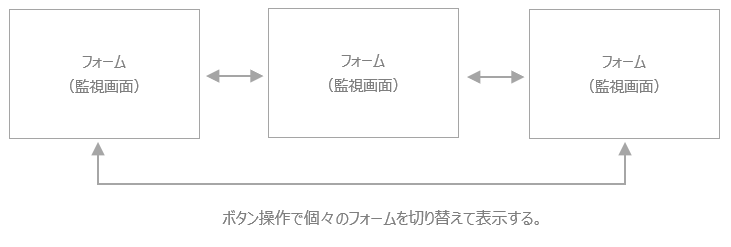
The advantage of this method is that it is easy and convenient to create screen transitions, but the disadvantage is that the buttons for calling up the screens must be implemented in the same way on all forms. Since the display content and layout of the screen call buttons are often the same for each screen, it becomes necessary to make modifications to all screens when there is a change in specifications such as changing the button layout. Also, if there are elements that you want to display in common on all screens (for example, displaying the title, clock, or main alarm), these common elements will also need to be implemented individually on all screens. Therefore, this method is a simple method that is suitable when there are only a few screens to display, or when there is no need to display common elements such as main alarms.
The following page explains how to implement the processing method in Example 1.
•Example 1) Switch display by form
Example 2) Embed a form using View control
This method involves creating one parent form, placing "View control", and then embedding and displaying the forms for each monitoring screen in View control. Implement it so that the child form displayed in View control can be switched by operating a button placed on the parent form.
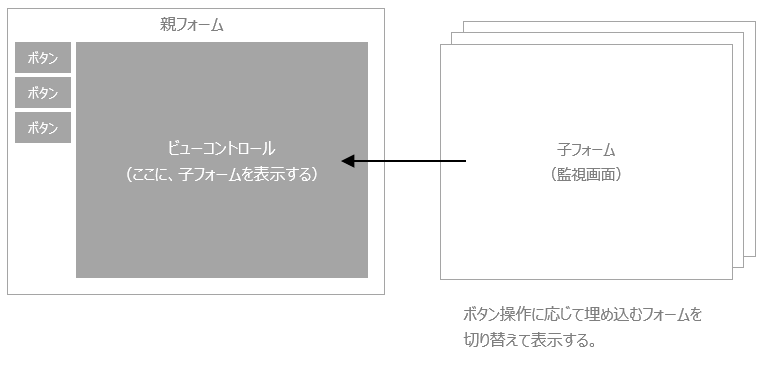
The advantage of this method is that it overcomes the disadvantages of Example 2 above. By placing the buttons for switching screens on the parent form, you can create a common screen layout for the entire system. You can also quickly and flexibly respond to specification changes such as screen switching and button layout changes.
The following page explains how to implement the processing method in Example 2.
•Example 2) Using View control
|
In addition to the methods introduced above, you can also split the screen using the form's frame function, or display the form as a pop-up dialog. For variations in how forms are displayed, see the description in "Dialog/Frame/View". |
