System configuration and setting examples for high-quality recording
This section explains the system configuration and setting examples for high-quality recording with a video recorder.
For high quality recording, we will adjust the network camera and recording settings fps value according to the purpose based on the concept of the recommended system configuration. Note that high quality recording is assumed to be recorded at a resolution of SVGA and a frame rate of about 20 fps.
Key points of this configuration
•When recording at a high frame rate, the server PC and recorder terminal PC should be configured as separate PCs.
•A NAS drive is used as the destination for transferring and viewing recorded data.
•In this configuration, the maximum number of cameras that can be connected simultaneously is three.
Expected specifications
item |
Setting values etc. |
supplement |
Video Compression Method |
MJPEG |
Connection is also possible with "H.264". |
Camera Image Resolution |
SVGA (800*600) |
Set on the camera. |
Camera quality |
usually |
Set on the camera. |
Camera Frame Rate |
24fps |
Set on the camera. If your camera only allows you to select from a set of preset values, select the frame rate that meets your requirements (up to 30 fps). |
Recording Frame Rate |
20fps |
Set from the recording settings when registering the camera. |
Number of cameras connected simultaneously |
Up to 3 devices |
If you want to record in high quality with more than the number of devices listed above, you can do so by distributing the recorder terminal PCs. Alternatively, you can increase the number of devices by lowering the quality of the recording. |
|
If you want to record high quality with more than three cameras, please consider distributing the recorder terminal PC. For details on the distributed configuration, please refer to "When connecting multiple cameras simultaneously (distributed recorder)". Also, if you want to connect multiple cameras and record by lowering the camera's fps, please refer to the description of "When connecting multiple cameras simultaneously (low fps recording)". |

System configuration image
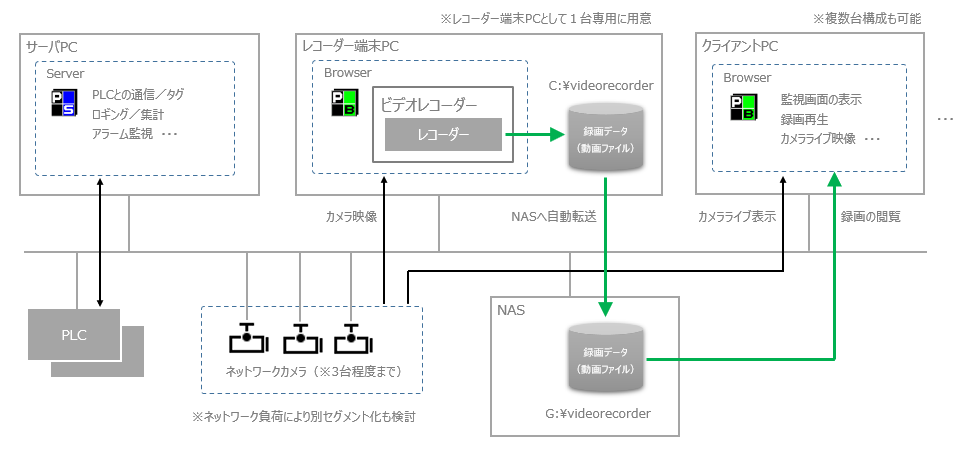
Components |
explanation |
||||||||||||||||
Server PC (Panel Server) |
The server PC will be configured to run only Panel Server.
|
||||||||||||||||
Recorder terminal PC (Panel Browser) |
Prepare a dedicated PC for the recorder terminal. On this PC, run only the video recorder in Panel Browser and do not display other functions (graphic screen, alarm monitoring, trend graph, etc.).
|
||||||||||||||||
Client PC (Panel Browser) |
The client PC that displays the graphic screen, etc., is prepared separately from the recorder terminal PC. Graphic screen and other function screen display (trend, etc.) and viewing/playback of recorded data are performed on the client PC. Note that multiple client PCs can be configured.
|
||||||||||||||||
Storage for recorded data (e.g. NAS) |
Use NAS as the destination for transferring recording data.
Selection points: ❖Please select a model with a fast disk rotation speed (7,200 rpm or higher) and a fast network connection speed (minimum 100BASE or higher). ❖The amount of data required for NAS varies depending on the number of cameras, storage period, recording fps setting, data resolution on the camera side, etc. In addition, "Recording data file size and disk capacity" lists the reference value of the size of the generated recording data. ❖If you would like to make the recording data redundant with this configuration, please set it up yourself using NAS functions (such as RAID).
|
||||||||||||||||
Network Camera |
Below is an example of camera body settings. For details on tuning the camera body, please refer to "About camera body settings and tuning".
|
||||||||||||||||
Network Devices
|
The network equipment for connecting to the network camera should be configured so that bottlenecks do not occur. For example, even if you select high-spec models for the LAN port of the recorder terminal PC or NAS device, if the relay device such as HUB is slow, it will become a bottleneck. Also, if the communication load with the network camera is high, consider preparing multiple LAN ports and HUBs for the PC and configuring the route of the normal network and the network connected to the camera separately.
|
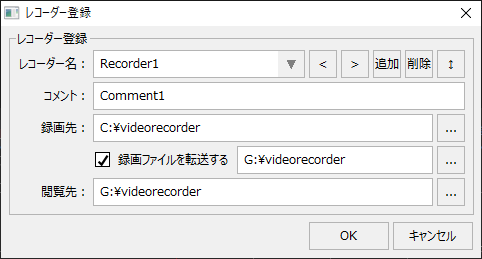

Points to note about this configuration
Important points to note |
explanation |
||
How many cameras can be connected at the same time? |
When recording at high fps like in this configuration, the number of cameras that can be connected simultaneously is limited to about "3". If more than that number of cameras are connected and recorded simultaneously, the processing load will be high and problems such as skipping frames in the recorded data may occur.
|
||
Simultaneous playback of recorded data |
Playing back data recorded at a high fps places a high load on the CPU. When playing back multiple files recorded at 20 fps at the same time, the maximum number of files that can be played back at the same time is two. For an estimate of the number of files that can be played back at the same time, please refer to "Number of files that can be played back at the same time". |
||
Users must make the recording data redundant themselves.
|
If you wish to make the recording data transferred to NAS redundant, you must create the system yourself (for example, use NAS to create a RAID configuration, or create a backup system to a separate drive). For details on using the video recorder function in a server duplex configuration, please refer to the description in "When operating a server in a duplex configuration". |