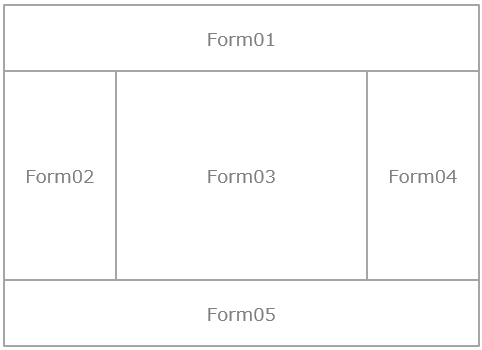
Variations in how forms are displayed
FA-Panel provides several methods for displaying screens (forms). When designing your system, take into consideration the characteristics of each method when designing the overall screen layout.
Below, we will explain each method.
■Normal display
The most commonly used simple display method is to display the created form as one screen. In this case, the form is displayed by the route method "OpenForm". In this method, the screen display is switched on a form-by-form basis.
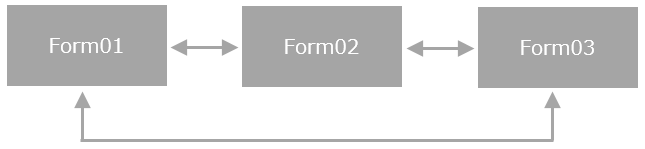
*Screen display switching is done on a form-by-form basis.
■ Display as a dialog
You can display the created form as a dialog. When displaying a dialog, you can make it pop up as a child screen on top of the form. You can also display multiple child screens at the same time. To display a dialog, use the common method "OpenDialog". For details on this method, see "User Dialog".
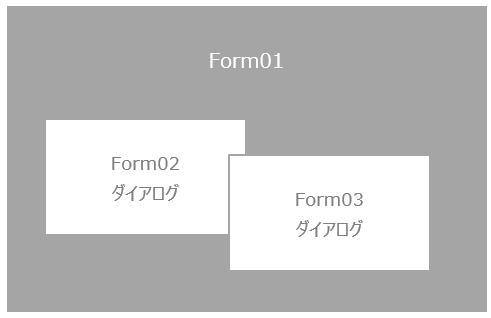
*The form can be displayed as a child screen (dialog).
In addition, FA-Panel has several dialogs (common dialogs) provided as standard by the package. You can use dialogs to display simple messages, or dialogs that ask for Yes/No confirmation before performing operations. For details, see "Common Dialogs".
You can also call up some dialogs (such as file selection dialogs) that are provided as standard by the OS (Windows). For details, see "Windows Dialogs".
■ Embed and display in a form (View control)
You can embed and display another form inside a form. To embed a form, use the "View control" control. By using View control, you can embed multiple forms on one form and freely switch between embedded forms during runtime.
Using this control, you can create a separate form for any part you want to have common across all screens, such as the screen title, and then embed it in a View control placed on each form to display it in common. Alternatively, using the opposite idea, you can create one main form that contains common displays such as menus, place a View control in the part of this form where you want to display a graphic screen, and then use the screen switching button on the main form to switch between the forms of the graphic screen embedded in the view each time.
For details on this method, please refer to "View control(Embedding a form)".
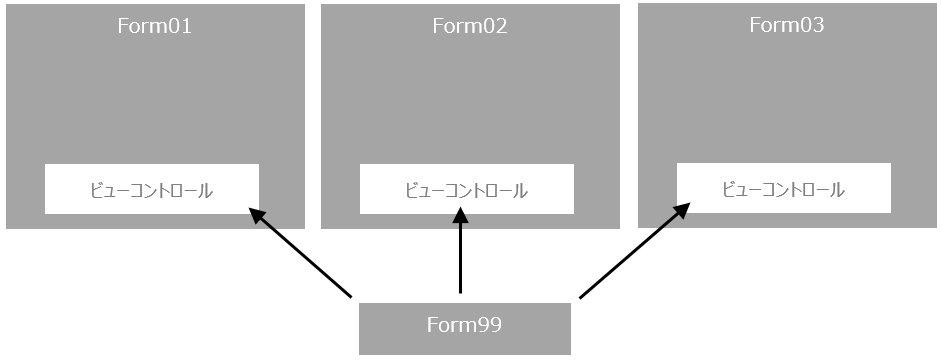
*It is possible to embed and display another form in a form (for shared display purposes).
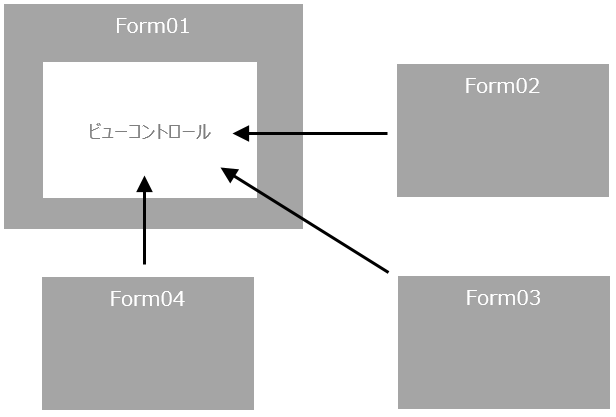
*The embedded and displayed form can also be switched dynamically (used as a main screen).
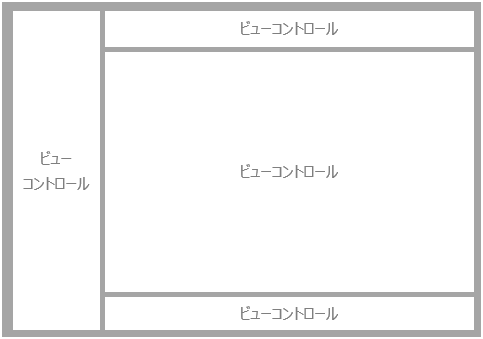
*Multiple View control can be placed to display them like a frame.
|
There are two ways to split the display area of the screen: using View control and using the frames below.We recommend using View controlThe reason for this is that when using frames, the frame layout cannot be changed dynamically using scripts. The standard frame library "Standard Framework" is built to display forms by embedding them in a form. |

■ Display by dividing the frames
You can split the main screen into frames and combine multiple forms you have created to display them as a single screen. To split the screen into frames, define the frame in the root property DefaultFrame. The form displayed in each frame can also be switched during runtime. For more information on this method, see the "Frames" chapter.