Connection settings with Panel Server in the standard project (login-related route properties)
This section explains how to set the route properties related to login when executing a standard project in file distribution format.
The following are route properties related to server connection settings. Please set them appropriately according to your operating environment.
Property Name |
Setting contents |
explanation |
How to connect
|
NONE |
This sets the login behavior when Panel Browser starts up.In the standard project, logic for logging in and out of the system is already built in, so there is no need to change this property. |
Do not start the system until you have logged in (PSLoginMust)
|
False |
This setting determines whether or not login is required when starting Panel Browser.In the standard project, logic for logging in and out of the system is already built in, so there is no need to change this property. |
Server duplication settings (PSNodeRedundancy) |
Set True only for duplication |
If you want to operate the server in a duplicated configuration, set this to True. For details about server duplication, see "Operation with server duplication" in System Configuration and Operation (Runtime Execution). |
Connect to (PSNode) |
Server IP address |
Specify the IP address of the destination server. If you run Panel Server and Panel Browser on different PCs, you must specify the IP address or node name of the server. If you run them on the same PC, you can leave this blank.
Please note that there are some points to keep in mind when setting multiple IP addresses on one PC, such as when using multiple network cards. For details, please refer to "Points to note when running Panel Server and Panel Browser on one PC" in the Panel-Interface settings.
|
Connection 2 (PSNode2) |
Server IP address (redundant sub-side) |
Specify the IP address of the secondary server of the duplication. Specify this only when the server is in a duplication configuration.
|
port (PSPort) |
Destination server port number |
Specify the port number of the destination server. The default port number is 6001. This must match the port number set in the basic settings of Panel-Interface. |
Port 2 (PSPort2) |
Port number of the destination server (redundant sub-side) |
Specify the port number of the secondary server in the duplication. Specify this only if the server is in a duplication configuration. |
User (PSLoginUser) |
Logged-in user |
Specifies the user name used to log in at startup. Specify the user name registered in user management. In standard projects, "admin" is set by default. If this property is left blank, the login screen will be displayed every time the program is started. For details, see "Example of property settings when running a standard project in file distribution format" below. |
password (PSLoginPwd) |
Login Password |
You can specify the password to be used when logging in as above. In a standard project, it is blank by default. If you set this password along with the login user, the user will be automatically logged in at startup. For details, see "Example of property settings when running a standard project in file distribution format" below. |
Example of property settings when executing a standard project in file distribution format
When a standard project is executed in file distribution format, login is performed based on the settings of the "PSLoginUser" and "PSLoginPwd" root properties. Set the appropriate settings according to the needs of the system to be implemented, such as if you want to automatically log in without having to be aware of logging in at startup, or if you want to require password input every time the program is started.
Below are examples of expected operation methods and property settings.
How it works |
Summary of execution method and settings |
supplement |
||
Operation with automatic login
Security strength: Low
overview: If you open the configuration file in Panel Browser and run it with both PSLoginUser and PSLoginPwd set, the login screen will not be displayed and you will be logged in automatically.
|
•From Panel Editor, set the following route properties.
PSLoginUser: Automatic login user name PSLoginPwd: Automatic login password
•Use the setup function of Panel Editor to perform the setup process for the file distribution format and place it on each client. •Open and run the client configuration file from Panel Browser.
|
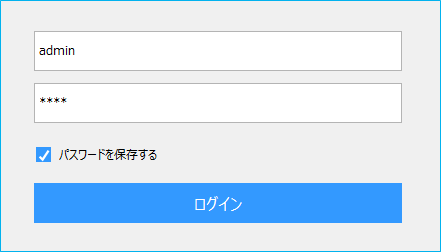
•If user information is changed after operation has started, the next automatic login will fail and the following login screen will be displayed. If you enter the correct user information here, you will be able to log in. Also, if you check "Save password" before logging in, automatic login will occur from the next time onwards.
|
||
Automatic login operation (password required only the first time)
Security strength: Medium
overview: If you open and run the configuration file in Panel Browser with only PSLoginUser set, the login screen will be displayed. If you check "Save password" on the login screen and log in, you will be automatically logged in from the next time onwards.
|
•From Panel Editor, set the following route properties.
PSLoginUser: Automatic login user name PSLoginPwd - Do not set (blank)
•Use the setup function of Panel Editor to perform the setup process for the file distribution format and place it on each client. •Open and run the client configuration file from Panel Browser.
|
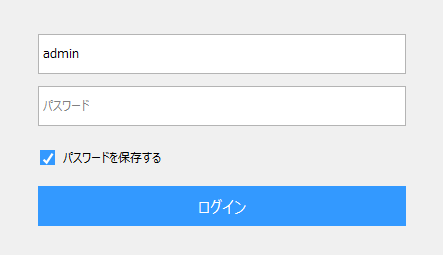
•The following login screen will be displayed when you start the app for the first time. If you check "Save password" and log in, you will be automatically logged in from the next time onwards.
•If the user information is changed after automatic login, the next automatic login will fail and the login screen above will be displayed. If the user logs in with the correct user information, the automatic login will work again from the next time onwards.
|
||
Require a password every time you start the program
Security strength: High
overview: If neither PSLoginUser nor PSLoginPwd is set and you open and run the configuration file in Panel Browser, the login screen will be displayed every time Panel Browser is started. Users log in by entering their login user name and password on the login screen each time.
|
•From Panel Editor, set the following route properties.
PSLoginUser - Do not set (blank) PSLoginPwd - Do not set (blank)
•The setup function of Panel Editor performs the setup process for the file distribution format and places a set of folders on each client. •Open and run the client configuration file from Panel Browser.
|
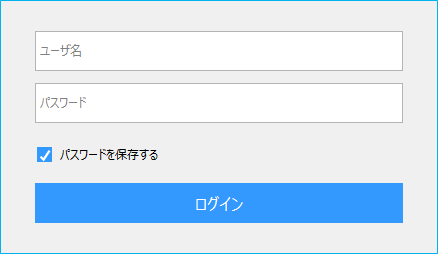
•When you start the program, the following login screen will be displayed every time. Enter your username and password to log in.
|