Operation monitoring settings screen
|
There are multiple setting screens for operation monitoring. For more specific information on how to set up operation monitoring, see "Operation monitoring setting registration" in the Monitoring System Construction Guide. |

Common specifications for the settings screen
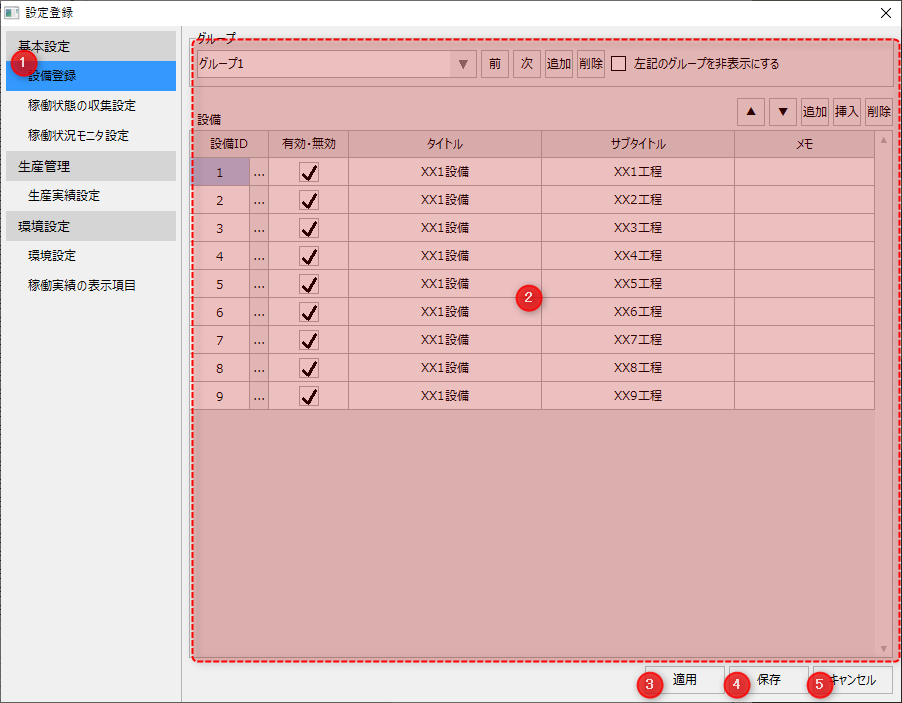
On the settings screen, the settings selected from the menu on the left side of the screen are displayed in common in the center of the screen.
# |
name |
explanation |
|---|---|---|
1 |
menu
|
Select the setting item you want to configure from the menu.
|
2 |
Various settings display area
|
The setting screen is displayed in common depending on the menu selection.
|
3 |
Apply button
|
Saves the current edits and applies them to the system, while keeping the configuration screen visible. |
4 |
Save button
|
Saves the current edits, applies them to the system, and closes the configuration screen.
|
5 |
Cancel button
|
Closes the current edited content without saving it. Note that you cannot cancel the changes by going back to the settings before clicking the Apply button.
|
(Facility registration)
# |
name |
explanation |
||||||||||
|---|---|---|---|---|---|---|---|---|---|---|---|---|
1 |
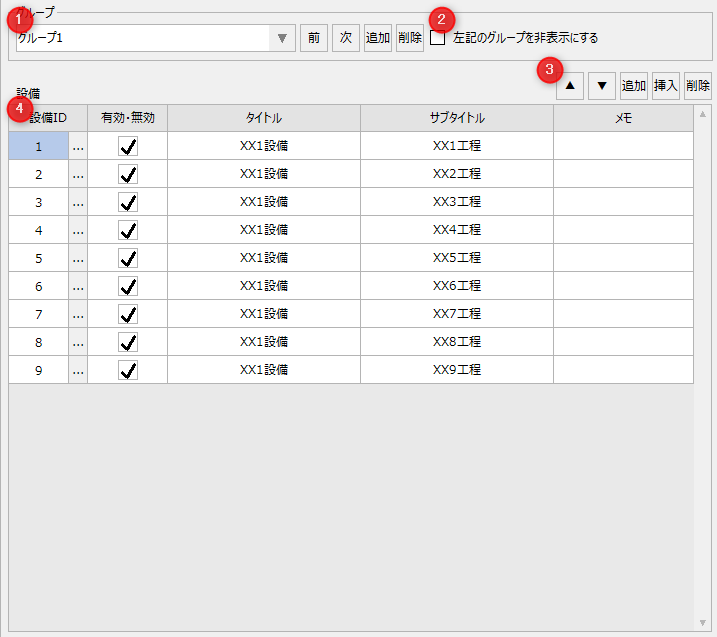
Group Operations
|
Add, edit, and delete group names.
|
||||||||||
2 |
Hide the group on the left |
If you enable this check box, the group will not be displayed in the group name selection combo box on each operation monitoring screen. Use this option when you want to temporarily hide a group.
|
||||||||||
3 |
Facility list operation buttons |
You can perform the following operations:
|
||||||||||
4 |
Equipment List
|
The facilities registered in the group are displayed in a grid. You can edit the facilities directly from the grid.
|
(Equipment registration/Equipment ID selection)
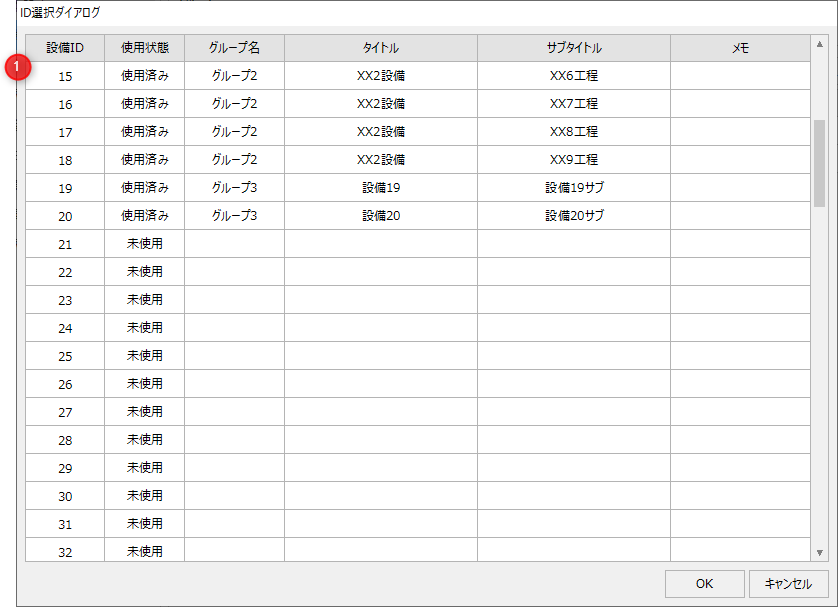
This is the dialog that appears when you click the selection button in the facility list above.
|
You can select a facility ID by selecting the row of the ID you want to assign to the facility from among the unused facility IDs and clicking the OK button.
Please note that the same facility ID cannot be assigned to multiple facilities. Information about the registered facility will be displayed in the row of the facility ID that has already been used.
|
(Operation status collection settings)
# |
name |
explanation |
||||||||||||||
|---|---|---|---|---|---|---|---|---|---|---|---|---|---|---|---|---|
1 |
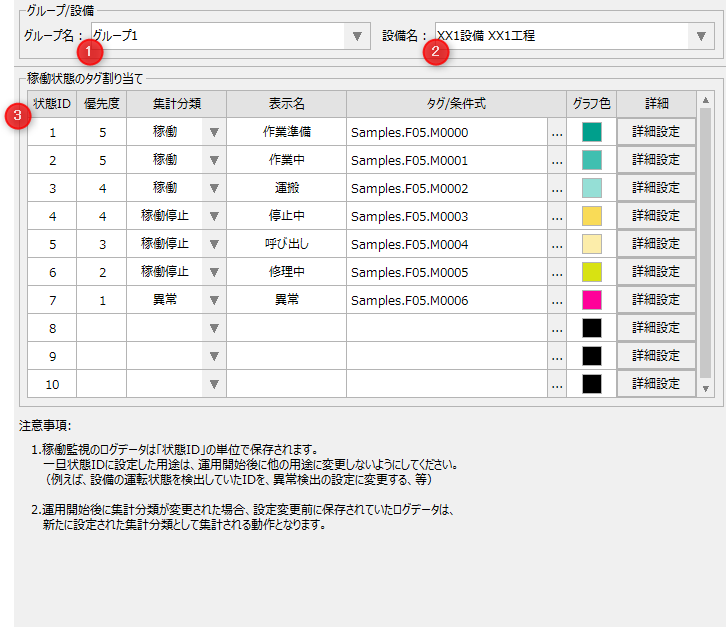
Group Name
|
Select the target group.
|
||||||||||||||
2 |
Facility Name
|
Select the facility you want to manage. |
||||||||||||||
3 |
Health tag assignment |
Assign an operating status to the equipment. An operating status is the state of the equipment, such as "operating," "stopped," or "out of order." Each piece of equipment is provided with 10 fixed operating status areas.
|
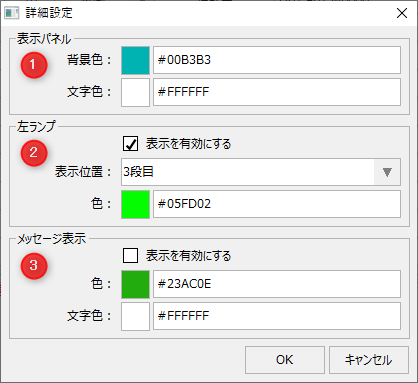
(Operation status collection settings/Advanced settings)
# |
name |
explanation |
||||||
|---|---|---|---|---|---|---|---|---|
1 |
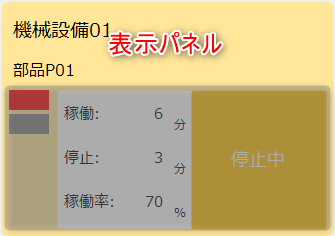
Display Panel
|
Set the background color and text color of the display panel (display frame) displayed on the operation status monitor screen.
|
||||||
2 |
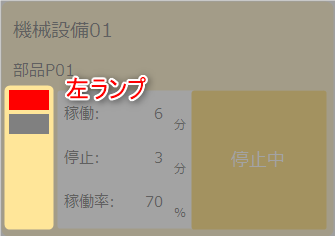
Left lamp
|
This is the display setting for the left lamp on the display panel displayed on the operation status monitor screen.
|
||||||
3 |
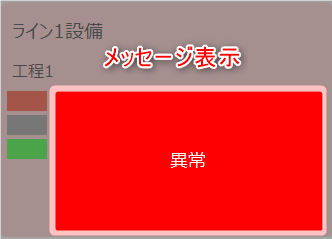
Message display
|
This is the display setting for messages on the display panel displayed on the operation status monitor screen.
|
Operation status monitor settings (layout)
(Operation status monitor settings/layout)
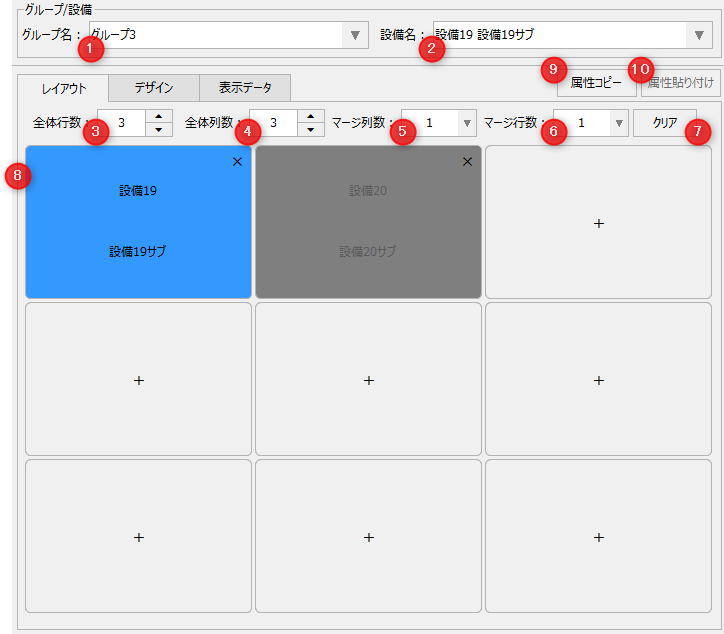
# |
name |
explanation |
|---|---|---|
1 |
Group Name
|
Select the target group.
|
2 |
Facility Name
|
Select the facility you want to manage.
|
3 |
Total number of lines
|
Specify the total number of lines to be displayed on the operation status monitor screen. The default setting allows you to specify a maximum of 10 lines.
|
4 |
Total number of columns
|
Specify the total number of display rows on the operation status monitor screen. The default setting allows you to specify up to 10 columns. |
5 |
Merge Column Count
|
Specifies the number of merge columns for the currently selected facility.
|
6 |
Merge Row Count
|
Specifies the number of merge rows for the currently selected facility.
|
7 |
Clear button
|
Initializes the layout alignment. |
8 |
Monitor Position
|
Set the screen layout for the operation status monitor. When you click a display frame that does not have equipment assigned, the equipment list dialog box appears, and you can select equipment from the list. You can also specify the display position of the equipment by dragging and dropping. If you drop it on a location where equipment is already set, the display position will be swapped with the original selection only if the display frames are the same size. Clicking the "X" in a display frame will remove the equipment assigned to that frame. |
9 |
Copy Attributes
|
Copies the display attributes of the currently selected display frame. The settings set on the Design tab and Display Data tab are copied. |
10 |
Attribute Paste
|
You can paste the copied attributes to the currently selected display frame. |
(Operation status monitor settings/Layout/Equipment list)
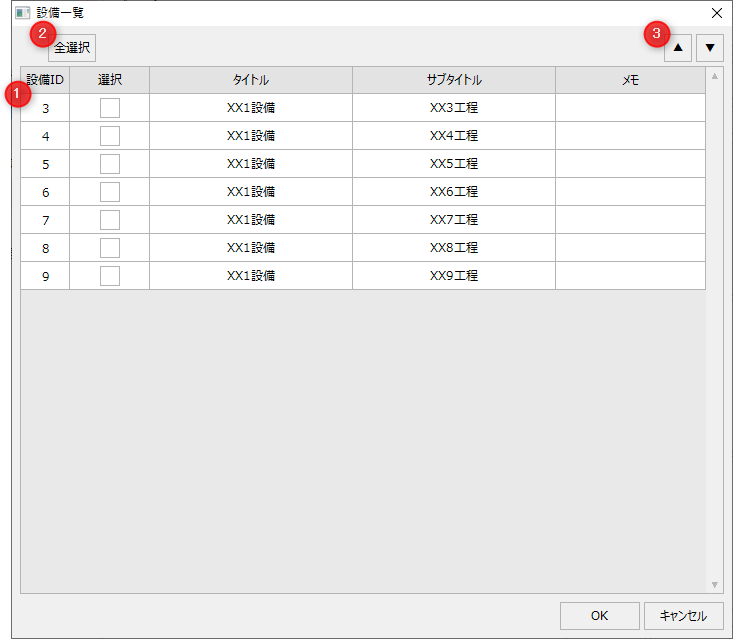
# |
name |
explanation |
|---|---|---|
1 |
Equipment List
|
A list of selectable facilities will be displayed. Check the "Select" box for the facility you want to assign to the display frame and click the OK button to assign the selected facility to the display frame. When multiple facilities are selected at the same time, they are automatically allocated to unused display slots in the order of the facilities displayed in the list, starting from the currently selected display slot. |
2 |
Select All button
|
Select all the rows at once. |
3 |
Up and down buttons
|
Moves the position of the equipment in the selected row up or down in the equipment list. By editing the display order of the list, you can change the display order of the layout when allocating multiple equipment at once. |
|
For details on how to set up the layout, see "Layout Setting" in the Surveillance System Construction Guide. |
Operation status monitor settings (design)
(Operation status monitor settings/design)
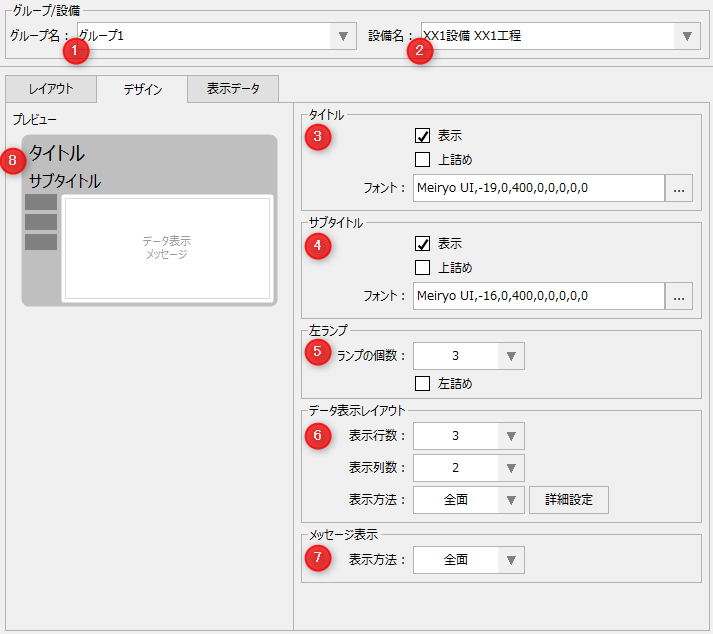
# |
name |
explanation |
||||||||||||||
|---|---|---|---|---|---|---|---|---|---|---|---|---|---|---|---|---|
1 |
Group Name
|
Select the target group.
|
||||||||||||||
2 |
Facility Name
|
Select the facility you want to manage.
|
||||||||||||||
3 |
title
|
Set the title display settings.
|
||||||||||||||
4 |
subtitle
|
Set the subtitle display settings.
|
||||||||||||||
5 |
Left lamp
|
Sets the display settings for the left lamp.
|
||||||||||||||
6 |
Data Display Layout
|
Set the layout of the data displayed within the display frame.
|
||||||||||||||
7 |
Message display
|
Choose how you want to display your messages:
|
||||||||||||||
8 |
Preview
|
Displays a preview of the current settings.
|
(Operation status monitor settings / Design / Advanced settings)
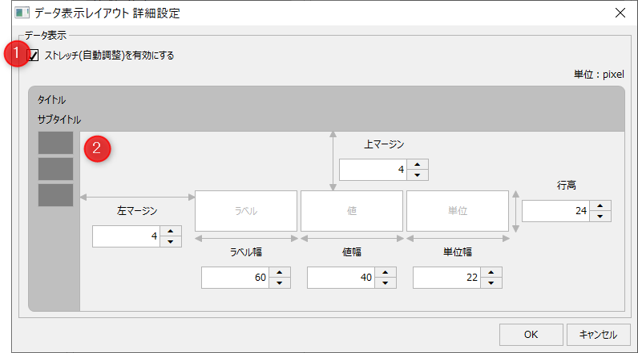
# |
name |
explanation |
||||||||||||
|---|---|---|---|---|---|---|---|---|---|---|---|---|---|---|
1 |
Enable Stretch (Auto Fit)
|
Specify whether to automatically adjust the size. Checking this box will automatically adjust the size so that it fits within the data display area.
|
||||||||||||
2 |
Layout Settings
|
Set the details of the data display layout.
|
|
For details on how to configure the design, see "Design Configuration" in the Surveillance System Building Guide. |
Operation status monitor settings (display data)
Set the display items, labels, etc. of the data to be displayed for each display frame with the number of rows and columns defined in the Number of Rows and Number of Columns settings in the Data Display Layout on the Design tab.
(Operation status monitor settings/display data)
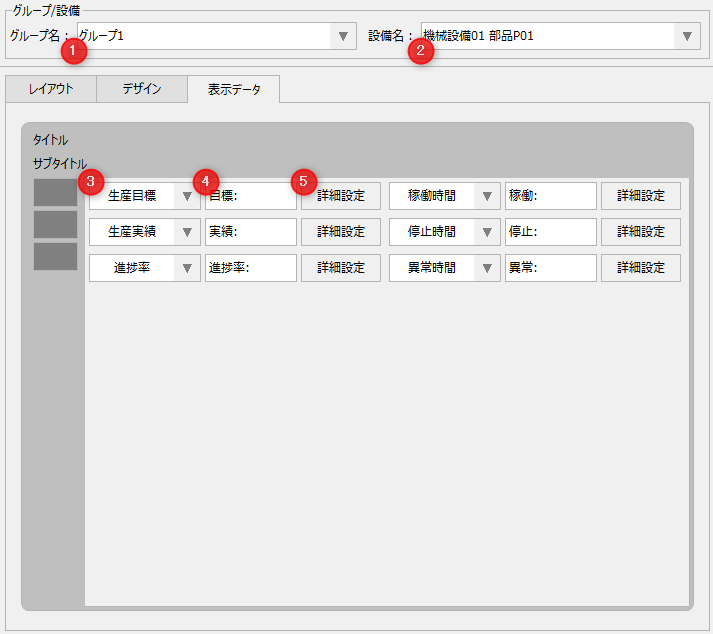
# |
name |
explanation |
|---|---|---|
1 |
Group Name
|
Select the target group.
|
2 |
Facility Name
|
Select the facility you want to manage.
|
3 |
Display items
|
Select the data items you want to display.
|
4 |
label
|
Specify the label string to be displayed on the operation status monitor screen.
|
5 |
Advanced Settings Button
|
Displays the detailed setting screen for the display data.
|
(Operation status monitor settings / Display data / Detailed settings)
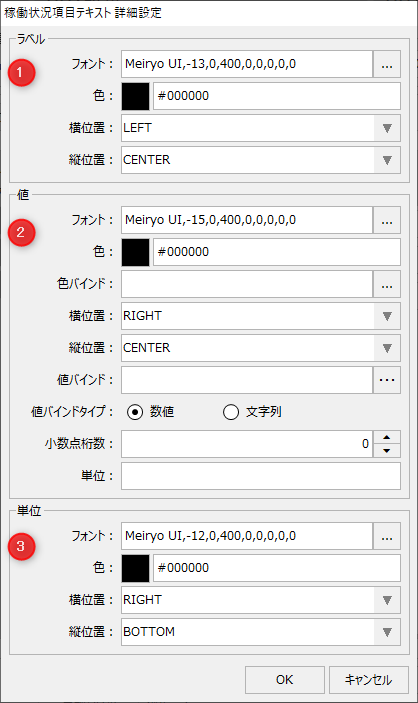
# |
name |
explanation |
||||||||||||||||||||||||||||||||||||||
|---|---|---|---|---|---|---|---|---|---|---|---|---|---|---|---|---|---|---|---|---|---|---|---|---|---|---|---|---|---|---|---|---|---|---|---|---|---|---|---|---|
1 |
label
|
This sets the label display settings for the data display in the display panel (display frame) of the operation status monitor screen.
|
||||||||||||||||||||||||||||||||||||||
2 |
value
|
This sets the display settings for values displayed in the data display panel (display frame) of the operation status monitor screen.
|
||||||||||||||||||||||||||||||||||||||
3 |
unit
|
Set the units of measurement for the data displayed in the display panel (display frame) of the operation status monitor screen.
|
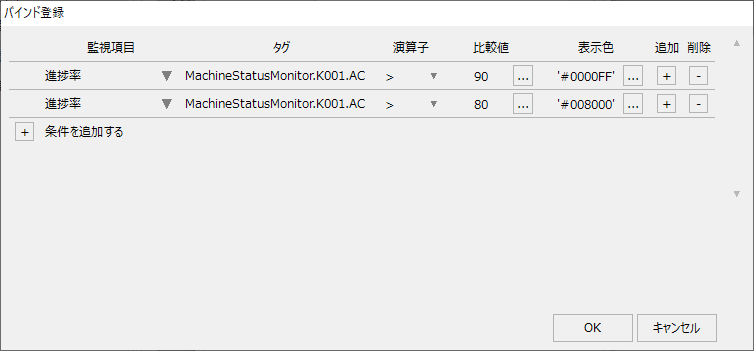
|
For details on how to set the display data, see "Display Data Settings" in the Surveillance System Construction Guide. |
Production performance settings
(Production performance setting)
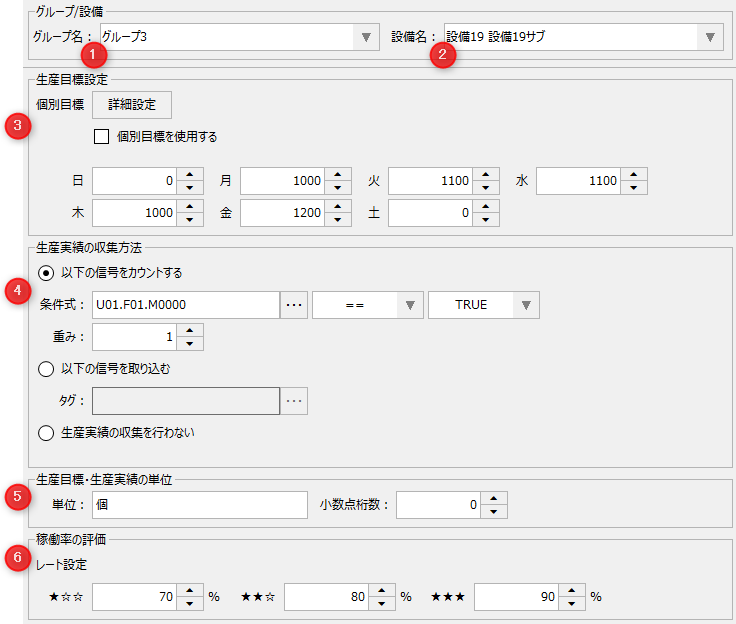
# |
name |
explanation |
||||||||
|---|---|---|---|---|---|---|---|---|---|---|
1 |
Group Name
|
Select the target group.
|
||||||||
2 |
Facility Name
|
Select the facility you want to manage.
|
||||||||
3 |
Production target setting
|
Set production targets.
|
||||||||
4 |
How to collect production results
|
Set the method for collecting production results.
|
||||||||
5 |
Unit of production target and actual production |
Specify the units to be used to display production targets and results.
|
||||||||
6 |
Availability rating
|
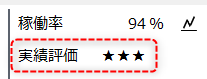
Set the threshold value for the performance evaluation of the operation rate displayed on the operation analysis screen. Set it so that one star (★) is a low evaluation and three stars is a high evaluation.
(Operation rate performance evaluation on the operation analysis screen)
|
(Production performance settings/Detailed settings)
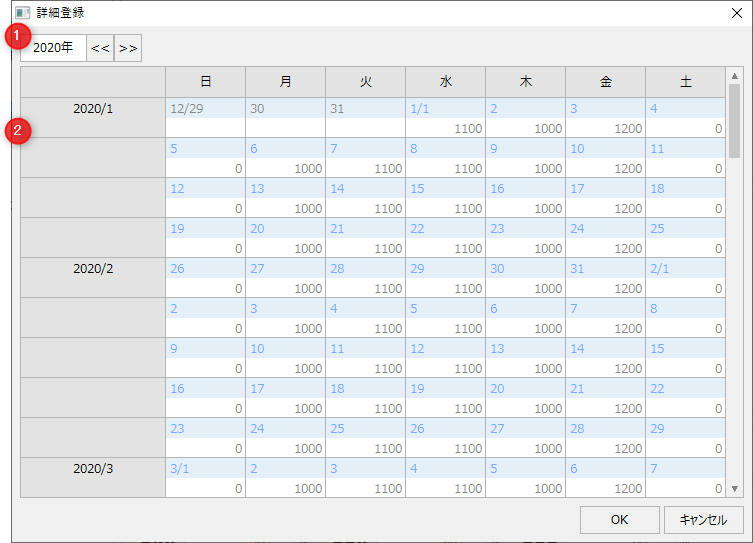
# |
name |
explanation |
|---|---|---|
1 |
Year Switching
|
Use the left and right buttons to switch between the years you want to set.
|
2 |
calendar
|
You can edit your goal settings for the desired date directly from the calendar.
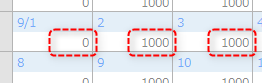
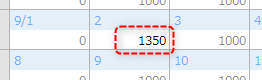
If no individual targets have been set, the targets set for each day of the week will be displayed in grey.
Once you enter your individual goal settings, the goal value will turn black.
|
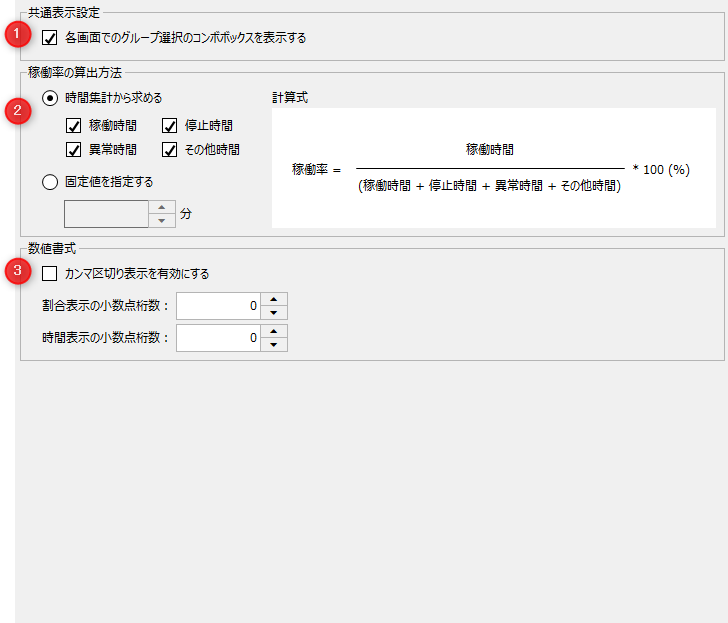
# |
name |
explanation |
||||||
|---|---|---|---|---|---|---|---|---|
1 |
Common display settings |
Configure common display settings for the entire system.
|
||||||
2 |
How to calculate occupancy rate
|
Set the calculation method for utilization rate.
|
||||||
3 |
Number Format
|
Sets the format for numeric display.
|
Operational performance display items
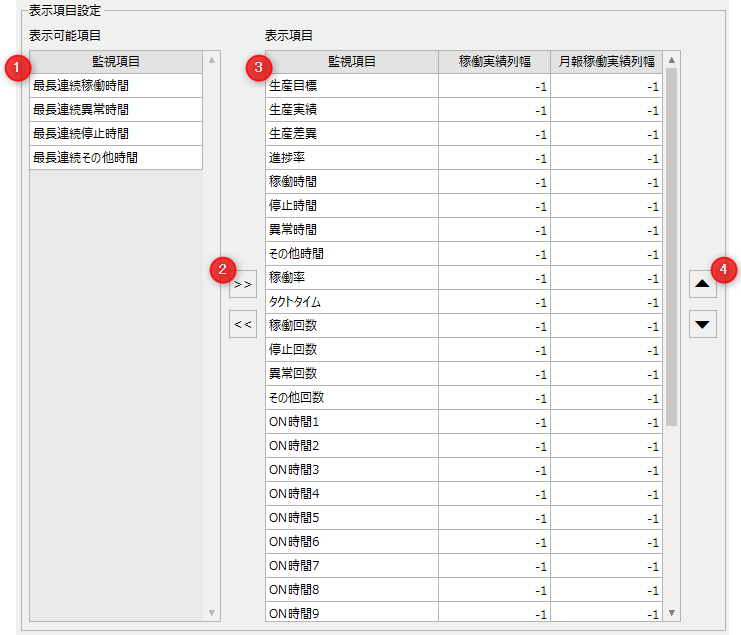
This is the setting screen for the items to be displayed on the operation results screen (operation results, monthly operation results).
# |
name |
explanation |
|---|---|---|
1 |
Displayable items
|
This is a list of items that can be displayed on the operation results screen. This list only shows items that have not yet been selected as display items.
|
2 |
Movement buttons
|
Clicking each arrow button moves the display items selected in the left and right lists (visible items and display items) to the opposite list. |
3 |
Display items
|
This is a list of display items to be displayed on the Operation Results screen. Items displayed in this list will be displayed from left to right on the Operation Results screen and Monthly Operation Results screen in the order in which they are displayed on this list. You can also specify the column width in pixels for each screen. Specifying "-1" will use the default setting. |
4 |
Up and down buttons
|
You can change the order of the displayed items by moving the currently selected display item up or down. |